Create text and HTML email designs and reuse them for engagement programs, one-to-one emails, and list emails.
 |
Watch a Video of this Article |
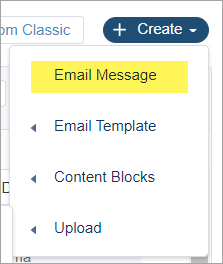
- Click Create in the top right-hand corner.

- From the dropdown menu click Email Message.
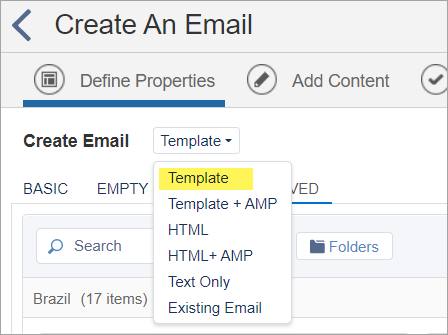
- From the Create Email dropdown, select Template.
- Click on the Saved tab > Folders > Shared
- You can now navigate the Shared Content Library to find any template you wish to use to make an email. Be sure to select an email template, not an actual email. (If you want to use an existing email, please refer to this article.)
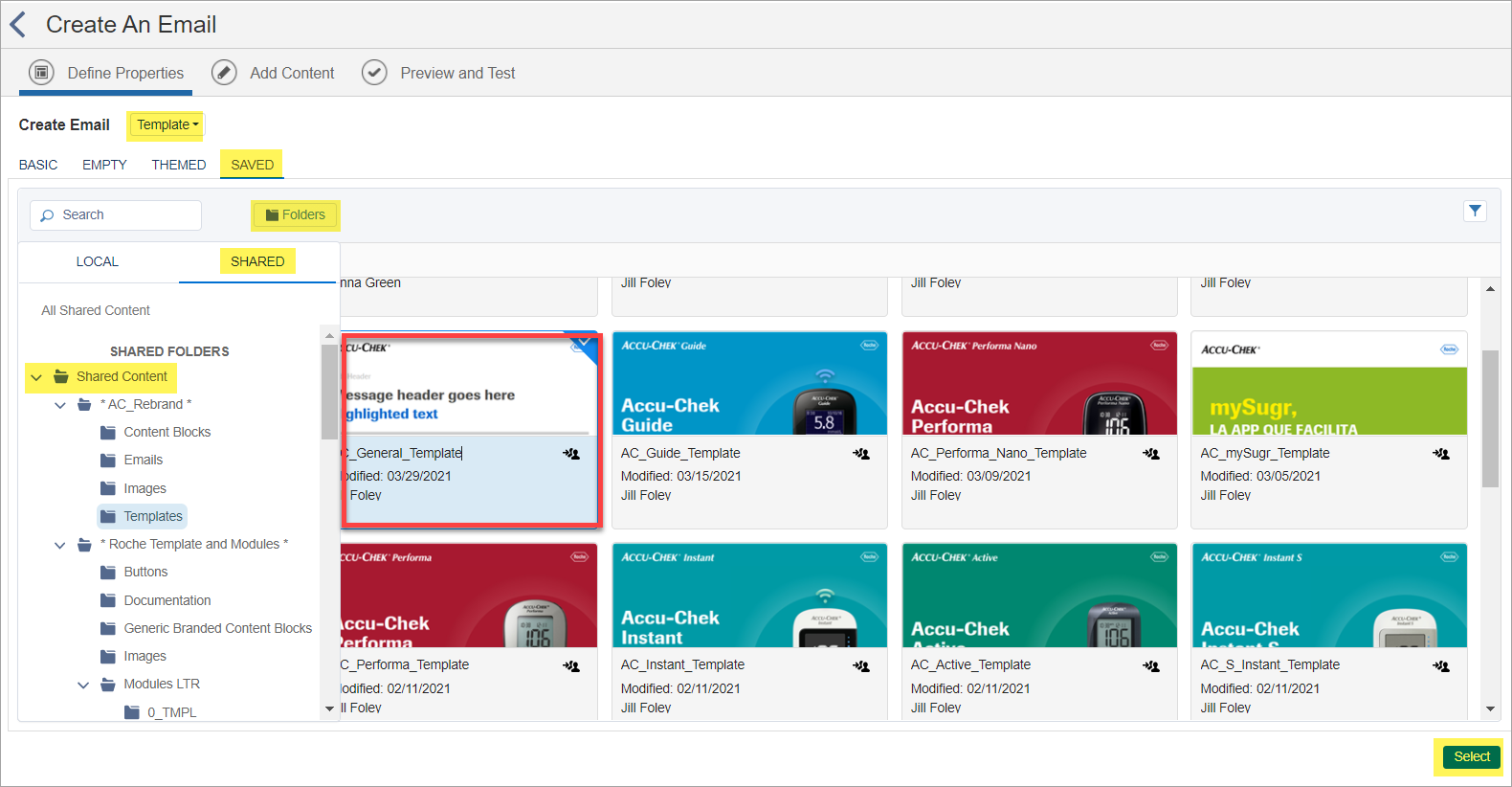
- Once you've chosen your template, click Select in the lower right corner.
Note that with this method, there is no need to copy or duplicate the template into your local account. - You have now created a template-based email.
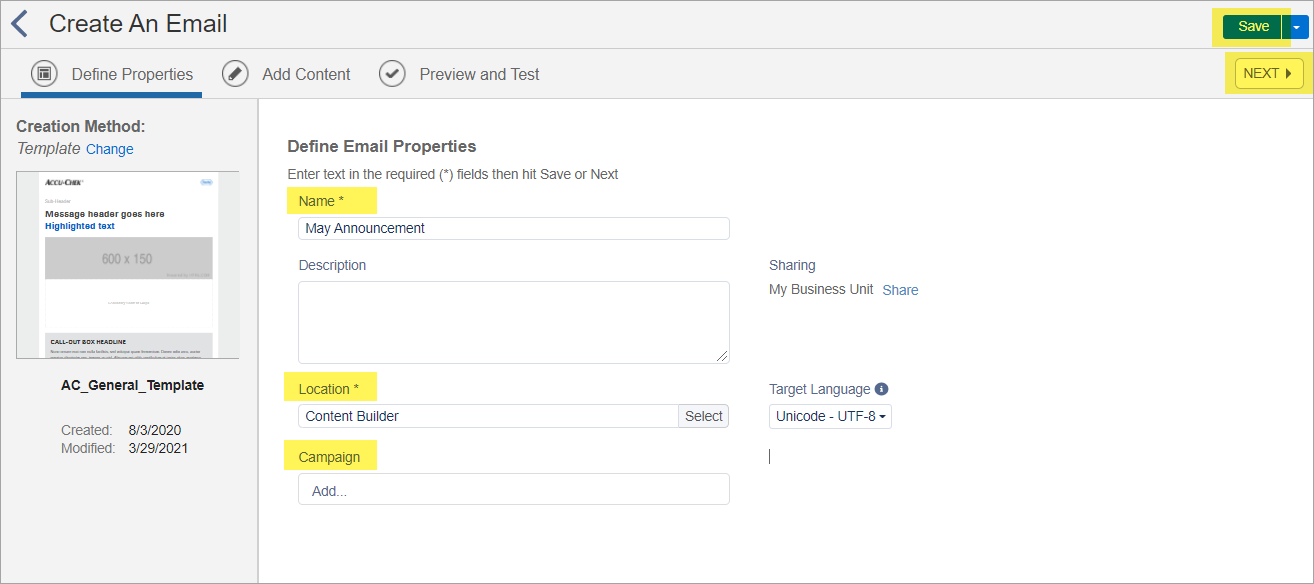
- Under Name, give your email a descriptive name
- Under Location click Select then choose the folder to save your email locally
- If applicable, associate the email with a Campaign (optional)
- Click Next in the upper right-hand corner to begin adding content
- Enter a subject line in the Subject field at top then click Save in the Subject Line field.
- Enter a preheader in the Preheader field at top then click Save in the Preheader field.
- You can now Begin Adding Content. We highly recommend you use the content blocks and layouts available in Shared Content because they are already branded, responsive, sized to match all Shared templates, and they are easy to drag and drop into the templates.
There are a number of content blocks available through out the Shared Content library including these locations:
Shared Content> * Roche Template and Modules * > Generic Branded Content Blocks
Shared Content> * Roche Template and Modules * > Modules LTR> 1_Headers
Shared Content> * Roche Template and Modules * > Modules LTR> 2_primary
Shared Content> * Roche Template and Modules * > Modules LTR> 3_Secondary
Shared Content> * Roche Template and Modules * > Modules LTR> 4_Footers
Shared Content> * Roche Template and Modules * > Buttons
Shared Content> * AC_Rebrand * > Content Blocks
Shared Content> RocheDiabetes > Content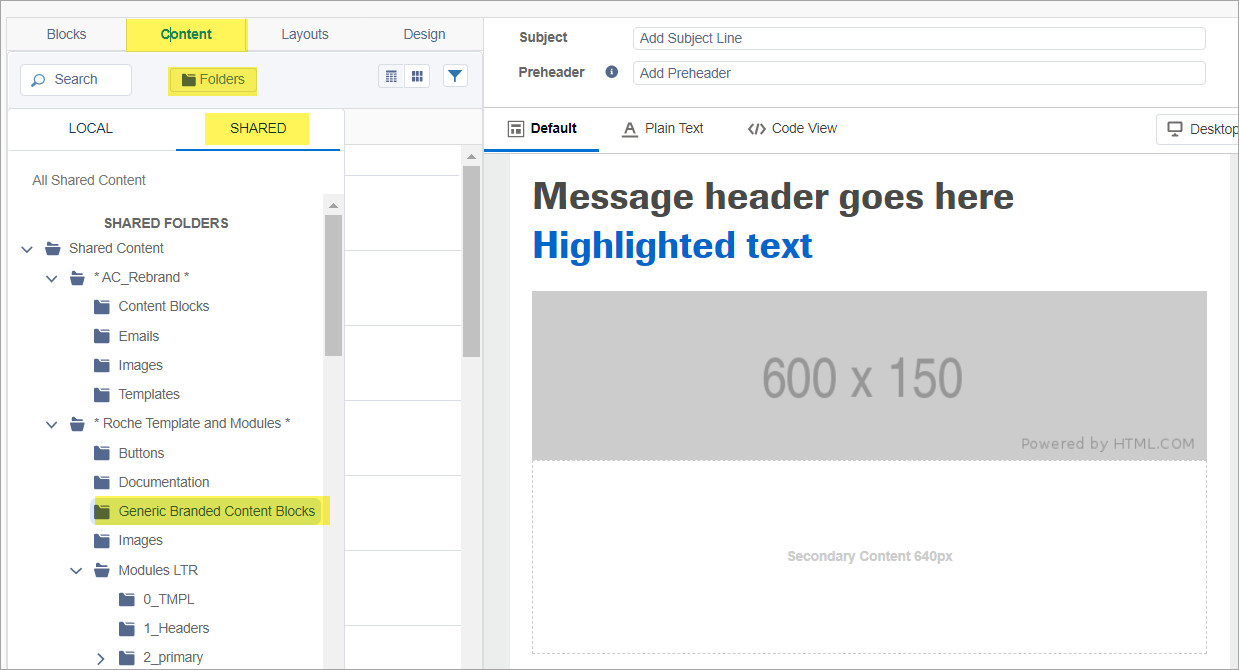
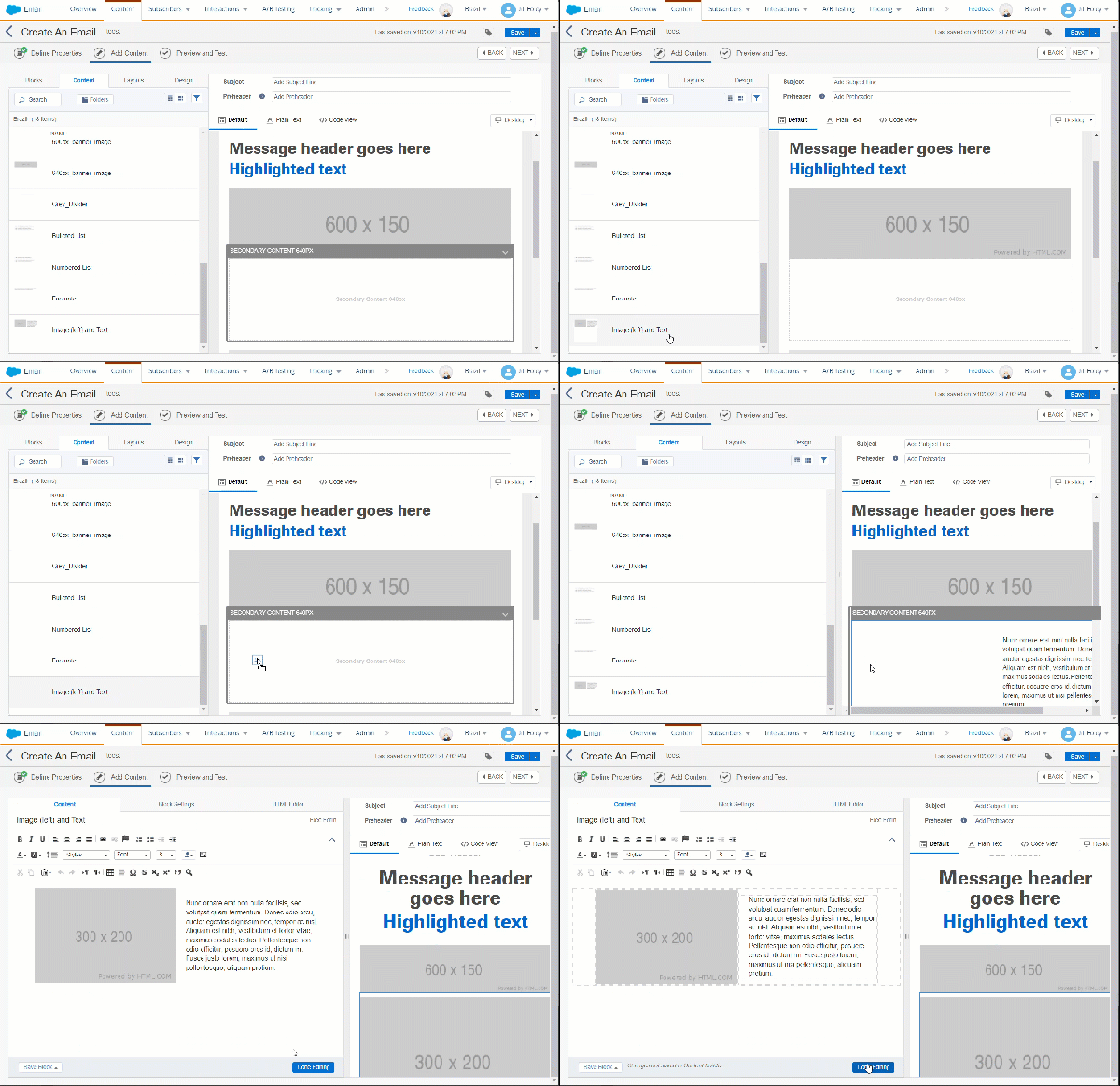
Dragging and dropping a shared content block into an empty cell: