 |
Watch a Video of this Article |
- In Content Builder, click Create in the top right hand corner.
- Scroll down to Content Block and select External Content from the drop down box.
- Copy desired URL from a website.
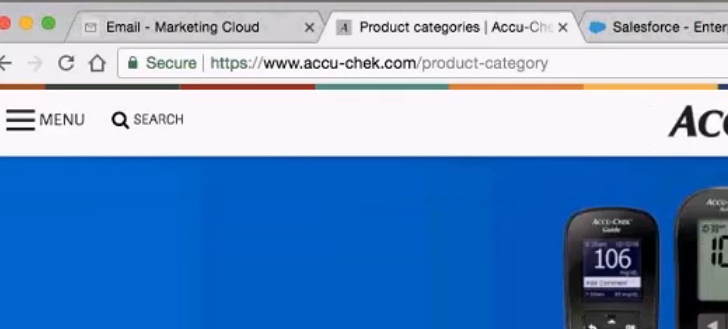
- Paste the URL into the URL box.
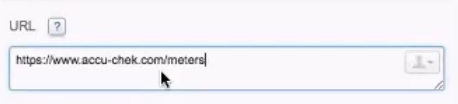
Note: There will be a green notification under the URL that says Valid URL if the URL is valid.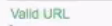
If not, red text will appear. Click the Question Mark to understand the issues if red text appears. - Choose the Retrieval Method.
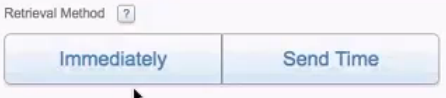
- Immediately retrieves content from the URL as it appears when you click Immediately. Use this feature to get the content as it appears at the URL right now. You cannot include personalization in the URL if you select this option. You can edit and preview the content in the Layout and Plain Text preview of an Email.
- At send time retrieves content at the time the system processes the email for sending. Use this feature to get the latest content at the URL at the time the email is sent. You can include personalization in the URL if you choose this option and select a failure protocol. When used in an Email, you cannot edit the content but you can preview the content for a test subscriber.
- Immediately retrieves content from the URL as it appears when you click Immediately. Use this feature to get the content as it appears at the URL right now. You cannot include personalization in the URL if you select this option. You can edit and preview the content in the Layout and Plain Text preview of an Email.
- Add additional content such as text or images around the block if desired.