Use Content Builder to create dynamic content to deliver a targeted message to an audience. Dynamic content allows you to define attributes to content, making the information your subscribers receive more relevant.
 |
Watch a Video of this Article |
Dynamic content is content that displays in a content area according to the rules that you define based on the subscriber's attributes or data extension column values. By using dynamic content, you can ensure that a more-tailored message is reaching your targeted audience.
You must have the content you want to use created before you can create dynamic content. Ensure that you update the dynamic content block in emails and to saved dynamic content when changes are made to content already being used in dynamic content.
- Click on the Blocks tab in the left pane.

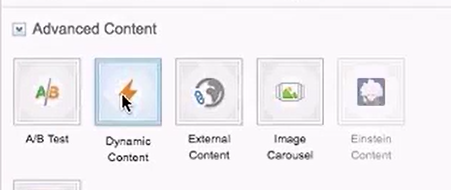
- Drag and drop the Dynamic Content block in the email.
- In the left pane, choose the Default Content (for a general audience) by clicking Browse to select a saved Content Block.
- Click Select in the lower right corner of the window.
- In the left pane, click Create Rule 1 to define the first audience segment rules.
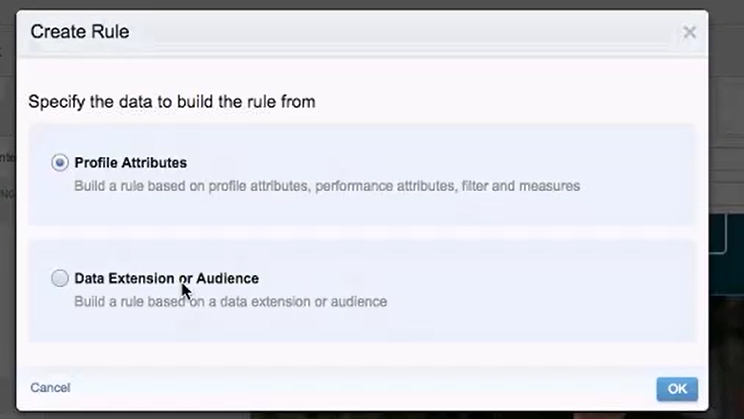
- Select Data Extension or Audience then click OK.|
- Click on the folder that stores the appropriate data for the content.
- Click on the Data Extension then click OK.
- From the left pane drag and drop the appropriate Attribute into the Create Rule
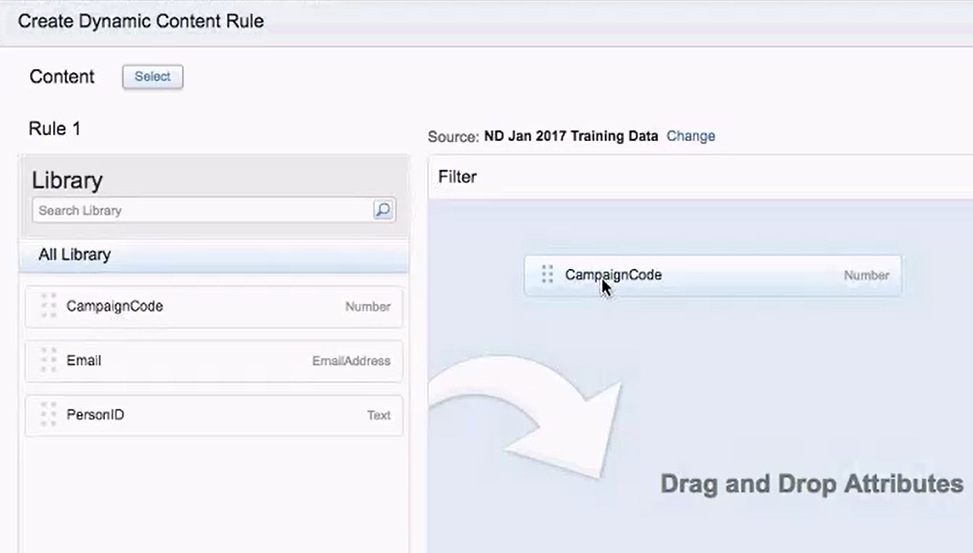
- Configure rule as needed, then click Save.
- Repeat Steps 7-11 to configure a rule and content for different audiences as needed.
- Click Done Editing then Save the changes to your email.
Dynamic Subject Line and Preheader
Use Content Builder to create a dynamic subject line and preheader. An email with a dynamic subject line or dynamic preheader has the content that a subscriber sees based on the subscriber's attributes according to the rules that you define. For example, you can define one subject line to appear for all the males in your list and another for all the females. These attributes can be taken from a subscriber list or a sendable data extension.
- Create your email or select an existing email.
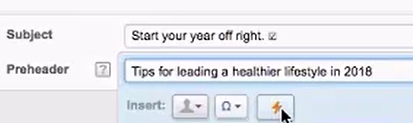
- Enter a Subject and/or Preheader. The text entered is the default content and appears if the subscriber data does not satisfy any of the dynamic content rules.
- Click the Dynamic Content Button to open the dynamic dialog box.
- Click Create Rule #.
- Select Profile Attribute or Data Extension as the source to create the dynamic content from. Select a source the first time you create a rule.
- Click Save. If you selected data extension in the previous step, select the source data extension and click Save.
Note: Dynamic subject lines and preheaders are identified by a lightening bolt at the end of the field when active.