Use Content Builder to add an image carousel block to your content.
The Image Carousel block allows you to add blocks of up to five rotating images. You can set these images to auto-rotate every six seconds. Navigation arrows allow the recipient to manually rotate through the images.
Important Note: the Image Carousel scrolling is only supported in Apple Mail clients. Everyone else will see the first image in the carousel only.
 |
Watch a Video of this Article |
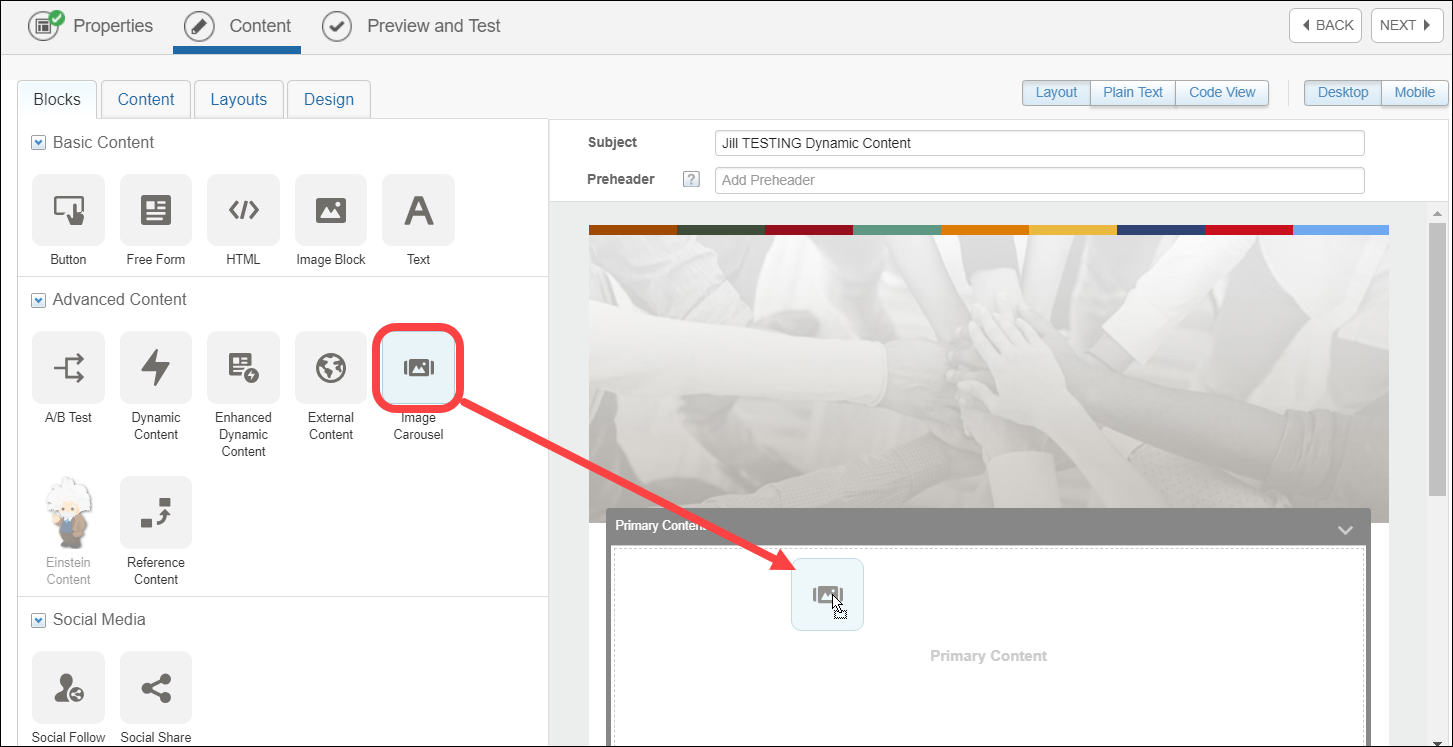
- Click on the Blocks tab then drag and drop the Image Carousel block onto the email.
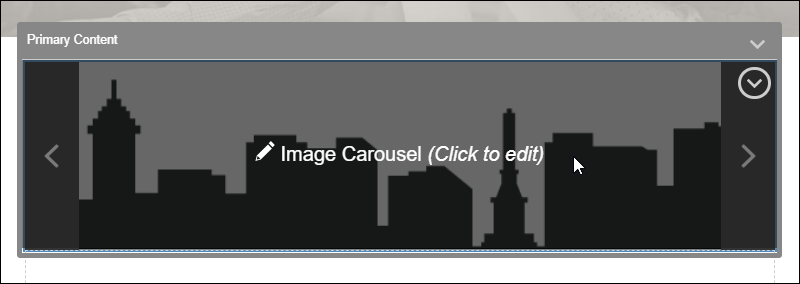
- Click on the Image Carousel block to edit.
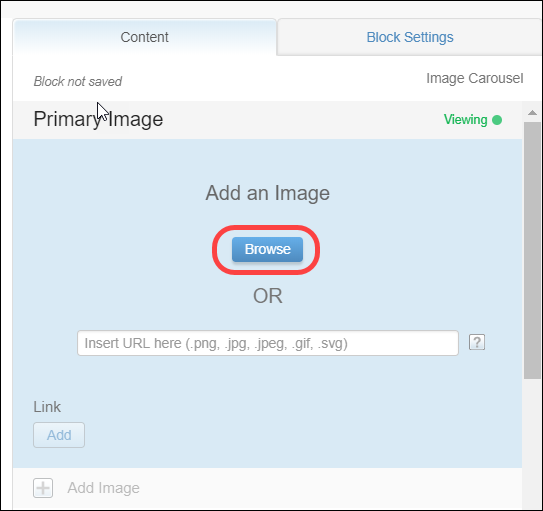
- Under the Content tab for the Primary Image section, click Browse.
- Choose an Image then click Select.
- Enter the Alt Text and Link as desired.
- Adjust Image Settings as desired.
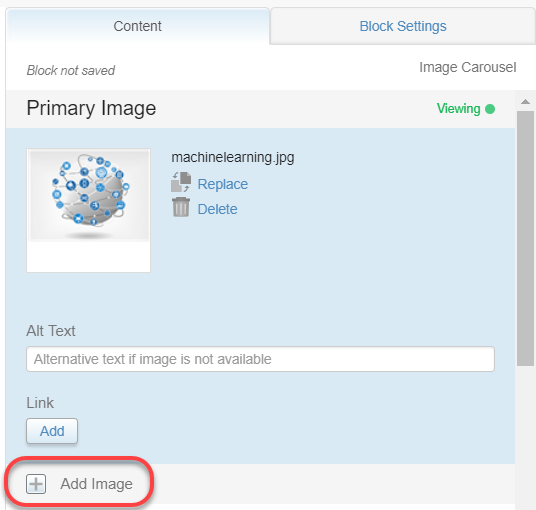
- Click the Add Image (beneath Link) to add additional images. (Repeat steps 5-7 as desired.) It is recommended to use no more than 3 images in the carousel.
- Click Done Editing.