|
Watch a Video of this Article |
Change an Image in a Freeform Content Block
- Hover on the block, then Click to Edit.
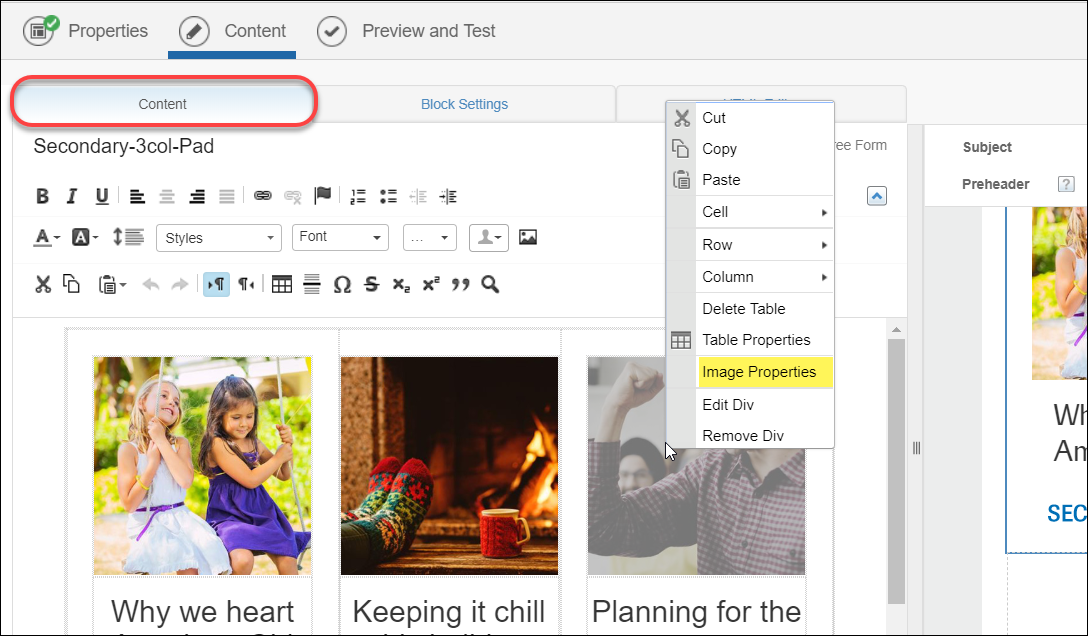
- On the left side of the screen with the Content tab selected, right click on one of the images, then choose Image Properties from the menu.
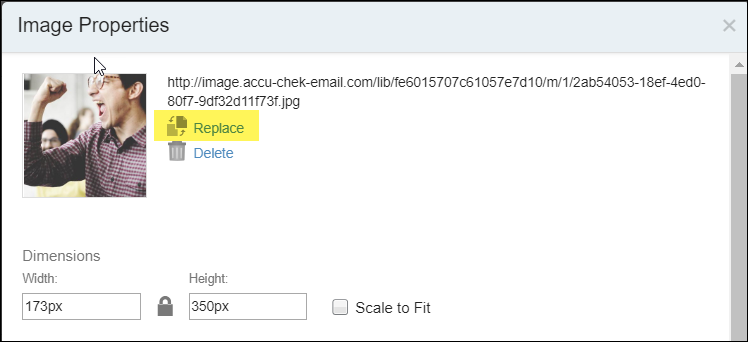
- In the Image Properties window that appears, click Replace.
- Click Browse to find the image in Content Builder or Paste the URL in the space provided.
- Adjust Image Border, Border Width, Image Padding, Image Alignment, and Link as desired.
- Click OK, then click Done Editing.
- Click Save to save the changes to your email.
Remove a Content Block
- Hover on the Content Block of interest.
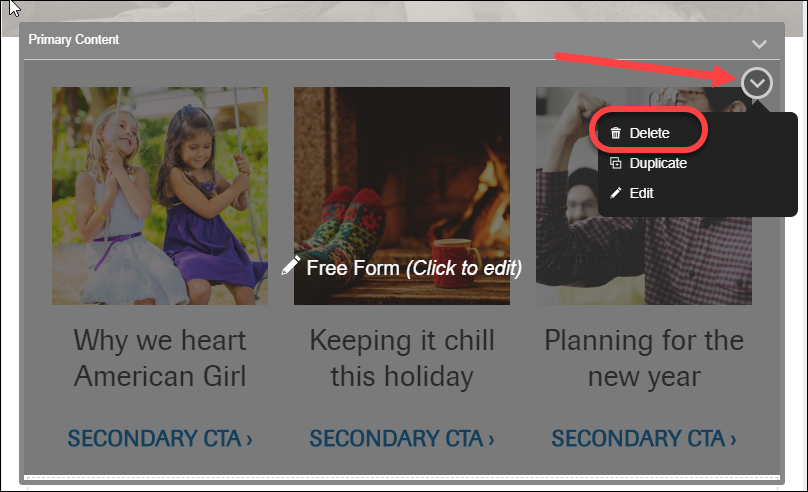
- Hover in the upper-right corner of the block and Click on the dropdown menu.
- From the dropdown, select Delete.
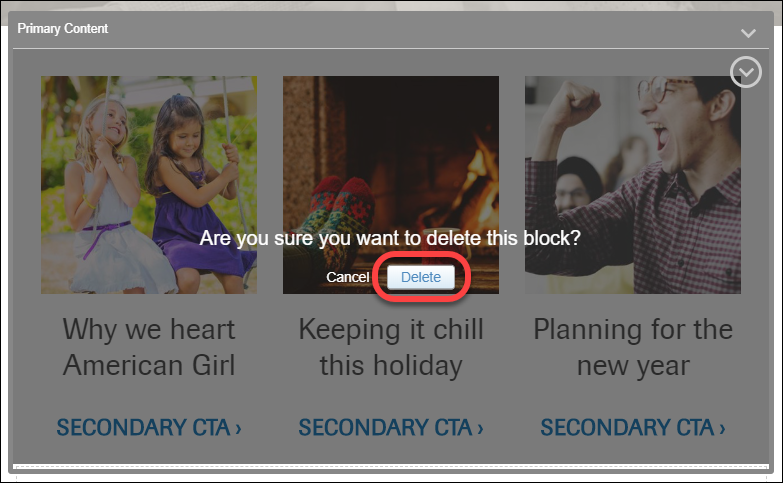
- The entire content block will turn grey, with Cancel and Delete options. Click Delete to confirm.