This article explains where to locate and how use/localize pre-created email templates that have been created by Global Marketing in your Marketing Cloud account.
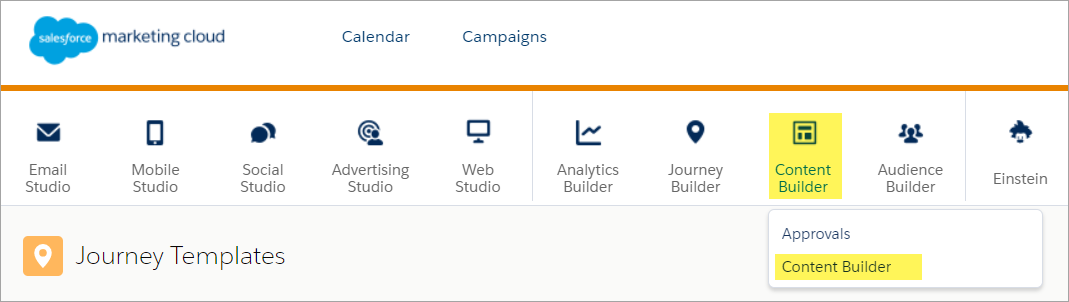
- In Marketing Cloud, navigate to Content Builder.
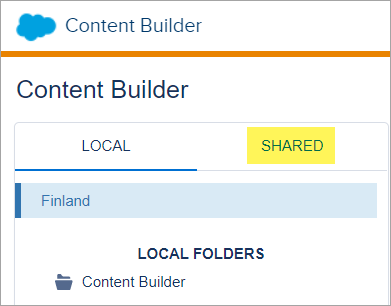
- Click on the Shared content tab.
- You will see the full library of Shared templates/content available for you to use.
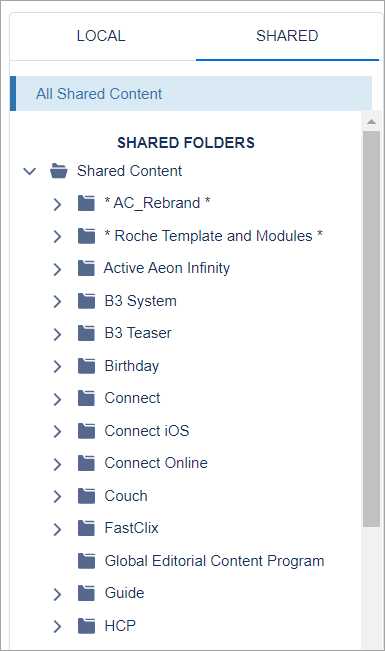
- Navigate to the folder of the content you want to use. Fully-designed, ready-to-use emails are in the Emails folder.
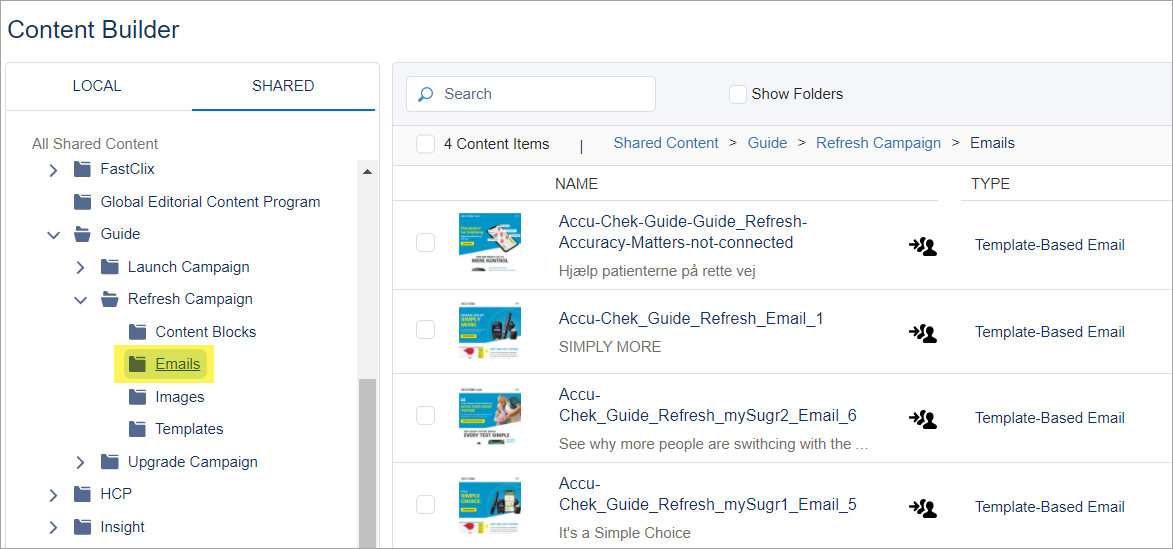
- Find the email you'd like to use and click on the small downward pointing arrow
 on the right side. Select Duplicate.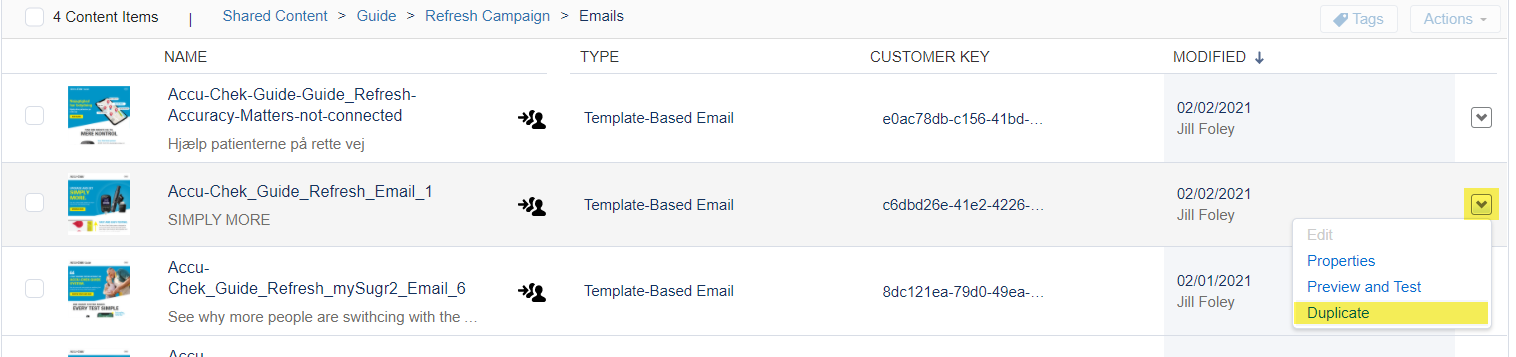
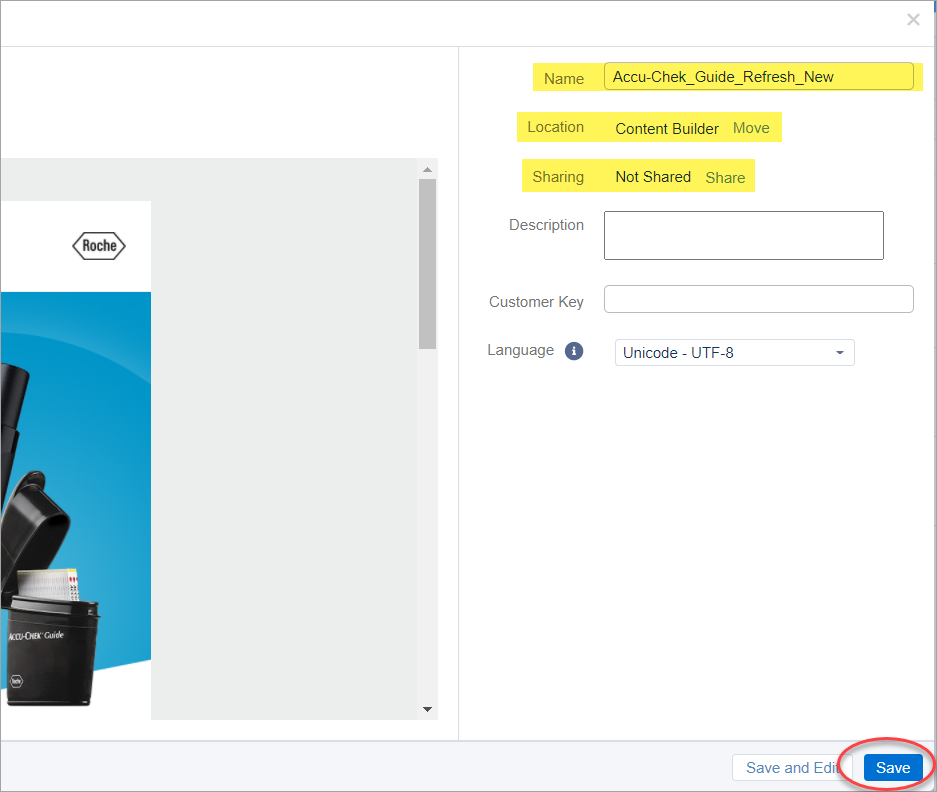
- In the Duplicate Content Screen, give your email a new Name, then click on the word Move next to Location.
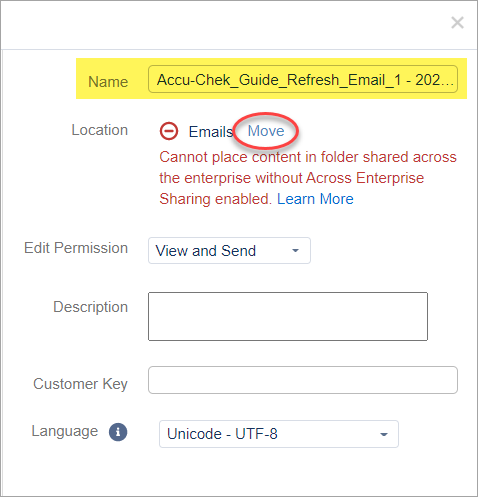
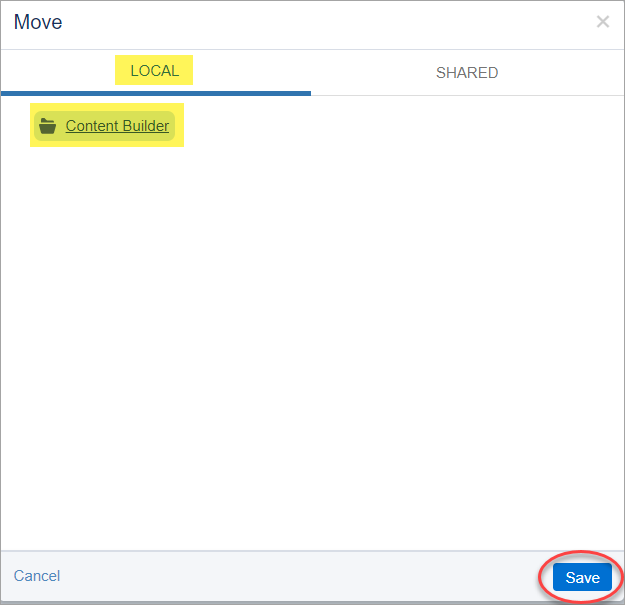
- Click on Local to save the dupicated email to a location in your local account, then in a Content Builder folder of your choice. Click Save.
- Next to Sharing, click on the word Change and select My Business Unit. Click Save.
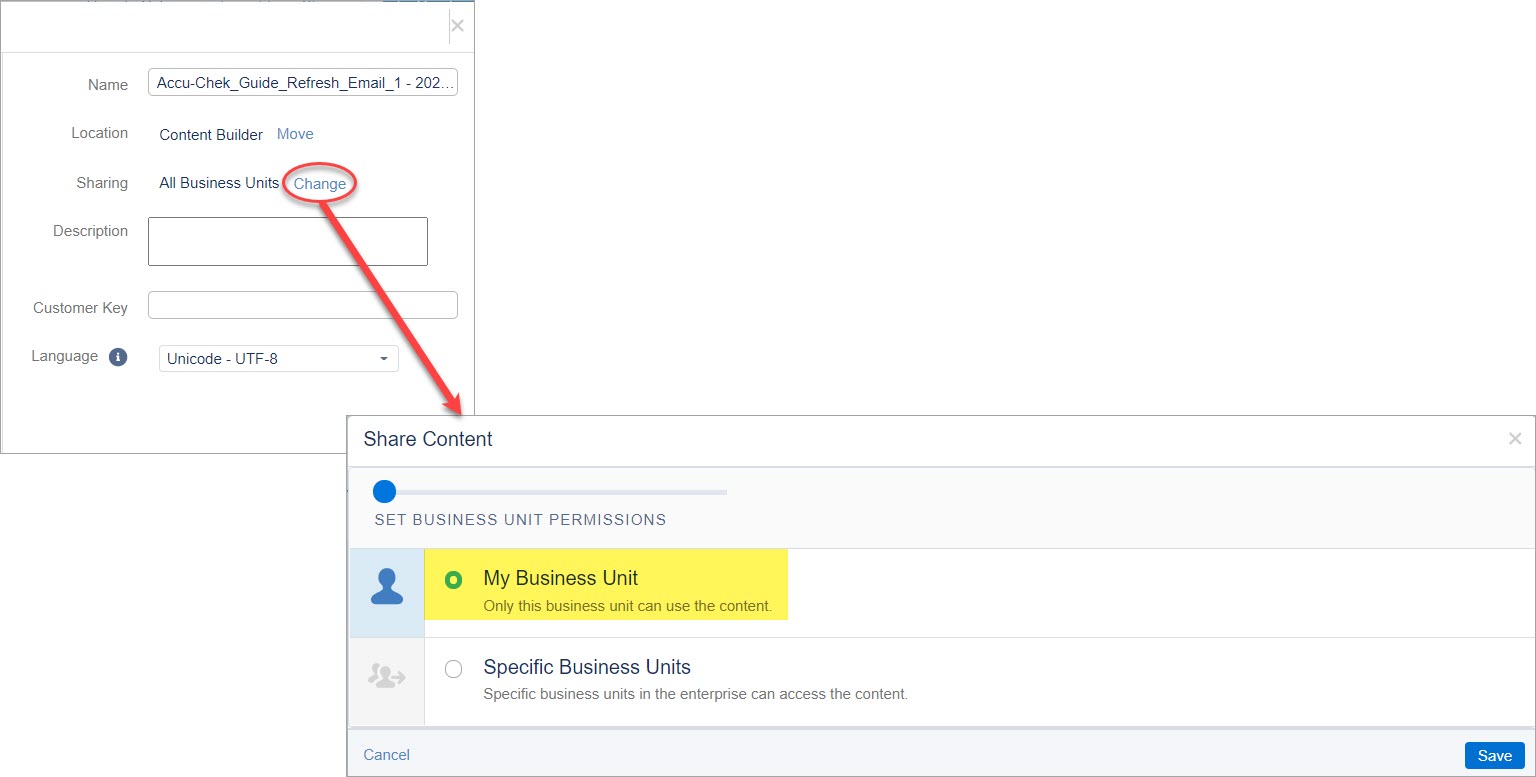
- After you've given your duplicated email a unique Name, changed the Location to your local folder and changed the Sharing to Not Shared (as shown), click Save.
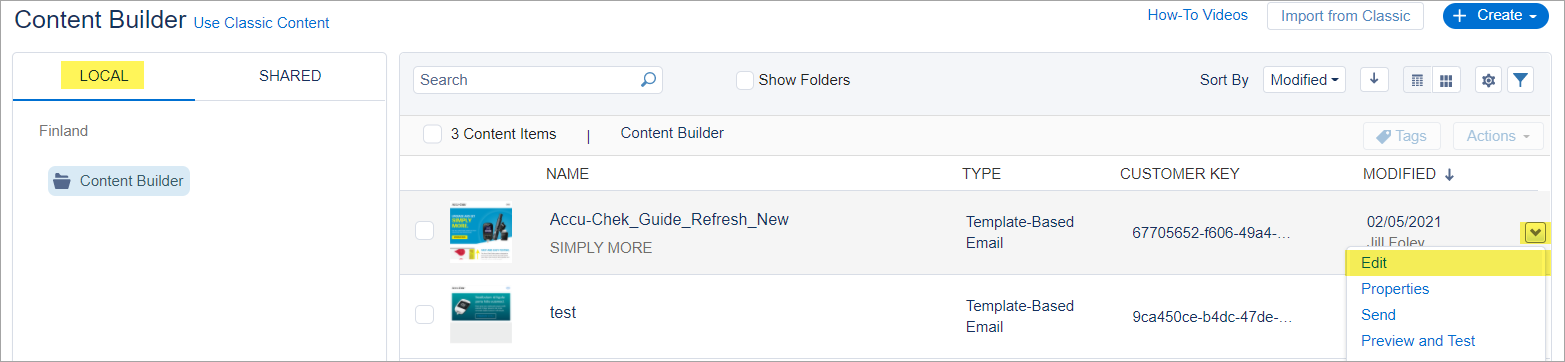
- Navigate back to your Local Content Builder Folder and find your new email in your account. Click on the down arrow on the right and select Edit to begin localizing the email.
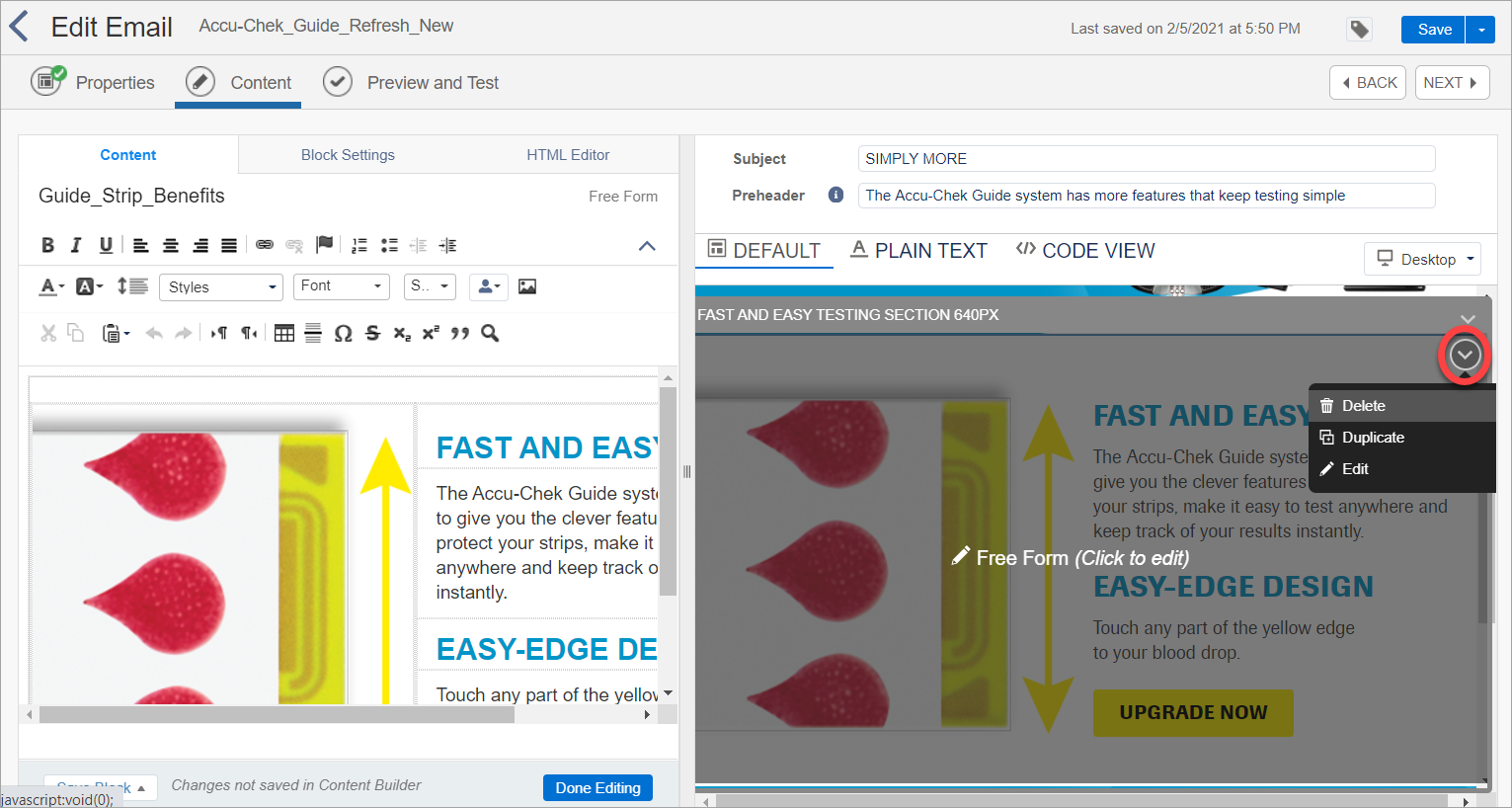
- Click on sections to begin making changes using the WYSIWYG content editor on the left, or use the menu (right) to delete entire sections as needed.
- For more information about about editing text, images, links, etc., please review the Marketing Cloud Basic Platform Training.