If you see the error page below in Chrome while trying to access an application in Salesforce Marketing Cloud, please follow the steps below to resolve the issue:
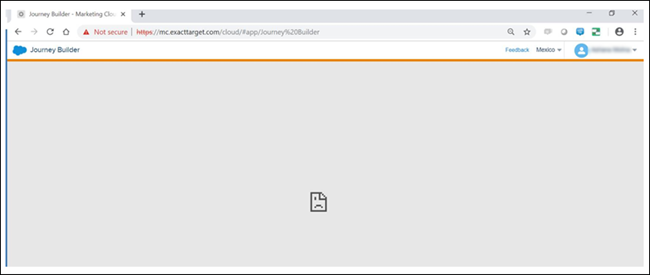
- Log out of Salesforce Marketing Cloud
- In Chrome, click on the circular "up arrow" in the upper right side of the screen
Select More tools > Clear browsing data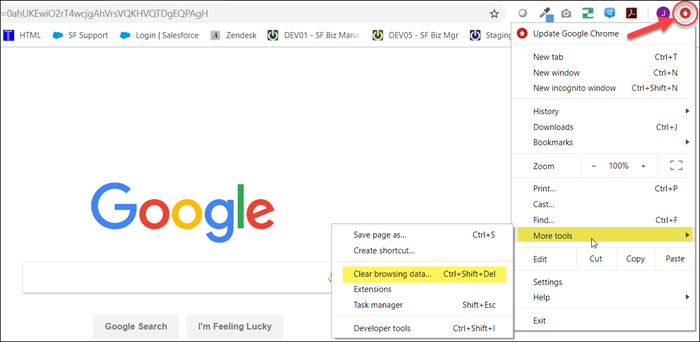
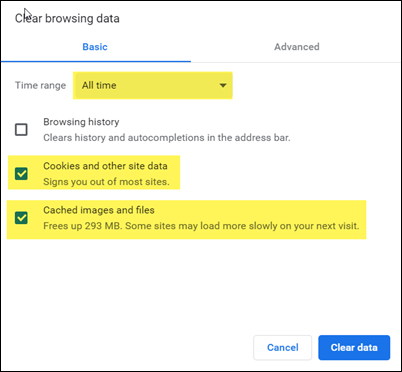
- In the pop-up under the "basic" tab, change the Time Range drop-down to All Time
- Select the check boxes for Cookies and other site data and Cached images and files
- Click the button to Clear Data
- Log back into Salesforce Marketing Cloud and confirm you have access
If this process does not resolve the error, please Open a Support Ticket.