Developing code for email is different from developing code for websites. Unlike the web which uses only a handful of browsers, emails are read in a huge variety of email applications/clients. The problem with email development is that all email clients support different subsets of HTML and CSS, meaning your email has potentially 15,000 different renderings. The following are best practices for email development in Salesforce Marketing Cloud.
- Tables
- Website design uses divs and float, but emails use tables to structure the layout - to center elements, to style the text, to set up padding and margins to style backgrounds, to divide content into columns, etc. In email we use tables to structure the layout of the template: to center elements, to style the text, to set paddings and margins, to set backgrounds, to split the content in columns, etc.
- Email Styling
- Most email clients do not support separate CSS files, so CSS is placed in the email as an embedded style sheet. But that’s not all – many email clients strip out the embedded style sheets, so the most important styles should also be placed inline in the email body.
- Headings and Paragraph Tags
- In email the use of <h1>to<h6>and <p> tags leads to missing margins and improper spacing in some email clients. Instead, use <td> <span> or <div> with CSS classes to style the text.
Examples:
<td class="mobifont2" style="padding:20px 10px 20px 10px; color:#2e426f; font-family: berthold_imagoregular, Arial, Helvetica, sans-serif; font-size:26px; mso-line-height-rule:exactly; line-height:30px;">
<span style="color:#ffffff; font-size:22px; line-height:normal; font-weight:bold;">
- In email the use of <h1>to<h6>and <p> tags leads to missing margins and improper spacing in some email clients. Instead, use <td> <span> or <div> with CSS classes to style the text.
- Roche Custom Fonts
Roche custom fonts are Imago and Minion Pro, and should be used in all emails. Gmail does not support custom fonts, so Roboto is used as a back-up font. The following is how Roche fonts should be coded in emails:
<head>
<!-- Linked Roboto font for Gmail -->
<link href="https://fonts.googleapis.com/css?family=Roboto" rel="stylesheet">
<style type="text/css">
@font-face {
font-family: 'berthold_imagobold';
src: url(https://www.accu-chek.com/sites/all/themes/roche/styles/fonts/berthold-imago-medium-webfont.eot);
src: url(https://www.accu-chek.com/sites/all/themes/roche/styles/fonts/berthold-imago-medium-webfont.eot?#iefix) format('embedded-opentype'), url(https://www.accu-chek.com/sites/all/themes/roche/styles/fonts/berthold-imago-medium-webfont.woff2) format('woff2'), url(https://www.accu-chek.com/sites/all/themes/roche/styles/fonts/berthold-imago-medium-webfont.woff) format('woff'), url(https://www.accu-chek.com/sites/all/themes/roche/styles/fonts/berthold-imago-medium-webfont.ttf) format('truetype'), url(https://www.accu-chek.com/sites/all/themes/roche/styles/fonts/berthold-imago-medium-webfont.svg#berthold_imagobold) format('svg');
font-weight: normal;
font-style: normal
}
@font-face {
font-family: 'berthold_imagoitalic';
src: url(https://www.accu-chek.com/sites/all/themes/roche/styles/fonts/berthold-imago-light-italic-webfont.eot);
src: url(https://www.accu-chek.com/sites/all/themes/roche/styles/fonts/berthold-imago-light-italic-webfont.eot?#iefix) format('embedded-opentype'), url(https://www.accu-chek.com/sites/all/themes/roche/styles/fonts/berthold-imago-light-italic-webfont.woff2) format('woff2'), url(https://www.accu-chek.com/sites/all/themes/roche/styles/fonts/berthold-imago-light-italic-webfont.woff) format('woff'), url(https://www.accu-chek.com/sites/all/themes/roche/styles/fonts/berthold-imago-light-italic-webfont.ttf) format('truetype'), url(https://www.accu-chek.com/sites/all/themes/roche/styles/fonts/berthold-imago-light-italic-webfont.svg#berthold_imagoitalic) format('svg');
font-weight: normal;
font-style: normal
}
@font-face{
font-family: 'berthold_imagoregular';
src: url(https://www.accu-chek.com/sites/all/themes/roche/styles/fonts/berthold-imago-book-webfont.eot);
src: url(https://www.accu-chek.com/sites/all/themes/roche/styles/fonts/berthold-imago-book-webfont.eot?#iefix) format('embedded-opentype'), url(https://www.accu-chek.com/sites/all/themes/roche/styles/fonts/berthold-imago-book-webfont.woff2) format('woff2'), url(https://www.accu-chek.com/sites/all/themes/roche/styles/fonts/berthold-imago-book-webfont.woff) format('woff'), url(https://www.accu-chek.com/sites/all/themes/roche/styles/fonts/berthold-imago-book-webfont.ttf) format('truetype'), url(https://www.accu-chek.com/sites/all/themes/roche/styles/fonts/berthold-imago-book-webfont.svg#berthold_imagoregular) format('svg');
font-weight: normal;
font-style: normal
}
@font-face {
font-family: 'Minion Pro Bold Italic';
font-style: italic;
font-weight: 900;
src: local('Minion Pro Bold Italic'), local('MinionPro-BoldItalic'), url(https://fonts.roche.com/k/0387f0797136957ea10fda8113dc55005eefa074-l.woff2) format('woff2');
unicode-range: U+0000-00FF, U+0131, U+0152-0153, U+02BB-02BC, U+02C6, U+02DA, U+02DC, U+2000-206F, U+2074, U+20AC, U+2122, U+2191, U+2193, U+2212, U+2215, U+FEFF, U+FFFD;
}
@font-face {
font-family: 'berthold_imagoregular';
font-style: normal;
font-weight: 900;
src: local('berthold_imagobold'), url(https://fonts.roche.com/k/ab19aad719c8c337d2c5f882d7fe09aa0d362a6f-l.woff2) format('woff2');
unicode-range: U+0000-00FF, U+0131, U+0152-0153, U+02BB-02BC, U+02C6, U+02DA, U+02DC, U+2000-206F, U+2074, U+20AC, U+2122, U+2191, U+2193, U+2212, U+2215, U+FEFF, U+FFFD;
}
</sytle>
<!-- Classes to force Imago for Outlook -->
<!--[if mso]>
<style type="text/css">
.mso-font-header {
font-family: 'Imago Bold','Calibri Bold', 'Arial Bold', sans-serif;
}
.mso-font-body {
font-family: Imago, Calibri, Arial, sans-serif;
}
</style>
<![endif]-->
</head>

<body>
<table cellpadding="0" cellspacing="0">
<tr>
<td style="font-family:berthold_imagobold,Arial,Helvetica,sans-serif;">
<span class="mso-font-header" style="font-family:berthold_imagobold,Roboto,Arial,sans-serif !important;"><b>Bold Text</b>
</span>
</td>
</tr>
<tr>
<td style="font-family:berthold_imagoregular,Arial,Helvetica,sans-serif;">
<span class="mso-font-body" style="font-family:berthold_imagoregular,Roboto,Arial,sans-serif !important;">Regular Text</span></td>
</tr>
</table>
</body> - Buttons
- It is common to use image based buttons in emails, but many email clients, by default, display with images turned off. For this reason, “bullet-proof” buttons should be used in emails. Bullet-proof buttons are calls-to-action (CTAs) that do not use images – HTML only – to ensure they display even when images are turned off.
- The following code is an example of a Roche-branded, responsive, bullet-proof button:

<style>
  @media only screen and (max-width: 480px) {
    .sfmc_container, .container {
    width: 100% !important;
    min-width: 100% !important;
    max-width: 480px !important;
    }
</style>
<!-- CTA -->
<div align="center">
<table align="center" border="0" cellpadding="0" cellspacing="0" class="pl20 pr20 sfmc_container">
<tr>
<td bgcolor="#FFED00" style="border-radius: 3px; -moz-border-radius: 3px; -webkit-border-radius: 3px; background-color: #FFED00;"><span class="mso-font-body" style="font-family:berthold_imagoregular,Roboto,Arial,sans-serif !important;"><a alias="LEARN MORE" class="pl40 pr40 mobifont" conversion="false" data-linkto="http://" href="#" style="font-size: 16px; font-family:berthold_imagobold,Roboto,Arial,sans-serif !important; color: #000000; text-align: center; text-decoration: none; display: block; background-color: #FFED00; border: 1px solid #FFED00; padding-top:10px; padding-right:25px;padding-bottom:10px; padding-left:25px; border-radius: 5px; -moz-border-radius: 5px; -webkit-border-radius: 5px;" target="_blank" title="LEARN MORE"><b>LEARN MORE </b></a> </span></td>
</tr>
</table>
</div>
<!-- end CTA -->
- Ordered Lists and Unordered Lists
- The <OL>and <UL> tags do not work on all email clients. Sometimes the spacing between the bullet and the text is missing, in other cases the bullets are not present at all. Another problem is that on some email clients the margin between the bullet lines is too far left or entirely missing. This is why all ordered and unordered lists should be coded with the following minimum styles:.
<!-- Unordered List -->
<ul style="margin:0; margin-left: 25px; padding:0; font-family: berthold_imagoregular, Arial, Helvetica, sans-serif;" align="left" type="disc">
<li class="pb10">
Unordered Disc Bullet
</li>
</ul>
<!-- END Unordered List -->

<!-- Unordered List -->
<ol style="margin:0; margin-left: 25px; padding:0; font-family: berthold_imagoregular, Arial, Helvetica, sans-serif;" align="left" type="A">
<li class="pb10">
Ordered Uppercase Alphabet Bullet
</li>
</ol>
<!-- END Unordered List -->
- To nest bulleted lists, code the nested list as normal, but ensure that it’s nested within a <li> tag instead of outside.
<!-- Unordered List -->
  <ul style="margin:0; margin-left: 25px; padding:0; font-family: berthold_imagoregular, Arial, Helvetica, sans-serif;" align="left" type="disc">
    <li style="color: #F1736A;">
      <span>
        Unordered, Colored, Enlarged Disc Bullet
      </span>
  <ul type="square">
    <li style="color: #F1736A;">
      <span>
        Unordered, Colored, Enlarged Square Bullet
      </span>
    </li>
   </ul>
  </li>
</ul>
<!-- END Unordered List -->
- The <OL>and <UL> tags do not work on all email clients. Sometimes the spacing between the bullet and the text is missing, in other cases the bullets are not present at all. Another problem is that on some email clients the margin between the bullet lines is too far left or entirely missing. This is why all ordered and unordered lists should be coded with the following minimum styles:.
- Hex Colors
- When developing a webpage, it is acceptable to use the shorthand three digit color hex code, but with email coding, the full six digits of the hex color code are required. Otherwise, the colors may display incorrectly.
Incorrect:
 <td style="color:#000; background: #fff;>Use six digit hex codes!</td>
Correct:
<td style="color:#000000; background: #ffffff;>Use six digit hex codes!</td>
- When developing a webpage, it is acceptable to use the shorthand three digit color hex code, but with email coding, the full six digits of the hex color code are required. Otherwise, the colors may display incorrectly.
- Background images in Email
- When coding a web page,position: absolute; allows you to display text over an image instead of using the background property. However, there is no support of position: absolute; in all email clients which is why we have to use the background property when coding HTML emails.
The following example shows how to code a background image with text in a Roche-branded Salesforce module: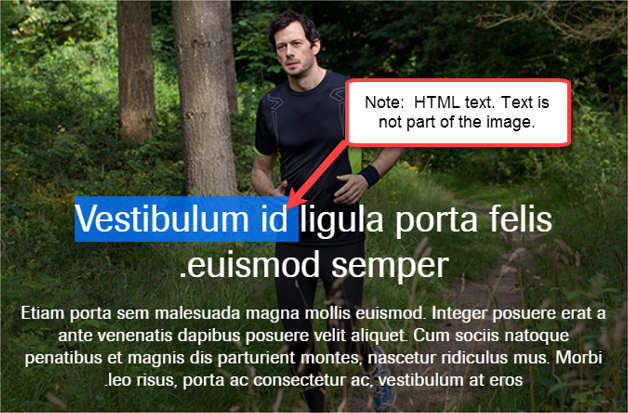
<style>
 .mobileBG_mod1 {
 background-position:center top;
 }
 @media only screen and (max-width: 480px) {
 .mobileBG_mod1 {
 background-position:center top;
 background-size:auto 582px !important;
 height:582px;
 }
 .sfmc_container, .container {
 width: 100% !important;
 min-width: 100% !important;
 max-width: 480px !important;
 }
</style>
<!-- background image with text -->
<table class="sfmc_container" width="600" cellspacing="0" cellpadding="0" bgcolor="#000000" align="center">
 <tr>
   <td class="mobileBG_mod1" style="background-size:600px 395px" valign="bottom" height="395" bgcolor="#000000" background="http://image.accu-chek-email.com/lib/fe6015707c61057e7d10/m/1/06e37998-c154-4ab9-bbb7-57fc028eb573.jpg">
   <!--[if (gte mso 9)|(IE)]>
   <v:rect xmlns:v="urn:schemas-microsoft-com:vml" fill="true" stroke="false" style="width:600px;height:395px;">
   <v:fill type="tile" src="http://image.accu-chek-email.com/lib/fe6015707c61057e7d10/m/1/06e37998-c154-4ab9-bbb7-57fc028eb573.jpg" color="#e7e6e3" />
   <v:textbox inset="0,0,0,0"><![endif]-->
     <div align="center">
       <table class="sfmc_container" width="600" cellspacing="0" cellpadding="0" align="center">
         <tr>
           <td valign="bottom" height="395">
             <table class="sfmc_container" dir="rtl" width="600" cellspacing="0" cellpadding="0" align="center">
               <tr>
                 <td style="padding-left:20px;padding-right:20px;text-align:center;font-family:berthold_imagoregular,Arial,Helvetica,sans-serif;font-size:36px;color:#ffffff;line-height:normal;">
                   Vestibulum id ligula porta felis euismod semper.
                 </td>
               </tr>
               <tr>
                 <td style="padding-top:14px;padding-bottom:22px;padding-left:20px;padding-right:20px;text-align:center;font-family:berthold_imagoregular,Arial,Helvetica,sans-serif;font-size:18px;color:#ffffff;">
                   Etiam porta sem malesuada magna mollis euismod. Integer posuere erat a ante venenatis dapibus posuere velit aliquet. Cum sociis natoque penatibus et magnis dis parturient montes, nascetur ridiculus mus. Morbi leo risus, porta ac consectetur ac, vestibulum at eros.
                 </td>
               </tr>
             </table>
            </td>
          </tr>
        </table>
       </div>
   <!--[if (gte mso 9)|(IE)]>
   </v:textbox>
   </v:rect>
   <![endif]-->
   </td>
 </tr>
</table>
<!-- background image with text -->
- When coding a web page,position: absolute; allows you to display text over an image instead of using the background property. However, there is no support of position: absolute; in all email clients which is why we have to use the background property when coding HTML emails.
- Image Blocking and Styling Alt Text
- Image blocking is activated by default for many email clients. To ensure the message of your image is portrayed, use Alt attributes for images and style them. An often overlooked opportunity to increase the readability of your email, Alt text can be styled in whatever color or size you choose!
Example:
Images enabled
_____
Images disabled, no styling
<img alt="Four Pink Tulips" src="http://image.accu-chek-email.com/lib/fe6015707c61057e7d10/m/1/c6423481-bacc-45e9-a921-3963dcbbe350.jpg" width="175" height="175" style="display:block;" />
_____
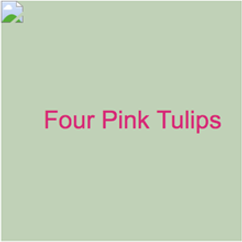
Images disabled, styled<div style="line-height: 175px;" valign="middle"><img alt="Four Pink Tulips" src="http://image.accu-chek-email.com/lib/fe6015707c61057e7d10/m/1/c6423481-bacc-45e9-a921-3963dcbbe350.jpg" width="175" height="175" style="display:block; font-family: Arial; font-size: 18px; color: #d52a79; text-align: center; background: #bfd1b7;" /></div>
- Image blocking is activated by default for many email clients. To ensure the message of your image is portrayed, use Alt attributes for images and style them. An often overlooked opportunity to increase the readability of your email, Alt text can be styled in whatever color or size you choose!

- Email Width
- The default desktop width for emails should be 640px. Creating emails at this size allows for easy mobile scaling using percentages. For example, a two column responsive, stacking email with both columns set to 50% makes the mobile size 320px, which is the common breakpoint for small mobile screens.
- Avoid Shorthand CSS Where Possible
- Similar to shorthand hex codes, not all email clients support shorthand CSS. For example, "margin-top: 10px; margin-bottom:10px;" may work where "margin: 10px 0 10px 0;" does not. This does not apply to all shorthand CSS, so unless you are confident a shorthand version will work, it’s best avoid the shortened version.
- One exception to this rule is borders. In fact, longhand borders can be more problematic than shorthand borders.
- Use <td style=“border-left: solid 1px #000000;”>
- Instead of <td style=“border-left-style: solid; border-left-width: 1px; border-left-color:#000000;”>
- Padding vs. Margin
- When adding space above, below, to the left or right of an image, object or text, padding should be used instead of margin. The margin style is not consistent across all email clients. Padding has proven to be much more consistent and reliable in extensive cross-client testing.
- Short-hand coding does indeed work for padding styles, so <style="padding: 10px 20px 10px 20px;"> is perfectly acceptable code!
- When adding space above, below, to the left or right of an image, object or text, padding should be used instead of margin. The margin style is not consistent across all email clients. Padding has proven to be much more consistent and reliable in extensive cross-client testing.
- Image Maps
- Image maps do not have full support in email clients, so it is best to slice the image up and link multiple images to different URLs.
- Apple Links
- Some email clients turn dates, phone numbers and addresses into blue, clickable links. You can use CSS to override the link style to look like regular body text:
a[x-apple-data-detectors] {
  color: inherit !important;
  text-decoration: none !important;
  font-size: inherit !important;
  font-family: inherit !important;
  font-weight: inherit !important;
  line-height: inherit !important;
}
- Some email clients turn dates, phone numbers and addresses into blue, clickable links. You can use CSS to override the link style to look like regular body text:
- Images
- When it comes to best practices, images should usually be created at 2x size to display clearly on retina devices. For example, a full-width banner on a 640px email should be created at 1280px.
However …
When developing in Salesforce Marketing Cloud Content Builder, if you chose to use the WYSIWYG editor to add your image to a template, there is an option to insert the height x width fixed size or use the “Scale to Fit” option.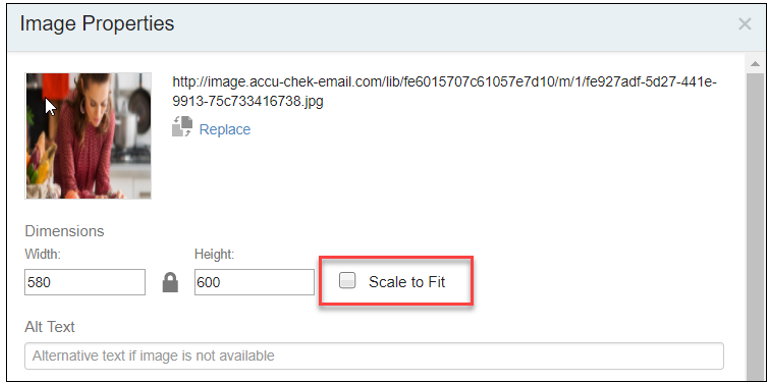
If a fixed height x width is input, the image will not scale on mobile. If Scale to Fit is selected, and the image is at 2x size for retina, Outlook will not constrain the image and it will appear at double size.
Therefore, when working in Content Builder, developing for non-technical users, it is recommended to create images AT SIZE. Therefore, the image will still scale and will not blow up in Outlook. Keep in mind that images will not be as crisp in retina screens as they would be at 2x size. This issue has been reported to Salesforce.
If you are using your own code to scale the image in Content Builder, and it will not be manipulated in the WYSIWYG editor, continue to create and use retina-ready 2x size images.
- When it comes to best practices, images should usually be created at 2x size to display clearly on retina devices. For example, a full-width banner on a 640px email should be created at 1280px.
- Special Characters
- Hex codes should be used for special characters, such as bullet (• •), copyright (© ©), registration (® ®), accented letters (é é), etc. A full list of available HTML character codes is available here.
- Symbols in Subject Lines
- Used sparingly, emoji in your email subject lines can be an effective and attention-generating technique to increase email open rates and get more people engaging with your campaigns. Some things to keep in mind:
- Make sure that the symbols you’re using match up to your message.
- Do not overuse special characters in your messaging.
- Symbols display differently across email clients.
- Test as much as possible before you send.
- A list of special characters can be found here.
- Used sparingly, emoji in your email subject lines can be an effective and attention-generating technique to increase email open rates and get more people engaging with your campaigns. Some things to keep in mind:
- SFMC Content Insertion Code
- If you are developing a reusable template in Content Builder, the following code should be added to Salesforce email templates to allow content blocks to be placed in the template:
<div data-type="slot" data-key="primarycontent" data-allowed-blocks="" data-label="Primary Content"></div>
- Data-type always = “slot”
- Data-key = a unique name with no spaces, often the same as the label
- Data-allowed-blocks = empty means there are no limits to the data type allowed.
- Limited content could be any variation of the following: data-allowed-blocks="socialshareblock; socialfollowblock; buttonblock; externalcontentblock; referenceblock; imagecarouselblock; pirecommendationblock; dynamicblock; abtestblock; imageblock; htmlblock; freeformblock; textblock" - Data-label = a unique content block name. This is displayed when building an email.
- If you are developing a reusable template in Content Builder, the following code should be added to Salesforce email templates to allow content blocks to be placed in the template:
- SFMC Header and Footer Code
- In order for Salesforce to automatically append the header and footer, the following code must be added between the <body> </body> tags:
<custom type="header" name="header" />
<custom type="footer" name="footer" />
- In order for Salesforce to automatically append the header and footer, the following code must be added between the <body> </body> tags:
- Tracking Pixel Code
- In order for Salesforce to track the email and provide open and click results, the following code must be added immediately before the closing </body> tag:
<custom name="opencounter" type="tracking" />
- In order for Salesforce to track the email and provide open and click results, the following code must be added immediately before the closing </body> tag:
- MSO Line Height Rule
- Commonly, for increased readability, you will want to add additional space between lines of text. If using 14px font, you might want to increase the line-height to 20px.
- Just using <span style=”line-height:20px;”> will not increase the space between lines of text in Outcook, and instead, causes text to collapse vertically to the default line-height set by the font-size.
- Instead, include the rule <td style=”mso-line-height-rule:exactly; line-height:20px;”>. The mso-line-height-rule will not work in a <span>, <div>, <table> or <tr>. Instead, always put the rule the <td> nearest the text you are styling.
- Outlook Specific Tags
- Because Outlook is so buggy, there may be times you want to only show certain elements only in Outlook, or conversely, hide elements only in Outlook.
- Wrap anything you want to show only in Outlook desktop in these comment tags:
<!--[if (gte mso 9)|(IE)]>
<table border="0" cellpadding="0" cellspacing="0" width="100%">
 <tr>
 <td>Special Outlook (Desktop) content</td>
 </tr>
 </table> <br>
<![endif]--> - Wrap anything you want to show in all clients except Outlook desktop in these comment tags:
<!--[if !mso]> <!-- -->
<table border="0" cellpadding="0" cellspacing="0" width="100%">
 <tr>
 <td>All other clients</td>
 </tr>
 </table>
<!--<![endif]--> - Read more about Outlook Conditional Tags here: https://medium.com/tealmedia/creating-bulletproof-html-emails-e0e4866c3f8