As a Business Unit Administrator, you can edit the standard header and footer that is auto-appended on an email at the time of send. Reasons why you might need to update your header or footer include editing verbiage, updating your physical address and updating a privacy policy link.
Note: The process requires a working knowledge of HTML. If you are not comfortable editing HTML, please submit a support ticket at https://digitalmarketing.rochedc.com/hc/en-us/requests/new?ticket_form_id=217029
Below are examples of the information included in the Header and Footer:


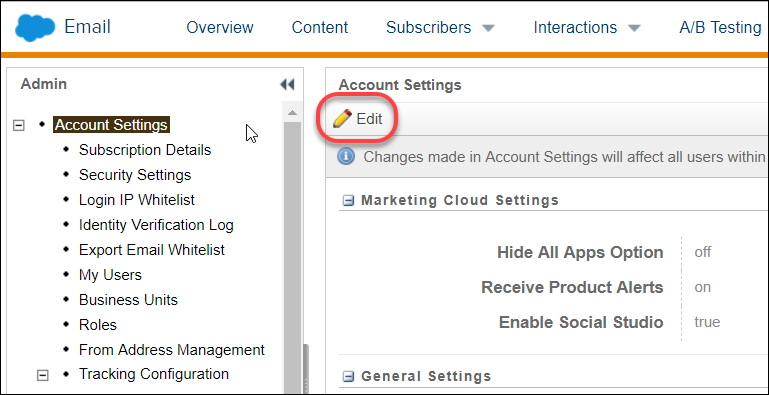
- Go to Email Studio > Email > Admin > Account Settings
- Click the Edit button near the top of the page.
- Scroll down to the Headers and Footers section and find the HTML Header or HTML Footer you want to edit.
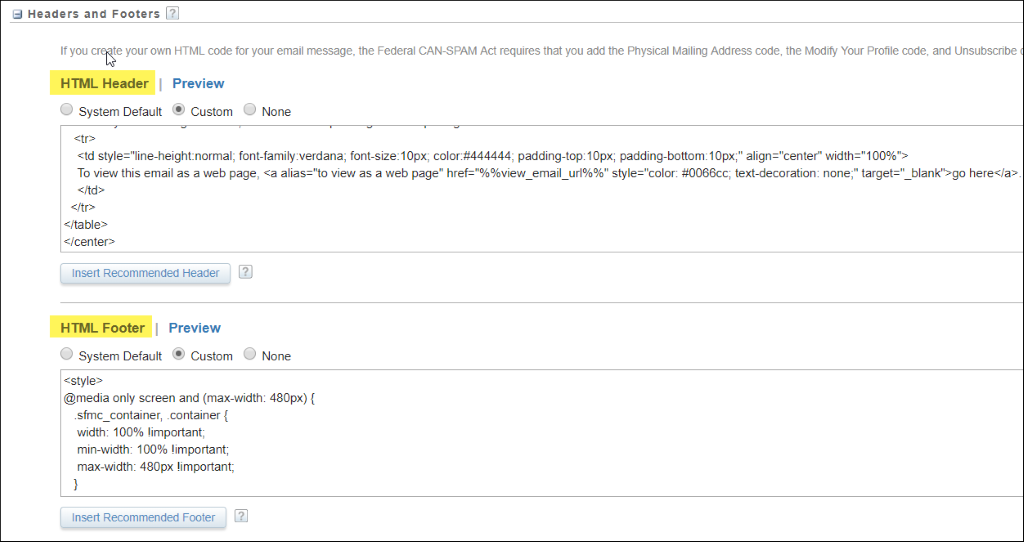
- At this point, depending on how much you plan to edit, you can either make changes directly in the browser window, or copy the header/footer code, paste it into your favorite HTML editor, make changes and paste the edited code back in.
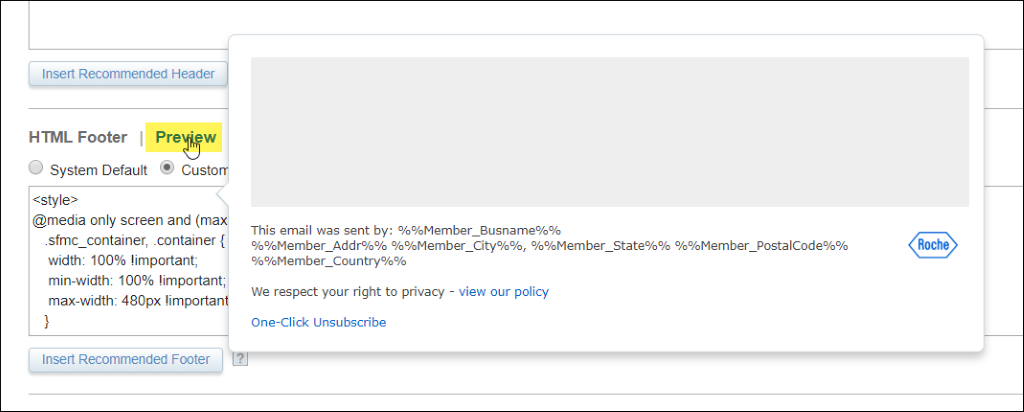
It is HIGHLY recommended that you copy the existing code to a temporary location until you can test your edits so you have a back-up copy in the event that something goes wrong. - After you edit/paste in your finalized code, you can preview it by mousing over the Preview link:
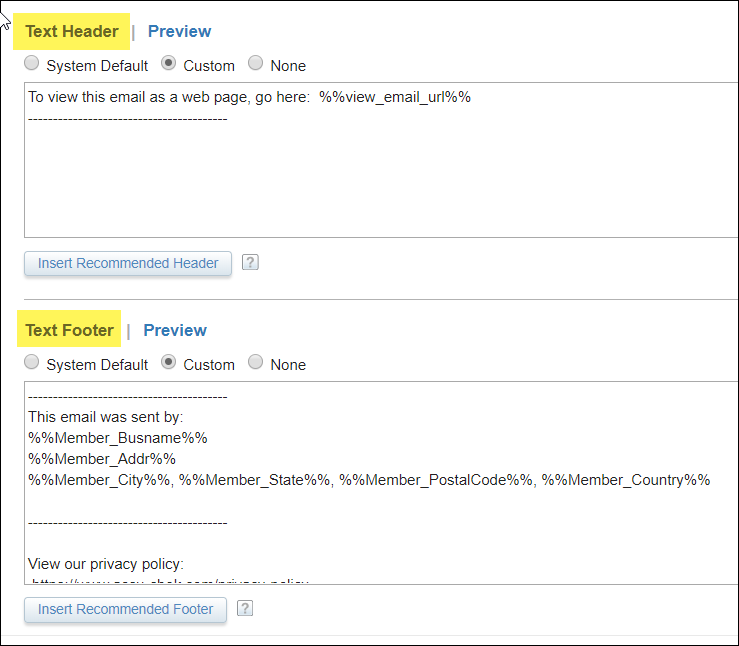
- Be sure to also update the TEXT version of the Header/Footer with your changes:
- When all changes have been made, click the Save button at the top of the page.
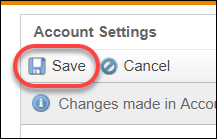
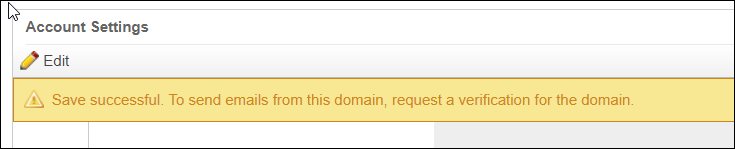
- You will see a confirmation message indicating that your save was successful.
Note: DO NOT edit the unsubscribe link without prior approval. The unsubscribe link is coded to run a script to opt-out the subscriber in CRM, dynamically link to your affiliate’s confirmation page and display the message in the proper language. Alteration of the unsubscribe link can result in non-compliance with Roche, CAN-SPAM and GDPR regulations.
Example of unsubscribe link:
%%=redirectTo(CloudPagesURL(1,'Lang_Code','EN','contactid',[_SubscriberKey]))=%%