There is a large amount of shared content available for your use, including templates, general content layouts, templates, and product-specific emails and content blocks. This article explains how to copy shared content to your local folder for use.
- Log into Marketing Cloud and go to Content Builder.
- Click on the Shared tab in the upper left side of the screen.
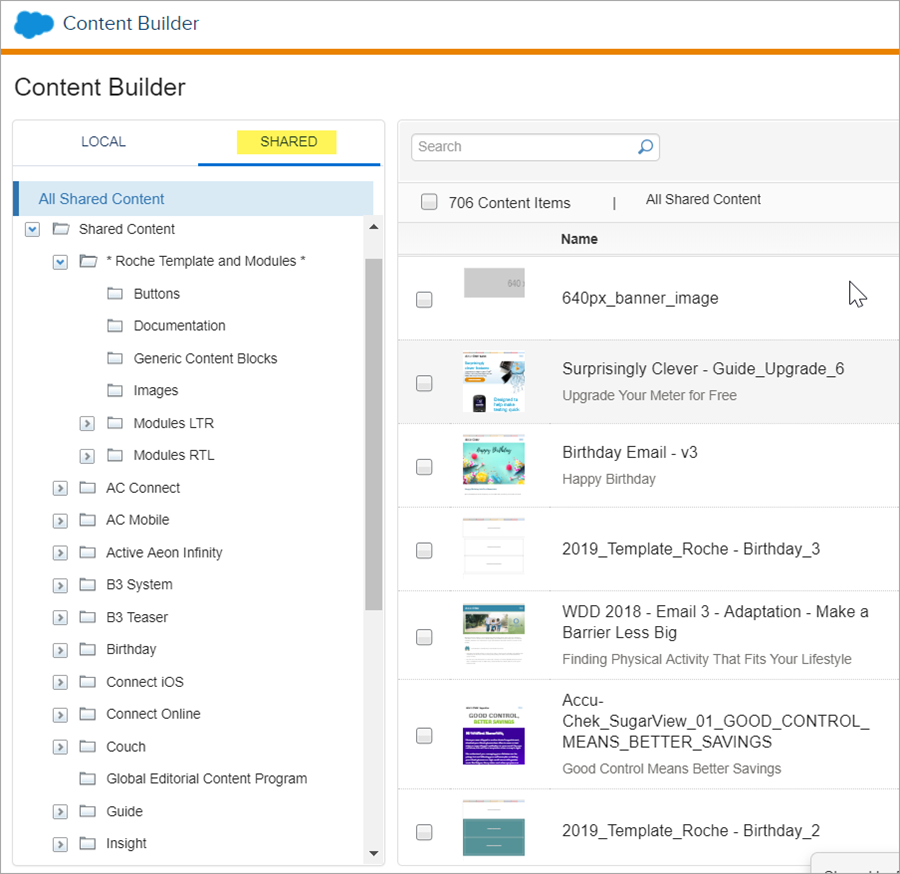
- Click the down arrow on the right side of the content you want to copy. From the dropdown click on Duplicate.
Note: you cannot edit the original content, so you will be creating your own version.
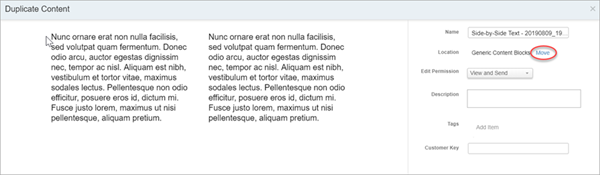
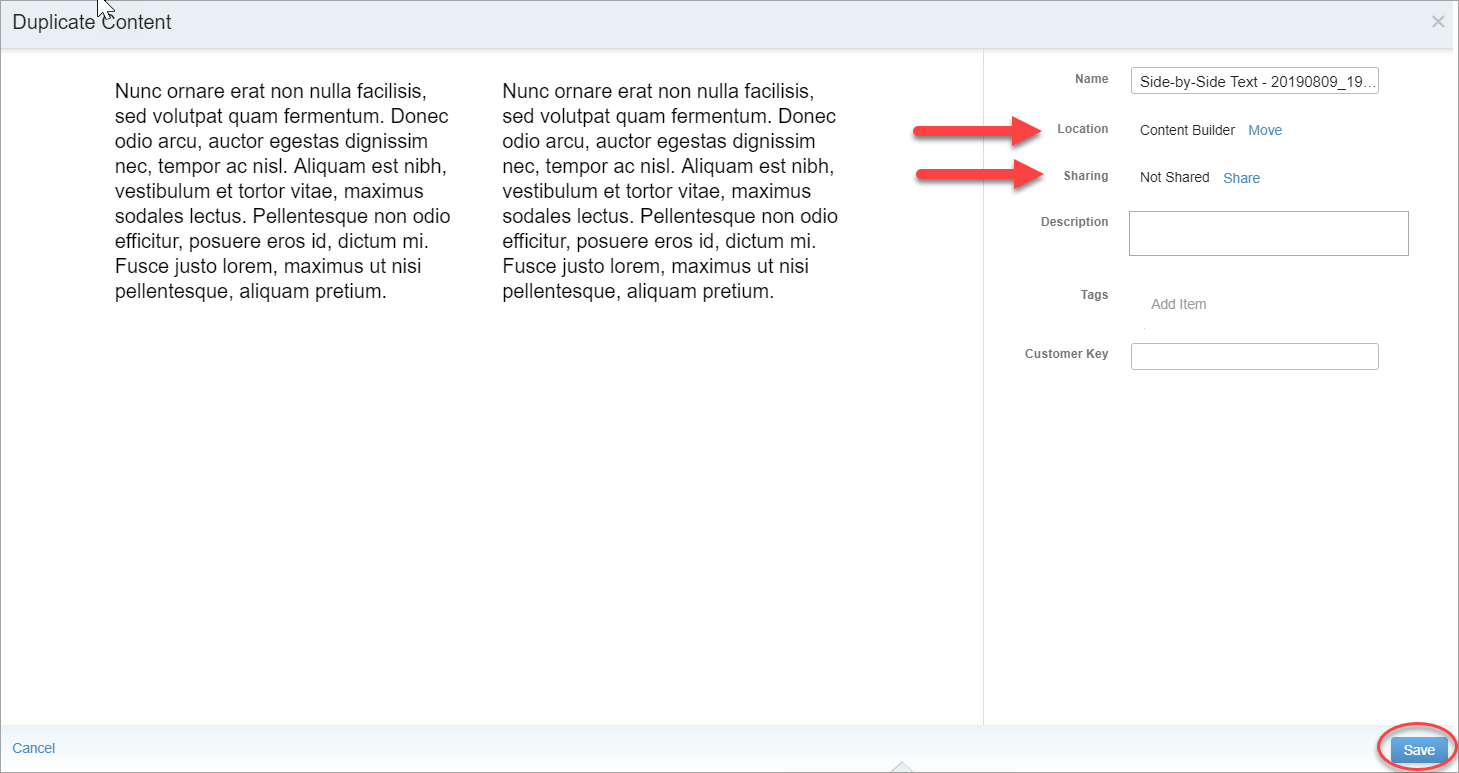
- Under Location, click the Move link.
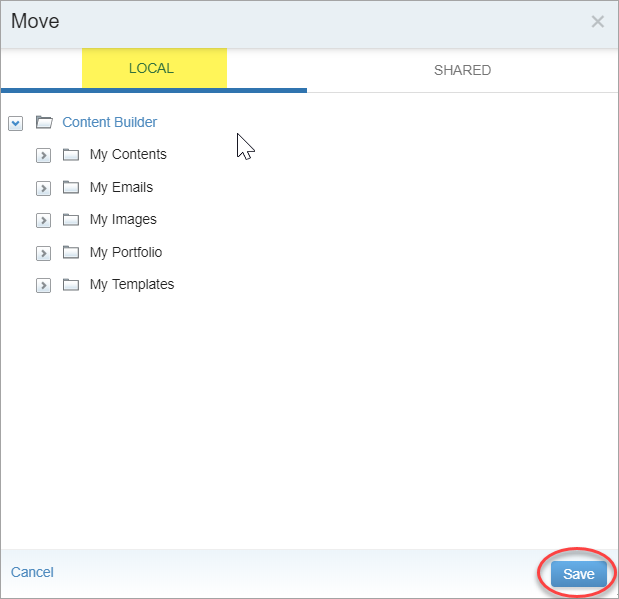
- Under your Local folder, select the location for your new content. Click Save.
- Under Sharing, click the Change link.
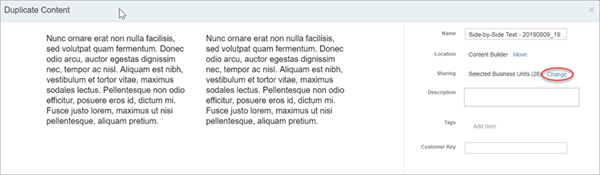
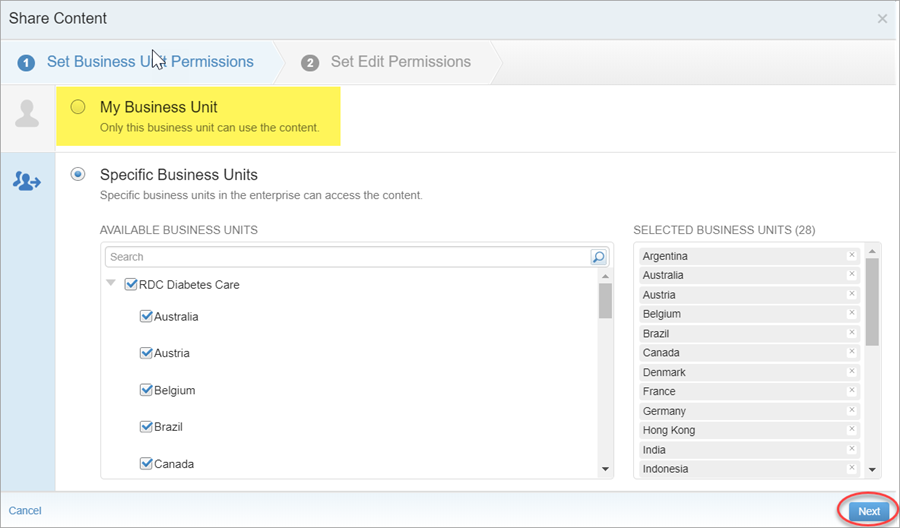
- On the Share Content window, change the permission to My Business Unit. Click Next.
- Once your Location and Sharing options have been changed, click Save.
- Navigate to your Local folder. Your new, editable content will be saved in the location you selected.
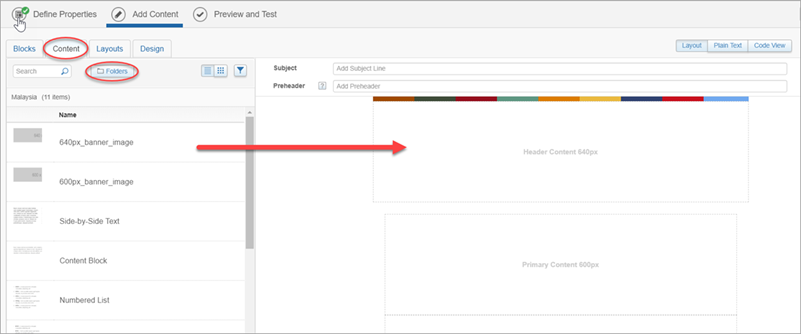
You can also drag and drop shared content blocks to your email directly from the shared folder without creating a duplicate.
- With your email in Edit mode, click on the Content tab then navigate to Folders > Shared > (the folder of the content you want to include in your email)
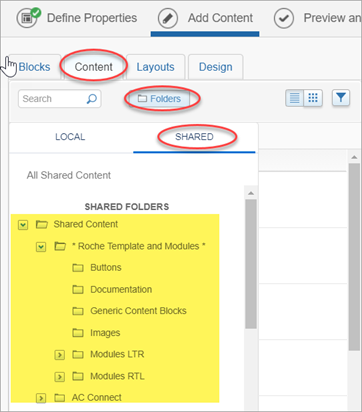
- Drag and drop a content block directly into your template