In addition to the Global content shared from the Enterprise RDC Diabetes Care account, there may be times you want to share content (emails, templates, images, etc.) with other affiliate countries, or others might want to share content with you. This document explains how to share content.
 |
Watch a Video of this Article |
- Log into Salesforce and go to Content Builder.
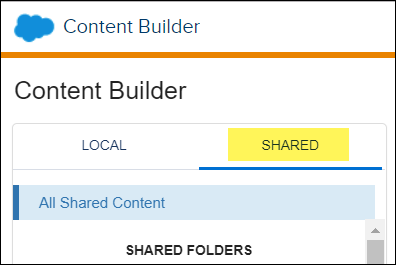
- Click on the Shared tab in the upper left side of the screen.
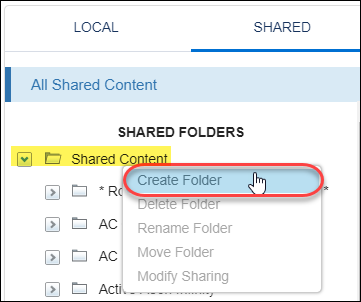
- Right click on the top folder item called Shared Content, and select Create Folder.
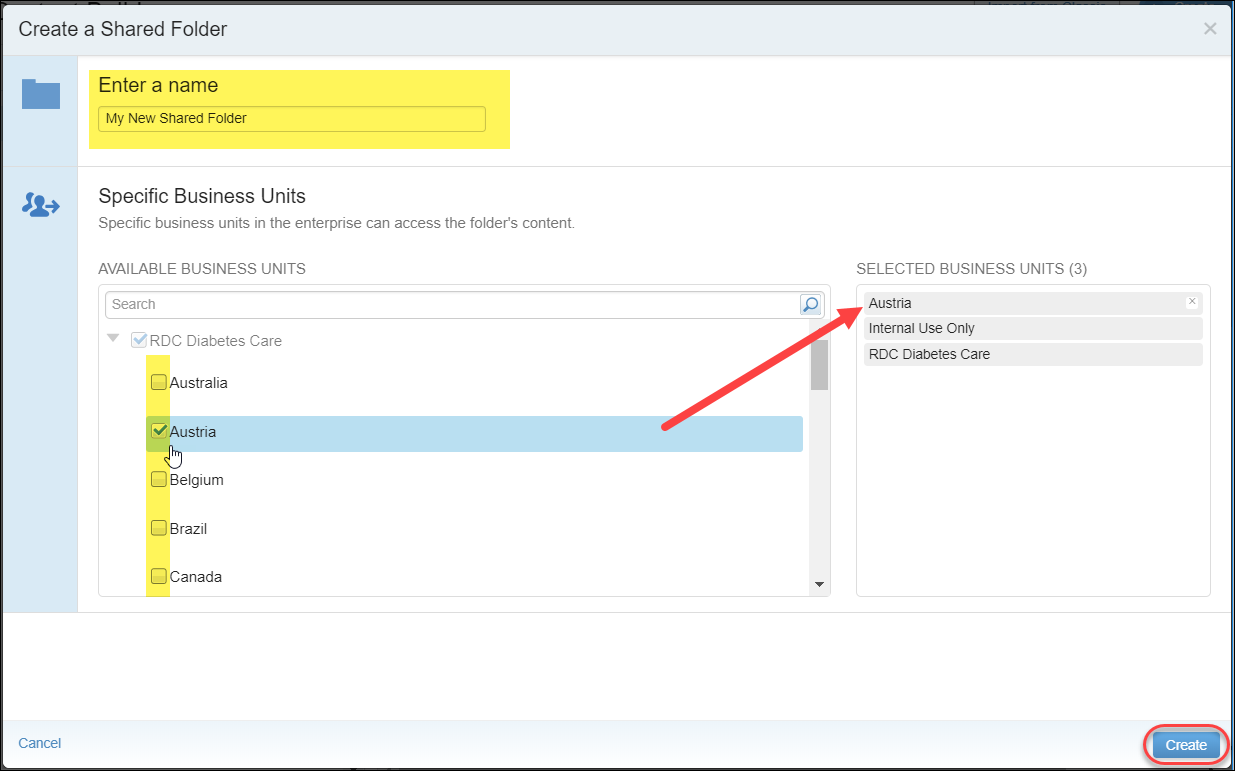
- In the Create a Shared Folder window, enter your folder name and check the county(ies) you want to share content with. As you select a country to share with, they will move over to the right column. When you have finished selecting countries, click Create.
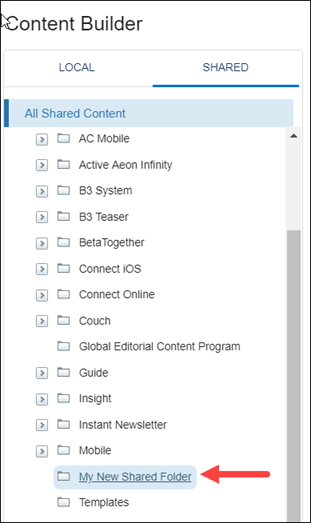
- Your new folder will be displayed in the All Shared Content folder structure.
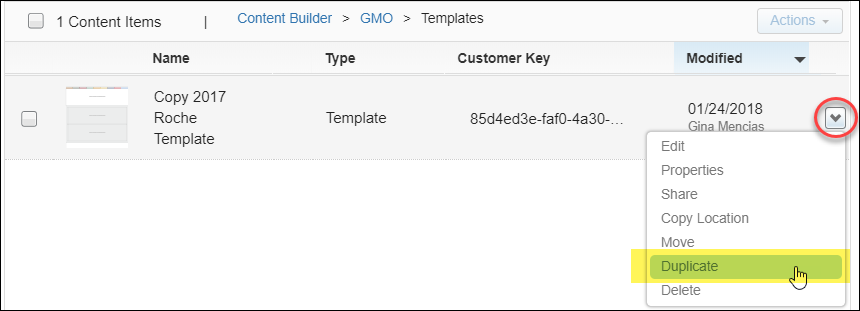
- Go to your local folder and find the content you'd like to share. Using the right dropdown arrow, select Duplicate.
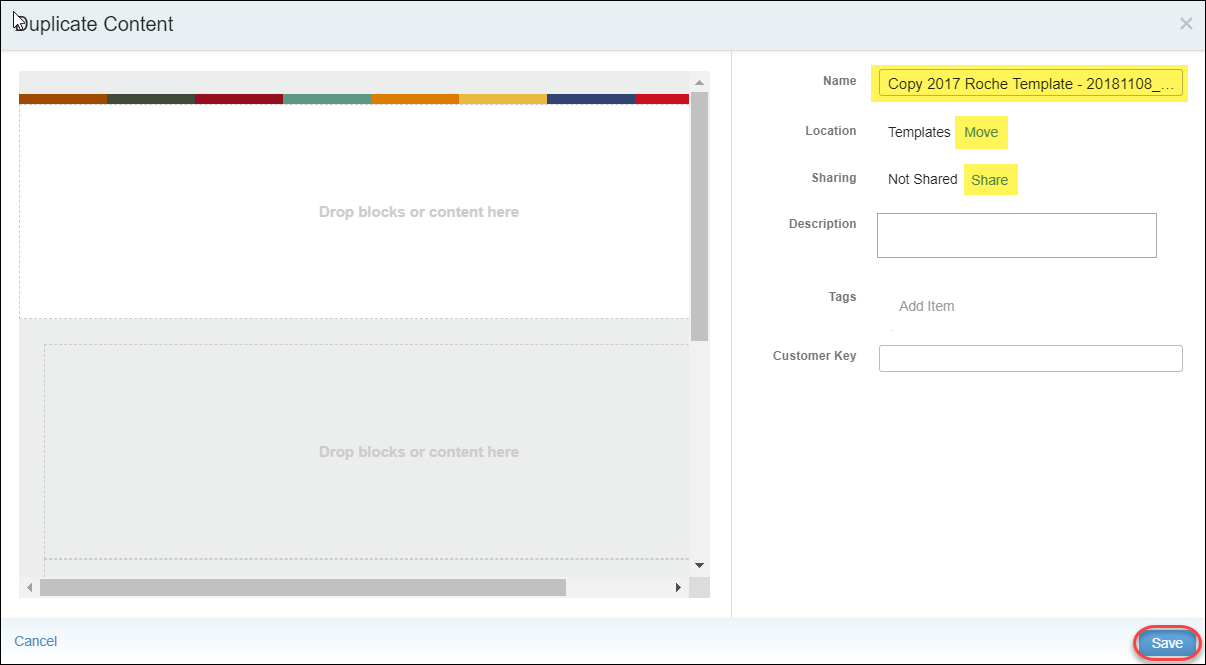
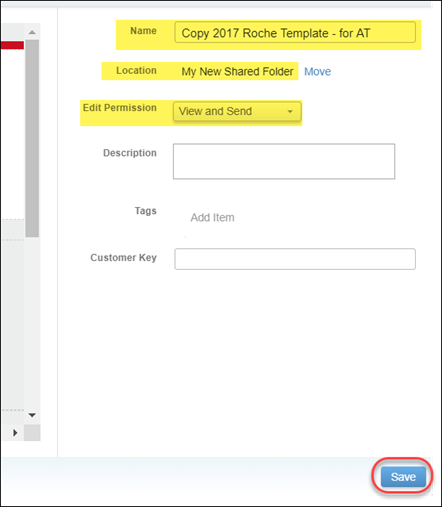
- On the Duplicate Content window, change the name (if needed), select the Location to move the duplicated content to, and adjust the Sharing settings.
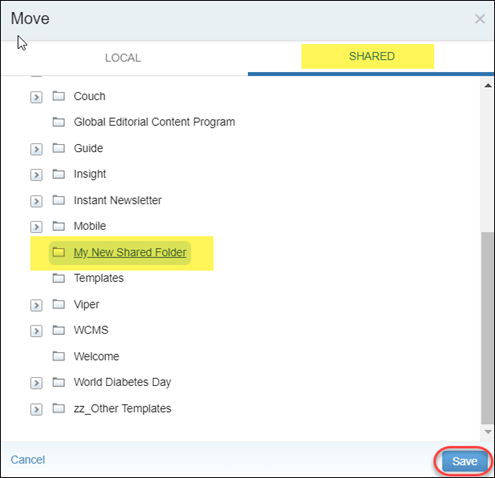
- To change the Location, click on the Move link, navigate to the Shared content, select the folder you just made and click the Save button.
- Your content will automatically take on the same permissions as the folder you previously created. If needed, you can change the permissions for this piece of content to View and Send (recommended), Edit Locally or Edit Globally. Once you are satisfied with your content name, location and permission click Save.
- Navigate to your new Shared folder and check that the content duplicated and saved correctly.
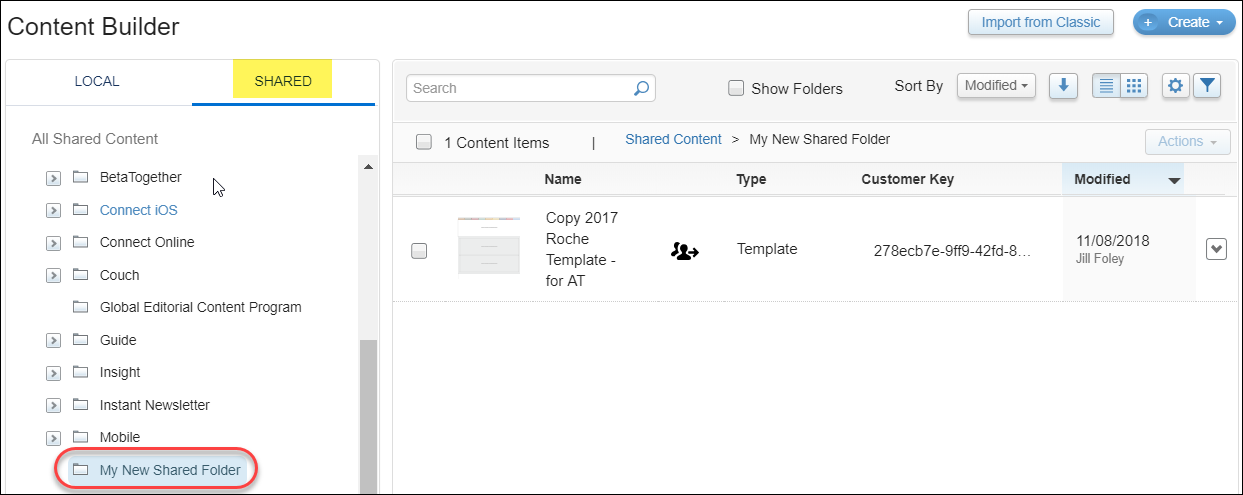
- The other affiliate country should now be able to see the content you shared with them.
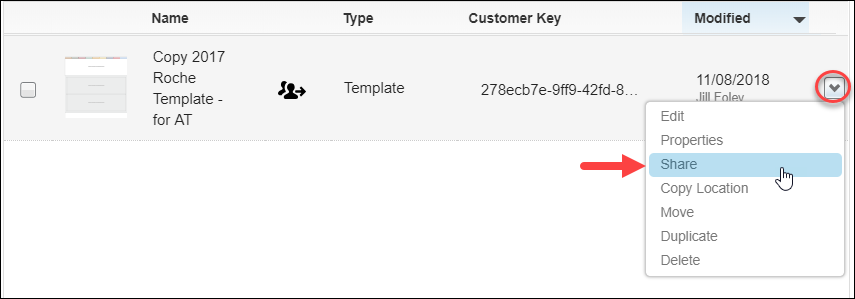
To modify sharing permissions for a folder or individual piece of content: - If you need to change the sharing settings for an individual piece of content, select the down arrow to the right of the content and select Share from the dropdown.
- You can modify your permissions to View and Send, Edit Locally or Edit Globally
- View and Send (recommended) - The recipient business unit cannot edit the shared content, but can include shared content in a message. If the recipient business unit wants to edit the content, they will have to duplicate the content and save a copy in their own local folder. Your original will remain unedited.
- Edit Locally - The recipient must create a local copy from this shared email before he can edit. Local edits are stored in local Content Builder folders.
- Edit Globally - The recipient business unit can edit the originally shared content. Caution: Any edits will overwrite the content for all other business units the content is shared with.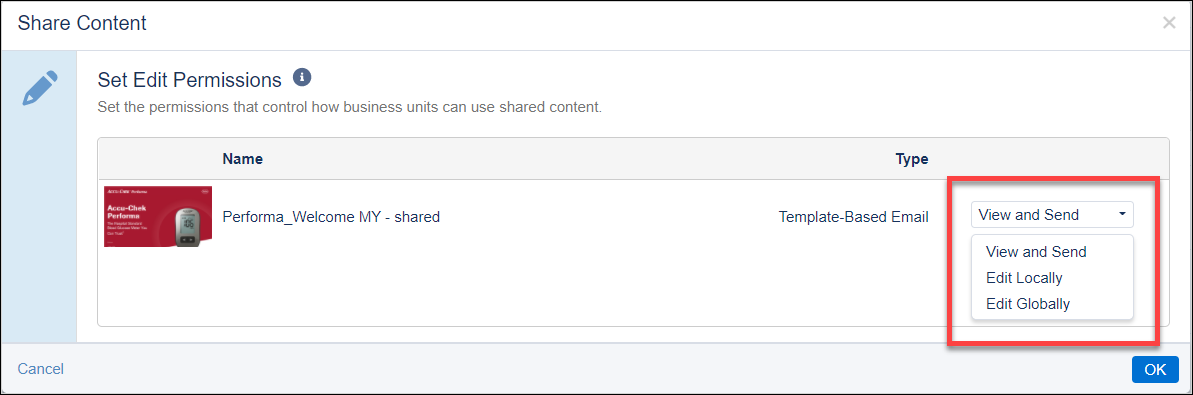
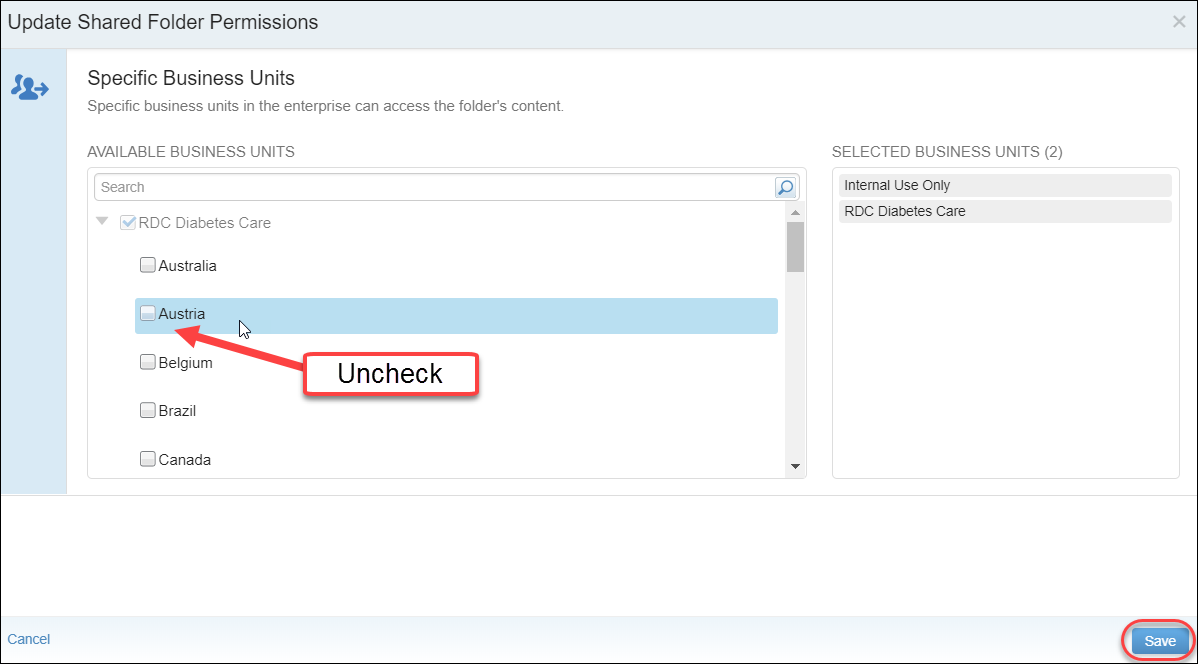
- To remove sharing permissions for all content in the folder, right click on your folder name and select Modify Sharing from the dropdown.
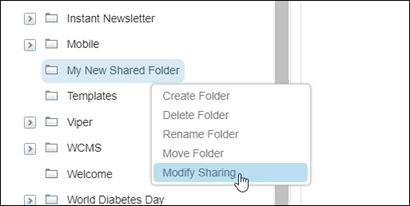
- Uncheck country names to remove from the shared folder as appropriate and click Save.