All email sends using CRM data in the Marketing Cloud require you to create and run either a CRM report or a CRM campaign. Here you will learn how to create reports in CRM.
 |
Watch a Video of this Article |
- Navigate to the Reports Tab.

- Click on New Report.

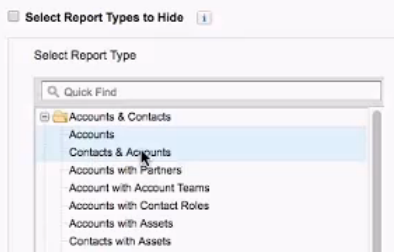
- For Report Type, select the Accounts & Contacts, then choose Contacts & Accounts folder or any other folder in the Leads folder.
- Click Create from the lower right corner of the window.
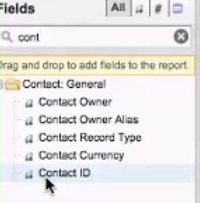
- In the Quick Find box in the Fields sidebar, type Contact.
- Drag and drop the appropriate field into the report to add the column.
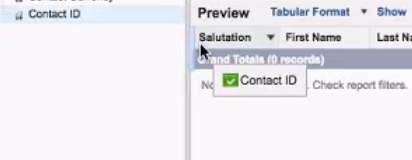
- Check the report columns to ensure Email is included. (If not on the report, drag it onto the report).
- Apply Filters as desired.
- Click Save.

- Name your report.
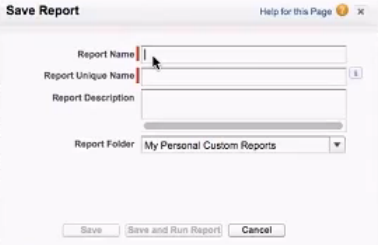
- From the Report Folder dropdown, select the appropriate location and then click SAVE.