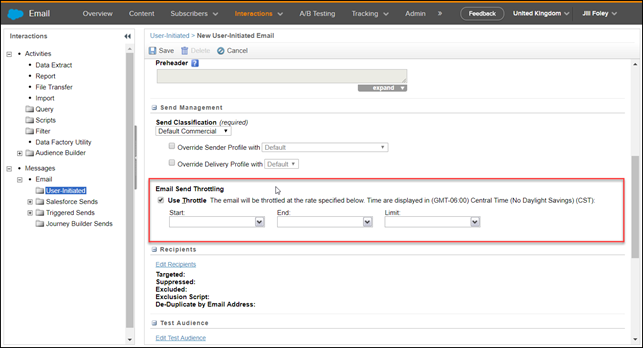
Send Throttle sends emails during the hours you specify every day, starting the day you send the email, until all emails send. You can also specify how many emails you want to send per hour during that time.
You can use Send Throttling for these reasons:
- To control inbound traffic to a website, meaning, the interest generated by email may result in server crashes due to too many people visiting.
- To limit the number of emails sent to a particular domain each hour.
The system begins processing the email send job at the start time you specify. The send is not spread evenly between the start and end times. The system continues sending during the specified time range until the send is complete or the end time you specified is reached, whichever comes first. If the end time is reached before the send is complete, the system will continue the send the next day at the same start time. This process continues until the send is complete.
The sending pauses if the hourly limit or the time window closes and schedules the job to resume when the throttle opens again.
Send Throttling is available in the “Configure Delivery” step during the normal send process.
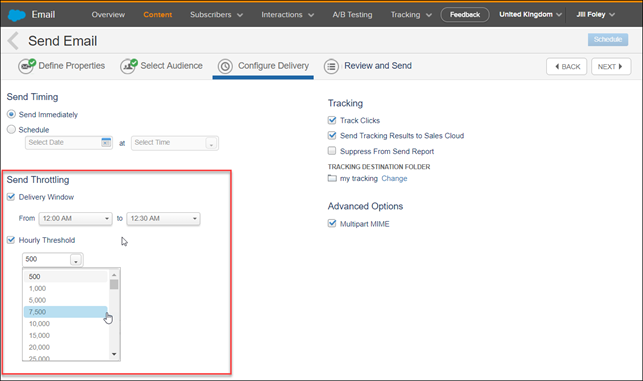
In the above image, you can select a Delivery Window and an Hourly Threshold, or just an Hourly Threshold.
- The Send Window allows you to select the period of time you want your email to be sent. If you only want your email to be sent during business hours, for example, you might select From 8:00am to 5:00pm.
- If you do not select a Send Window, the email send will begin immediately and span across as many continuous hours as necessary to complete the send.
- The Hourly Threshold allows you to select how many emails you want to be sent per hour until the send is complete.
- Setting a throttle for a job does not insure that a certain number of emails send during a particular time period. The throttle approximately insures that the system does not send a greater number of emails than the throttle limit during the specified time period. However, the system may send less due to system load, message complexity, or deliverability issues.
When using Send Throttling you should not schedule the email in the upper half of the dialog box. Send throttling overrides scheduling, but scheduling the email can corrupt the send throttle process. It's imperative that you either schedule the email to send in the future or select the Send Throttle checkbox.
Send Throttling Example
You have a list of 75,000 subscribers.
You want to only send during business hours of 8am – 5pm
You want to limit the send to 5,000 emails per hour.
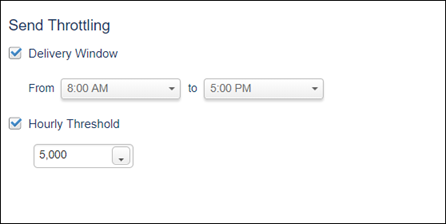
On Day 1, your email begins to send at 8am. During 8am-9am, 5,000 emails are sent.
Each hour, until 5pm, 5,000 additional emails are sent.
At 5pm, your send will pause. At this point, 45,000 emails have been sent (5,000/hour for 9 hours)
On Day 2, your email will begin to send again at 8am.
For the next 6 hours, the email will continue to send at a rate of 5,000 each hour until all 75,000 emails are sent.
Throttling a User-Initiated Send
In addition to the normal send flow in Email Studio, you can also throttle User-Initiated Sends under Interactions > Email > User-Initiated
A User-Initiated Send is a flexible send method where you can specify and target specific components such as email, audience, suppressions, send classification, etc. User-Initiated email sends are typically used to delay subscriber notification until an appropriate time, or time an email send to coincide with a larger event.
The user-initiated send throttling functions the same way as above, and is available as an option when creating a new — or editing an existing — User-Initiated email.