You can export selected subscriber data from a list to a comma-separated CSV file, tab-delimited TXT file, or XML file.
- Hover over Subscribers
- Click All Subcribers
- Click the Export button
- Click Next in the wizard's introductory dialog box
- Complete the File and Delivery dialog box, as follows:
|
Field |
Description |
|
Export a file of type |
This box shows the supported export file types. Click the desired type to select it. |
|
Compression |
If you want the resulting export file to be zipped prior to delivery, click Yes. Compressing the file is recommended for large lists, especially if you choose the email delivery option. |
|
Delivery |
Choose how you want the export file to be delivered to you: o Via FTP after the export process completes: If you choose this option, the export file is delivered to the Export folder in your enhanced FTP account. o As an attachment to an email when the export process completes: If you choose this option, the export file is emailed to the address that you enter in the email address text box. Note: If the export file is over 5 MB in size, the system delivers it to your enhanced FTP account regardless of what you select here. If you do not have an enhanced FTP account, the system returns a message saying that you should call global support. |
|
File Encoding |
Select the type of file encoding you want to use. If no type is selected, the system defaults to UTF-8. |
- Click Next
- Choose the data to export by moving the desired attributes from the box on the left to the box on the right. You can choose up to a limit of approximately 150 data fields per export file. To move all of the attributes into the box on the right, click the right double-arrow button if you. The right single-arrow button allows you to move one attribute at a time if you choose not to move certain attributes. The other two arrow buttons allow you to deselect attributes (move attributes from the box on the right into the box on the left).
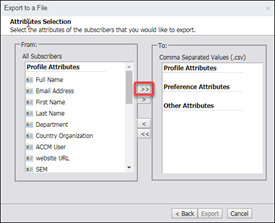
- Click Export. The application begins the process of exporting the data into a file. How long the export takes depends on the amount of data to be exported.
- Click Finish
|
If you chose to be emailed upon completion: |
This dialog box appears immediately and confirms that the export process has begun. Click Finish to exit the wizard. After the export file has been built, you'll receive an email with the file in the format you chose. |
|
If you chose the HTTP browser download option: |
The dialog box appears after the export process has been completed. Click the Download File button in the dialog box to open the file in your browser. Click the Finish button after downloading the file, to exit the wizard. |
System Fields
When exporting a list, please note which fields are exportable and which are not.
You cannot export the following fields:
- Add Method
- Added By
- Bounce Count
- Modified Date