!NOTE: We recommend you first build this on your test environment before doing it on your live site until you are sure the popup looks the way you want.
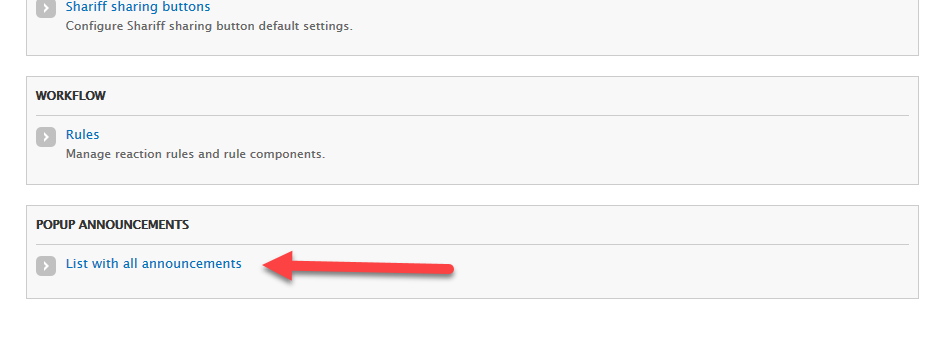
Click on your full Configuration settings.

Next, scroll down to the bottom and click on the List with all announcements.
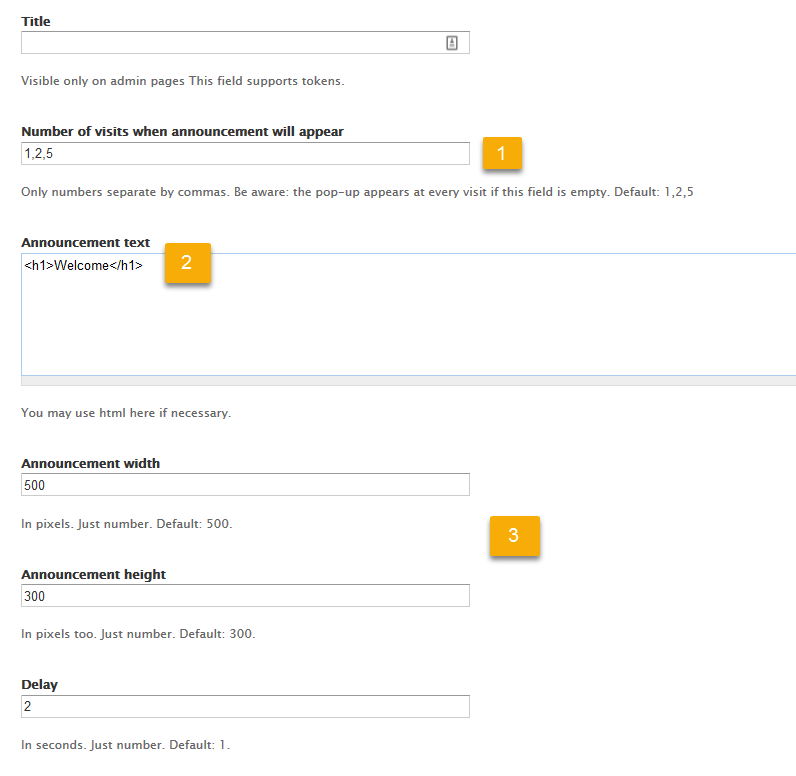
Next, create a new announcement.
|
1. The popup can be shown at different frequencies. If left blank, it will show every time. 2. You need to put your text in the Announcement text box. !NOTE: You need to include the html. Most of your text can most likely be placed inside paragraph tags (<p></p>). 3. The default settings limit the popup to 500x300 pixels. If you need to adjust the size you can tweak it here. |
 |
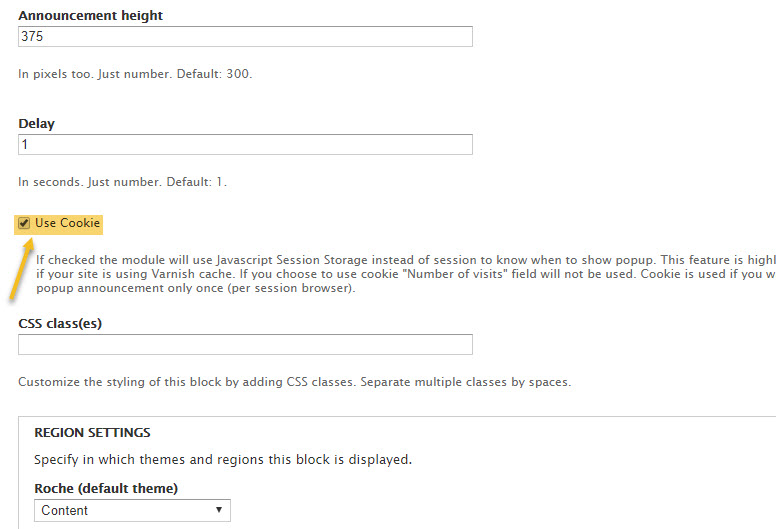
Enable "Use Cookie" Option:
"Use Cookie" option must be enabled while creating new announcement(as per the below screenshot). Missing this configuration will lead to an issue with entire site caching.
Lastly, you need to select what page(s) where the popup will go. In this example, we will be putting it on the homepage, which is represented by the value <front>.
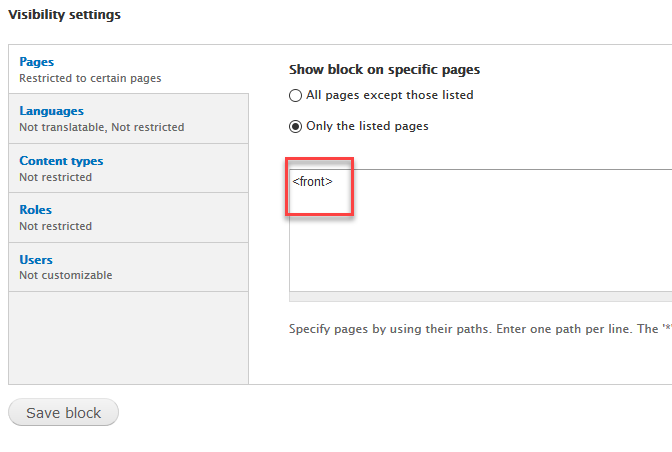
Click Save block when you are done.