There are many different types of ways to find content in the Engage Pro platform. One of the easiest ways is to utilize the "Search" tool. You can search for the name of a document or even keywords that lie directly in the file.
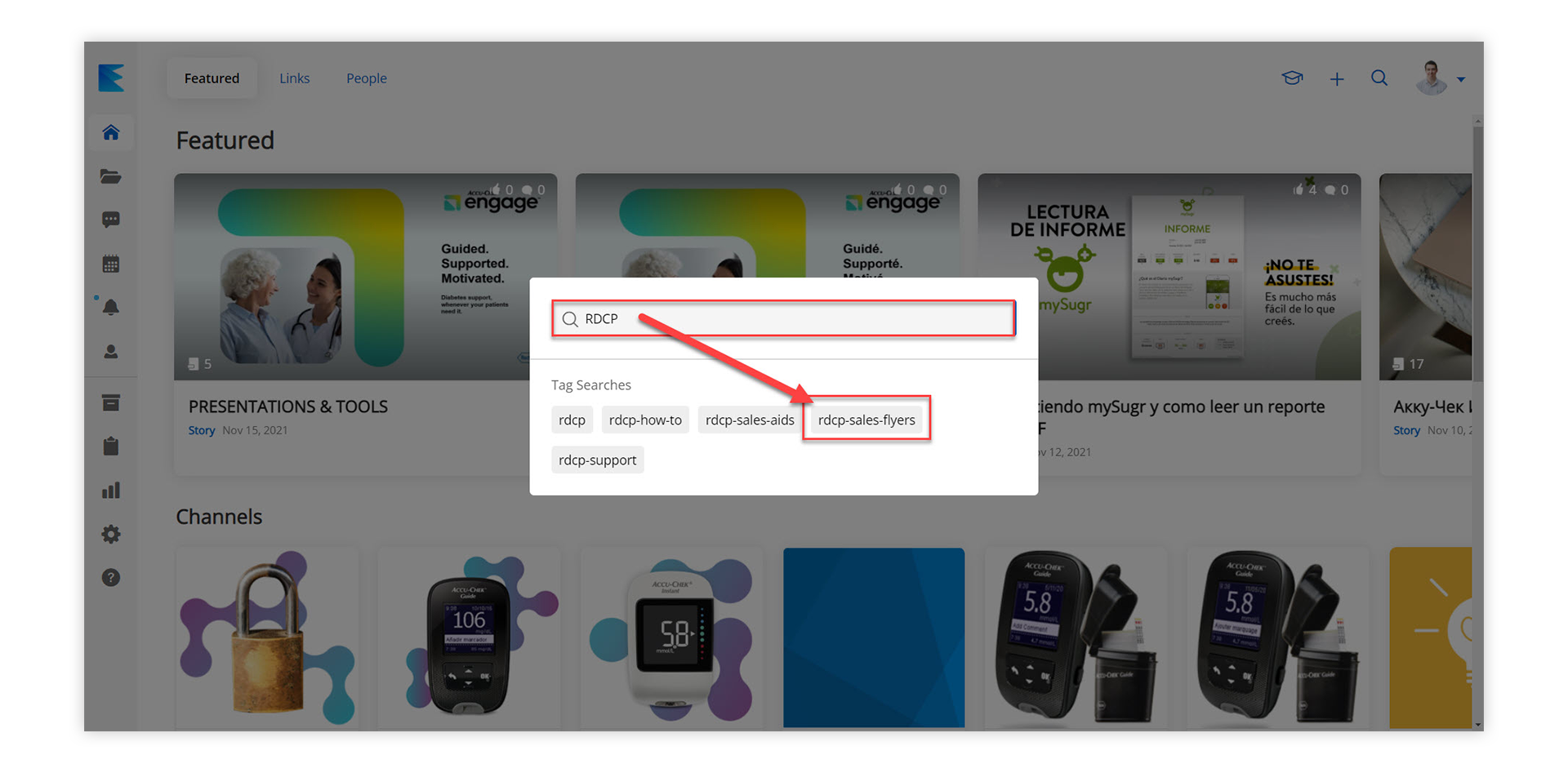
- Finding The Search Icon: Navigate to the top right corner and click on the “magnifying glass icon”. from here you can search specific tags that are added to each piece of content.

- Inputting a Search: Once you've clicked on the Search Icon you can now start typing in the name of the document, the keyword that's used in the document, or specific metadata that's attached to the file (if you start typing you will see metadata appear under "Tag Searches"). To search, press enter or click on a tag.
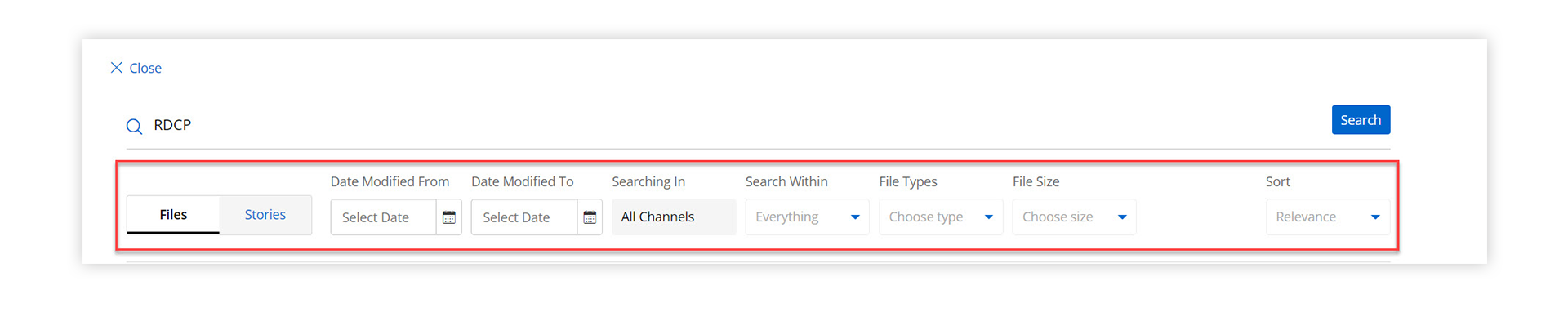
- Search Attributes: Once you arrive at the search page you will notice a horizontal bar at the top that has many different parameters to choose from for narrowing down your search. You can search by the following:
-
-
- Files
- Stories
- Dates modified
- Specific channels or all channels
- Search within the file name, content, or tag
- File type
- File size
If you know the type of file you are searching for you should utilize the "File Tab" and the "File Types" drop-down to select the type of file you are looking for.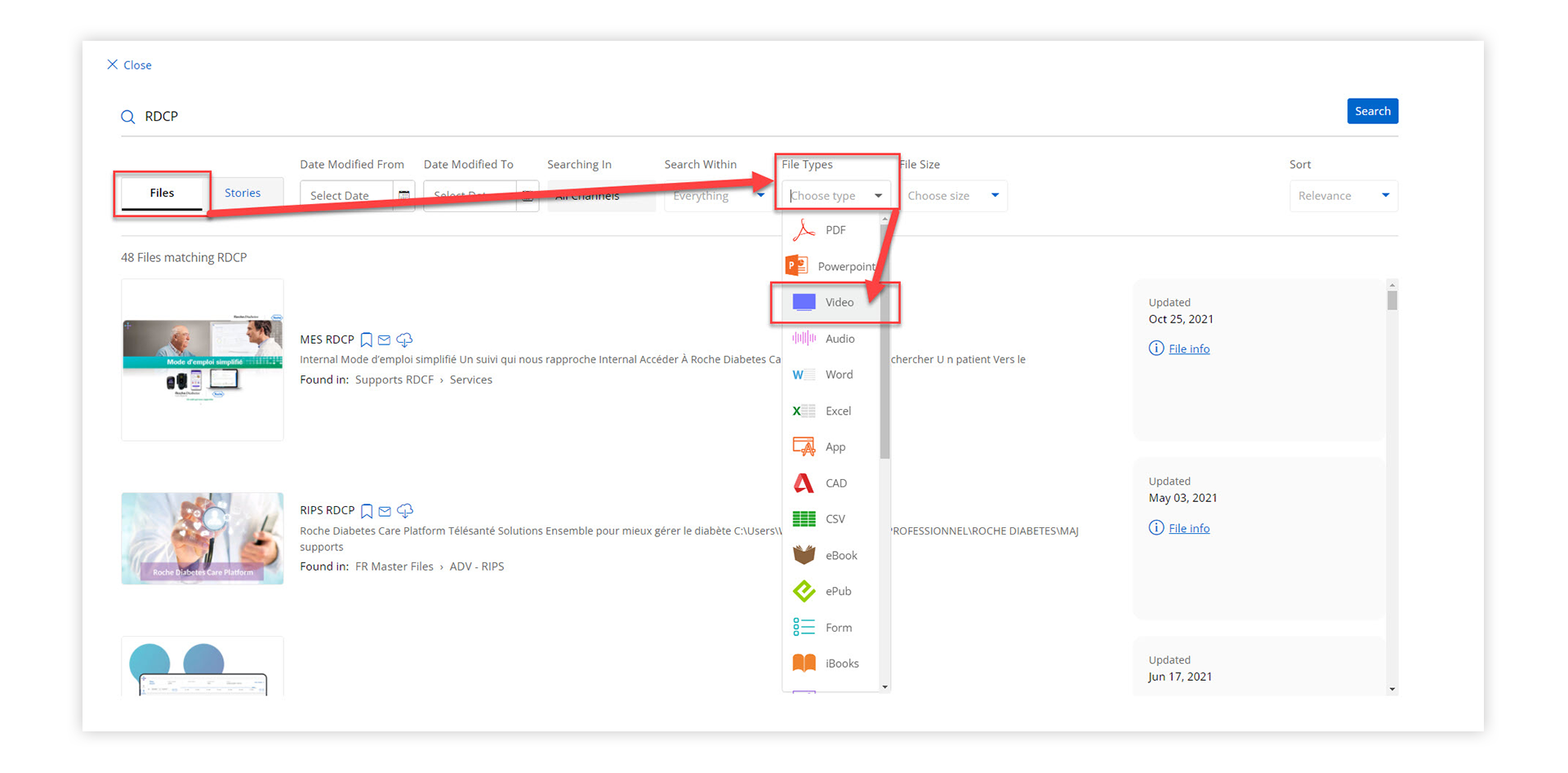
-
-