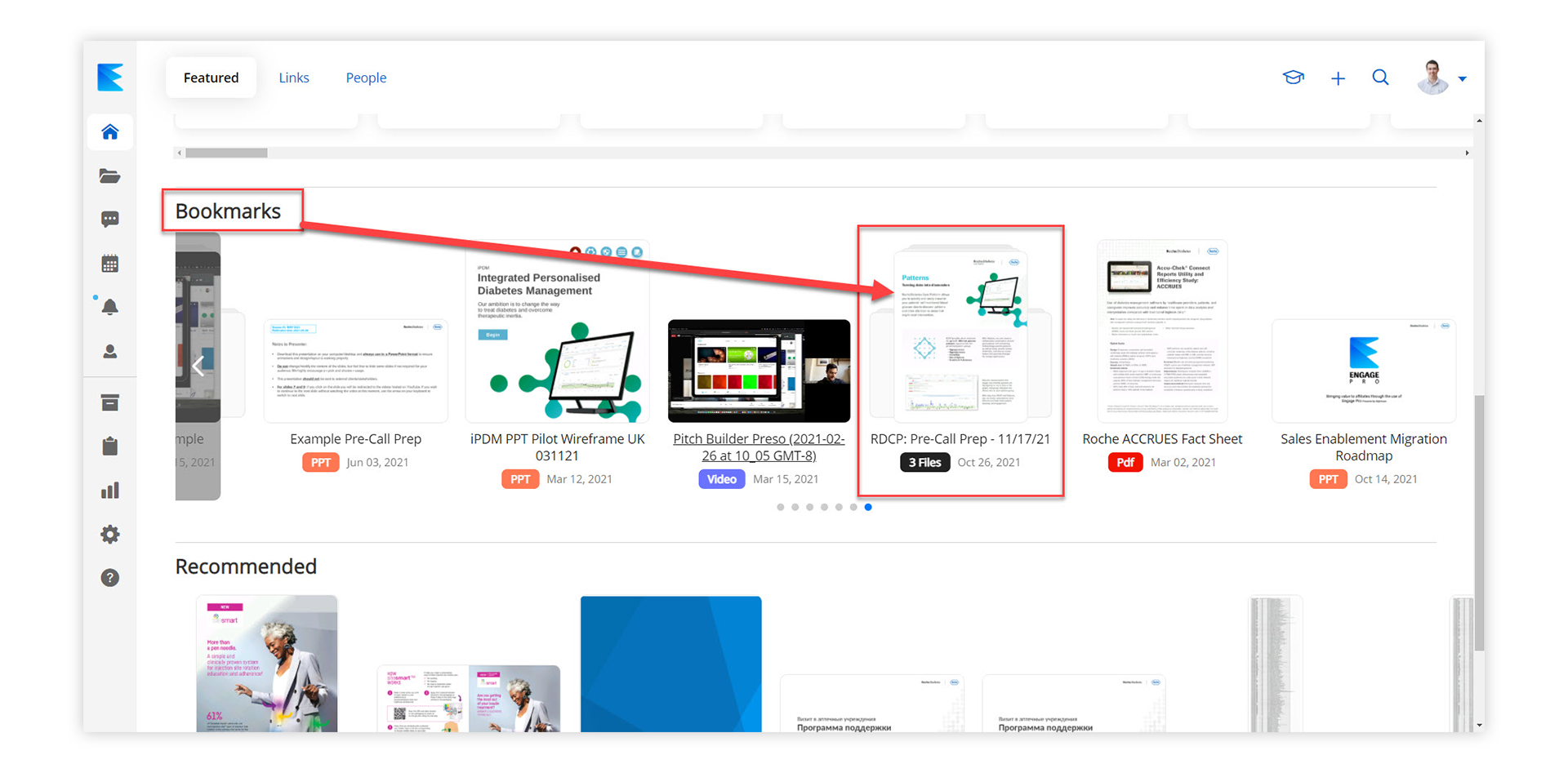
Creating a bookmark stack is one of the best tools a sales rep can use for pre-call preparation. If a sales rep knows that they will be focusing on 3 different pieces of content for a call then they can create a bookmark stack that is easily accessible and ready to use with just one click. Here are the steps to creating a bookmark stack:
- Open content item #1: The first step is to navigate to the first piece of content that you would like to focus on during your call and open it.
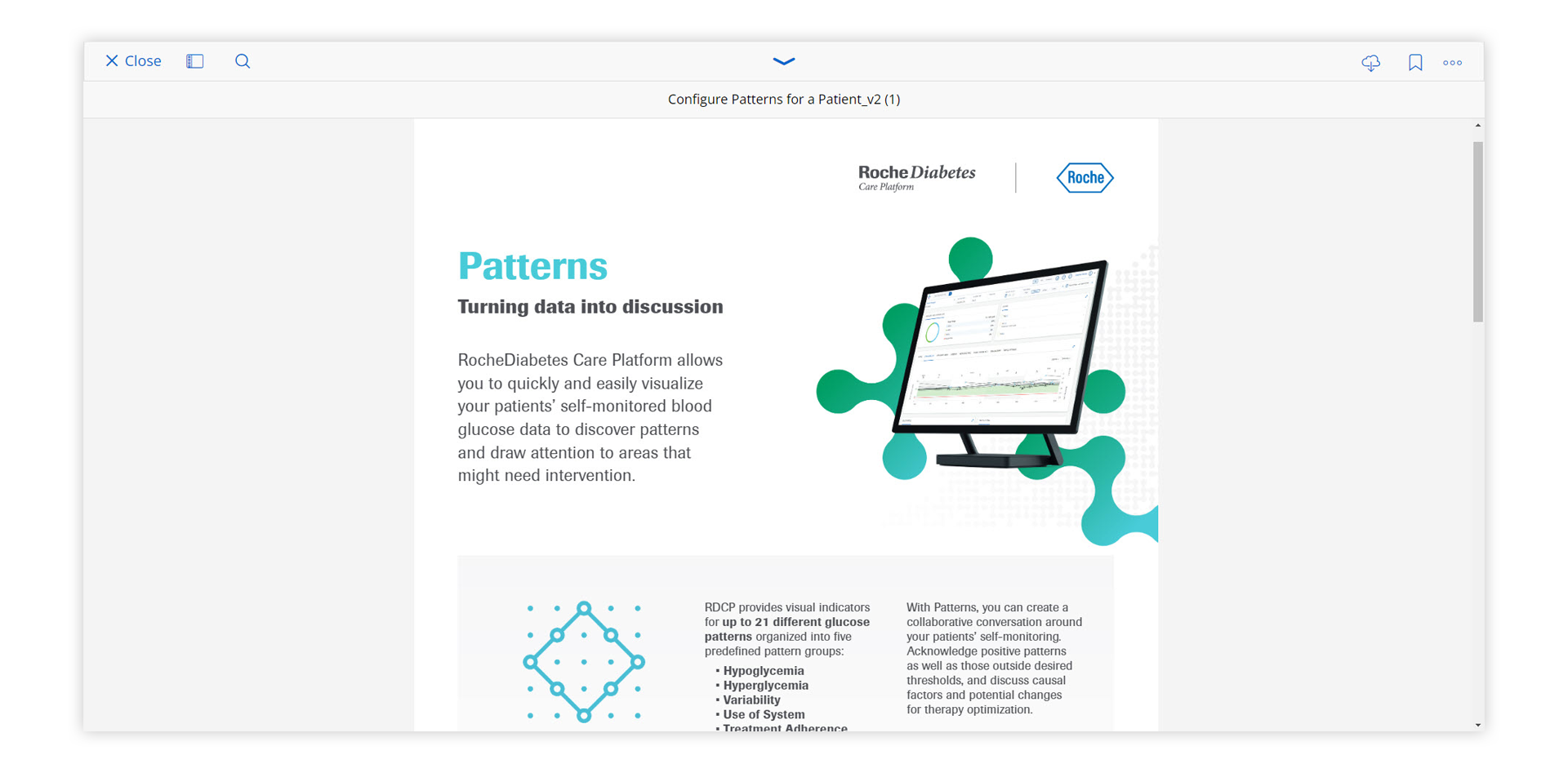
- Minimize content item #1: With your first piece of content open, you will see a down arrow in the middle above the file. Click the down arrow and you will notice that the piece of content is minimized at the bottom of the page.
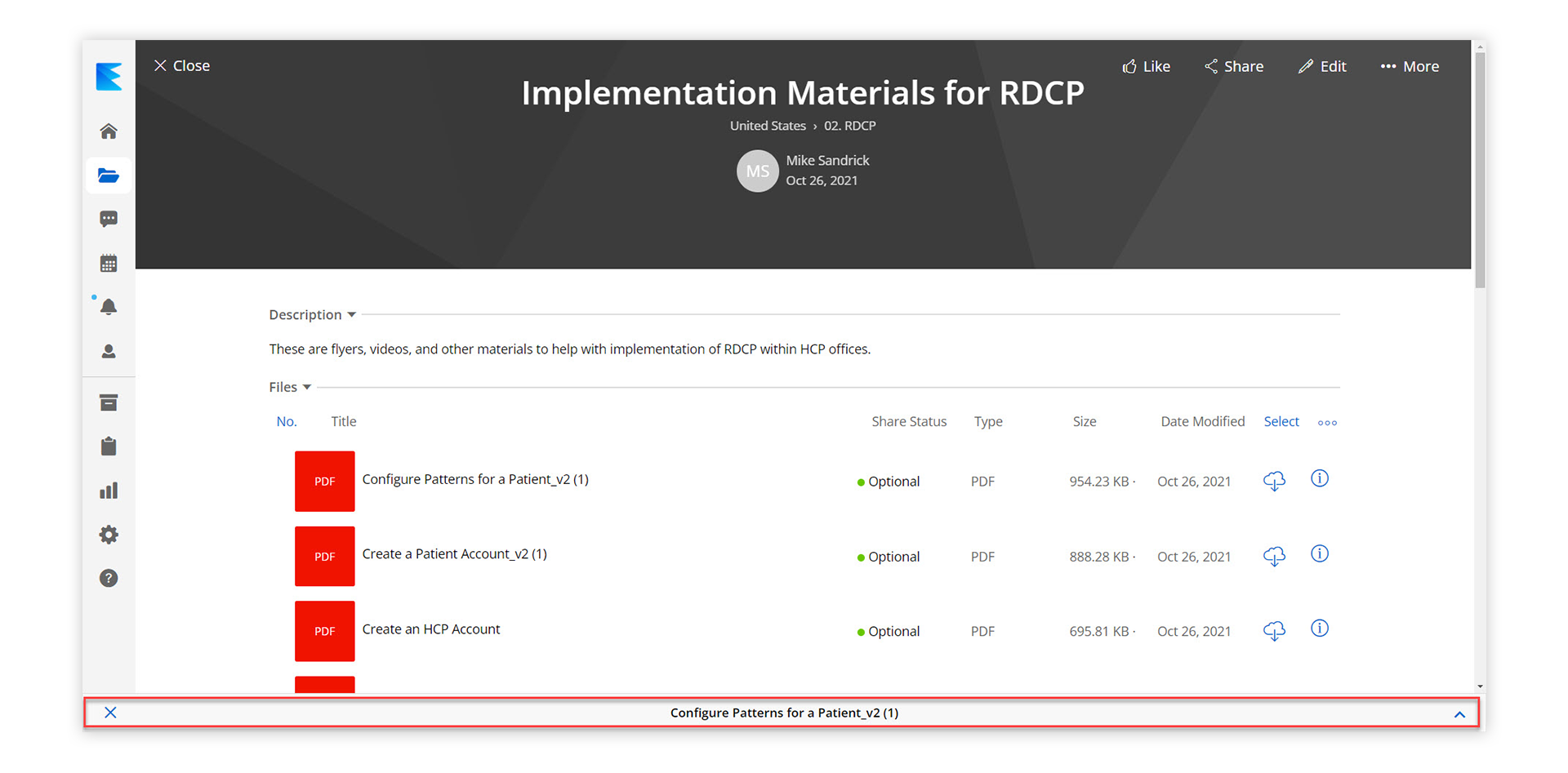
- Open content item #2: Navigate to the second piece of content you would like to focus on for your call and open it. (The first piece of content will appear in the top tab as still being opened)
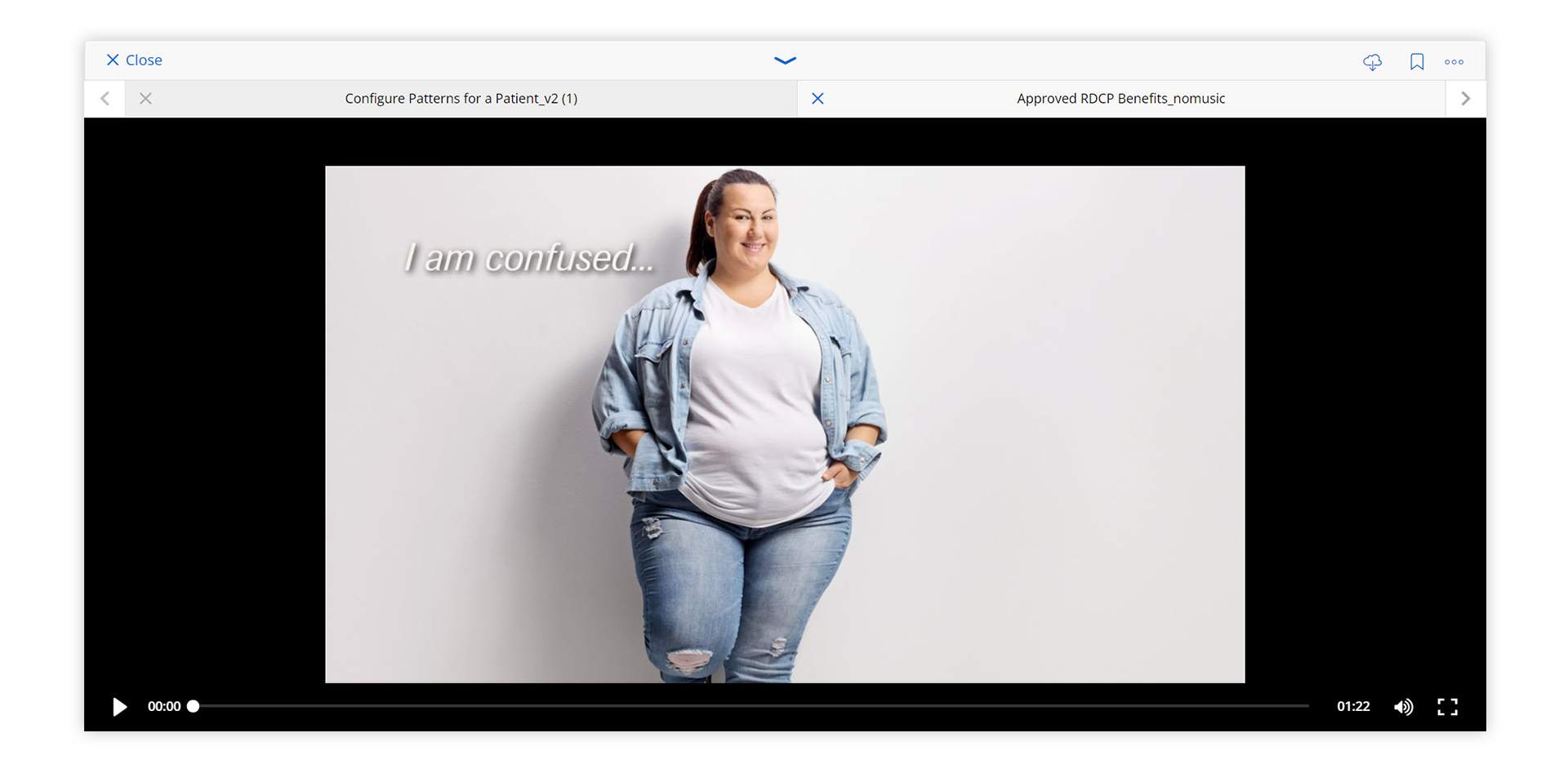
- Minimize content item #2: With your second piece of content open, you will see a down arrow in the middle above the file. Click the down arrow and you will notice that the piece of content is minimized at the bottom of the page.
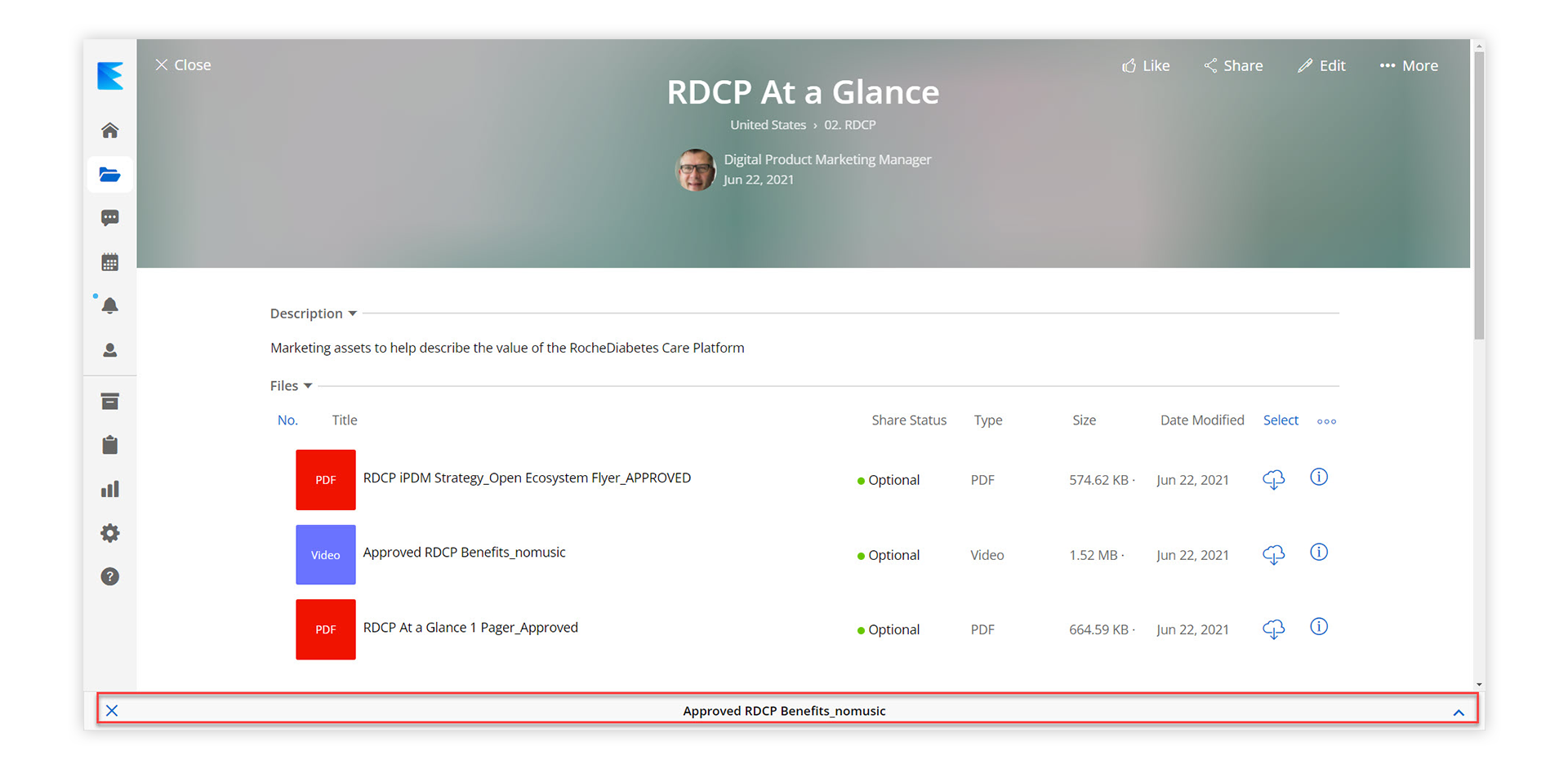
- Open content item #3: Navigate to the third piece of content you would like to focus on for your call and open it. (You should have three pieces of content in the top tab viewer)
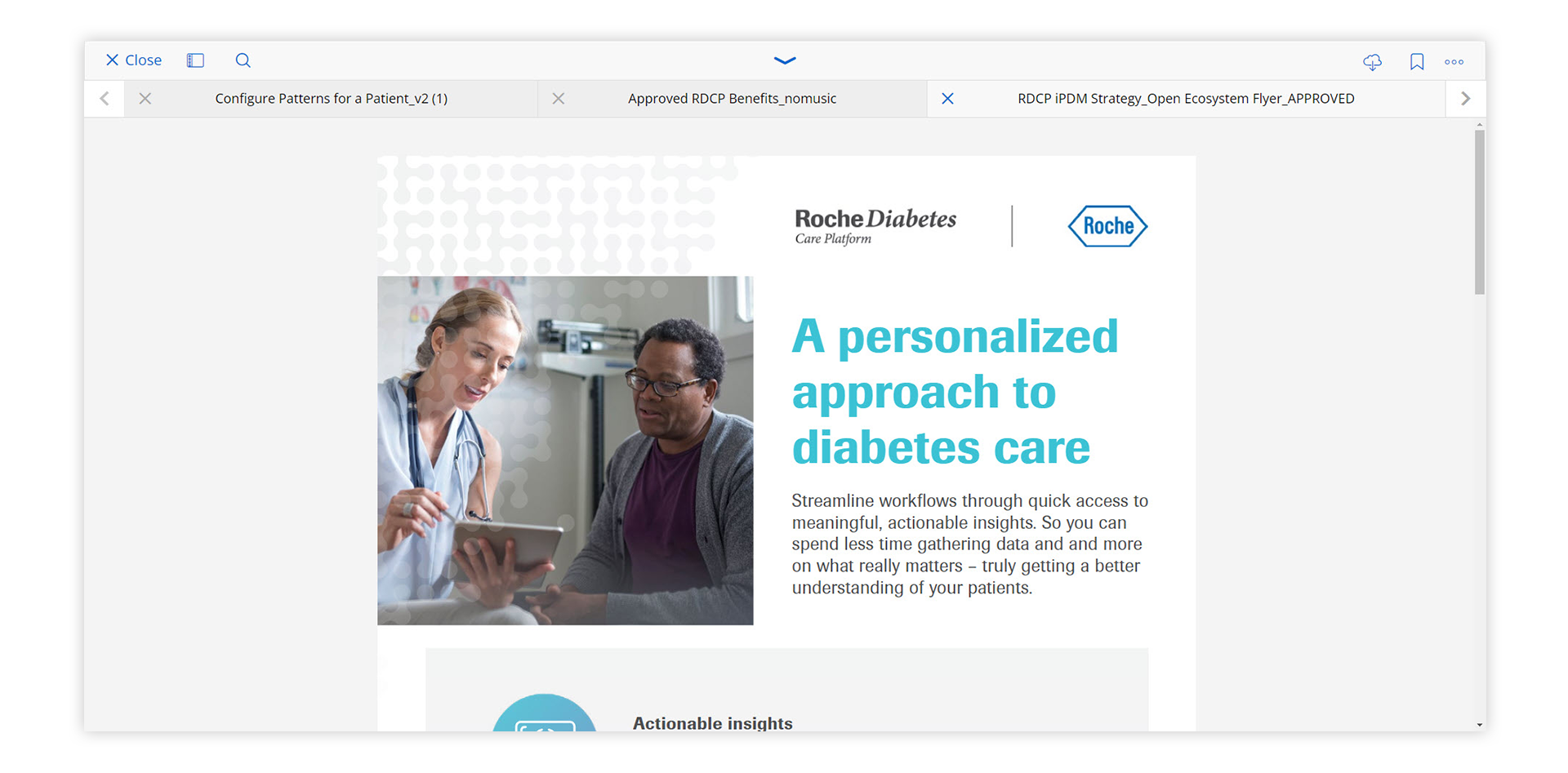
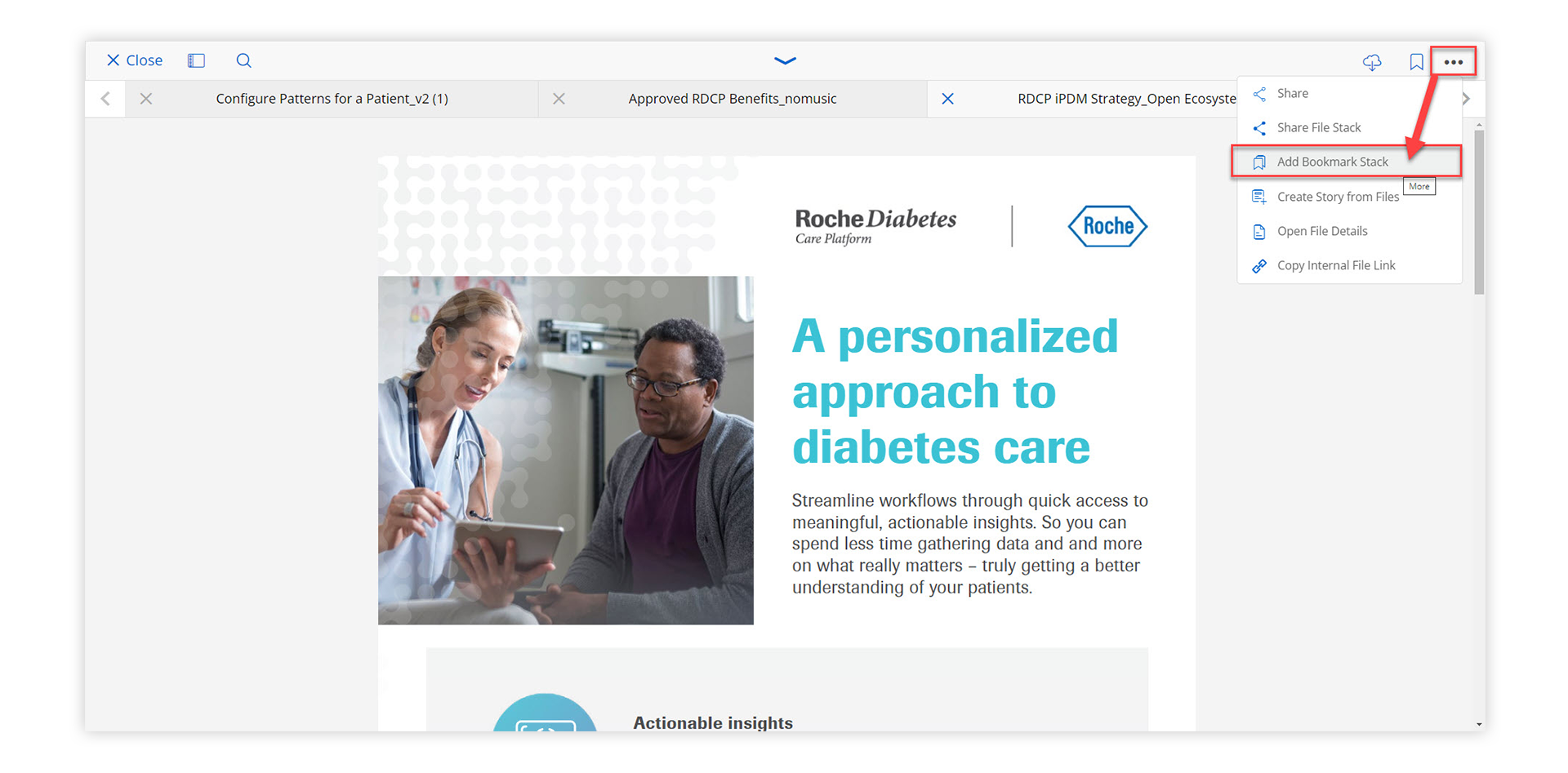
- Create the bookmark stack: Now that you have three pieces of content open in the tab viewer click the three dots in the right-hand corner to display the drop-down menu. Click “Add Bookmark Stack”.
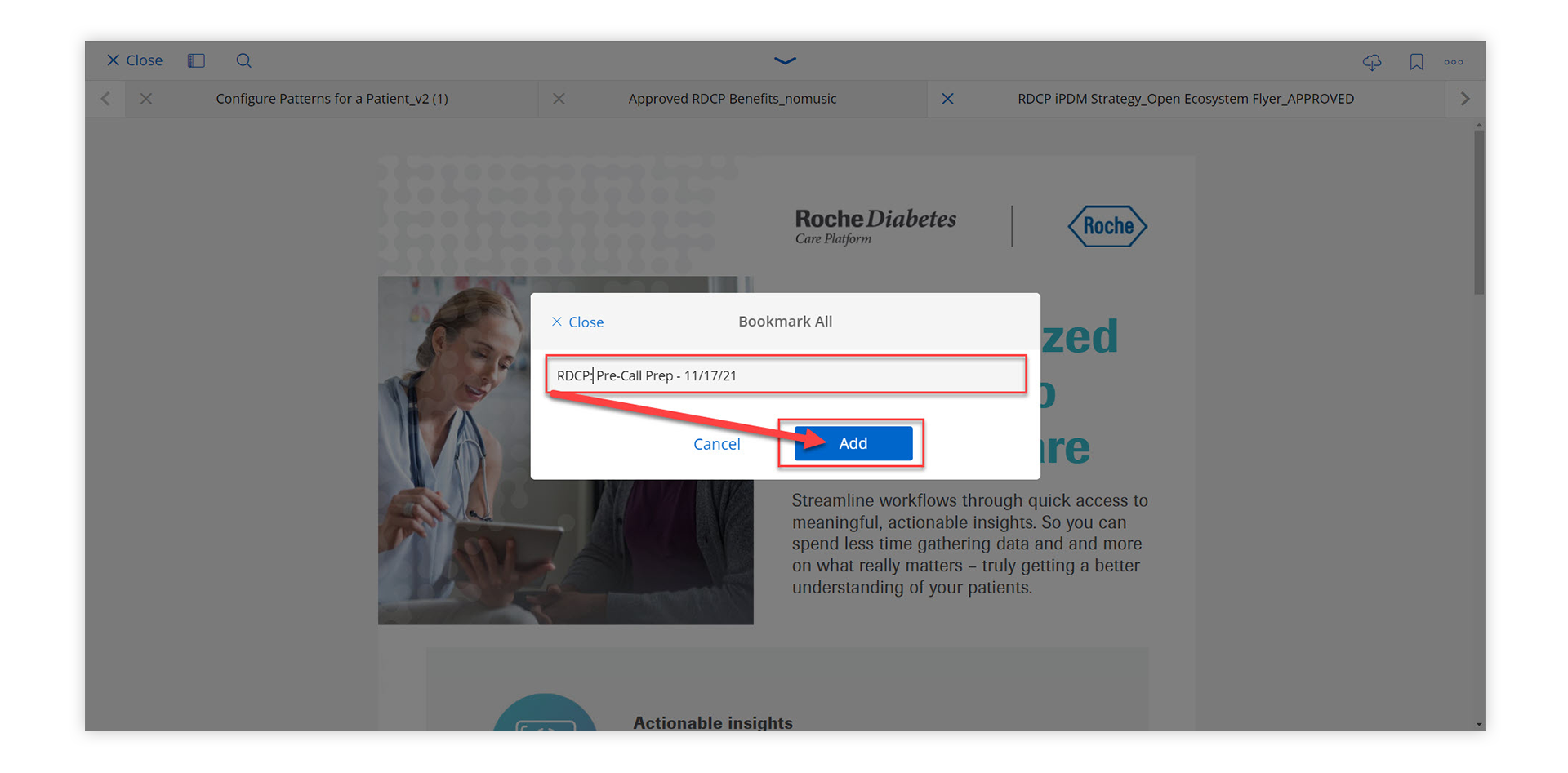
- Name The Bookmark Stack: Choose a name for the collection of materials that you have chosen to be a part of your bookmark stack.
- Navigate Back To The Homepage: Scroll down to the third section of the homepage where you will find your Bookmarks. From here you can easily access all the bookmarks you create!