Once a call has been completed the first course of action should be to send a follow-up to the recipients. There are two different ways of sharing content, you can share directly from a story or from your home dashboard.
Follow these quick and easy steps to share & track personal analytics:
1. Click Share:
The Share button is located in the top right corner of a story.

2. Insert Recipients:
Type the recipient's name or email into the "People" section. If they are a Salesforce contact the System will sync and their contact will appear when typing their name.
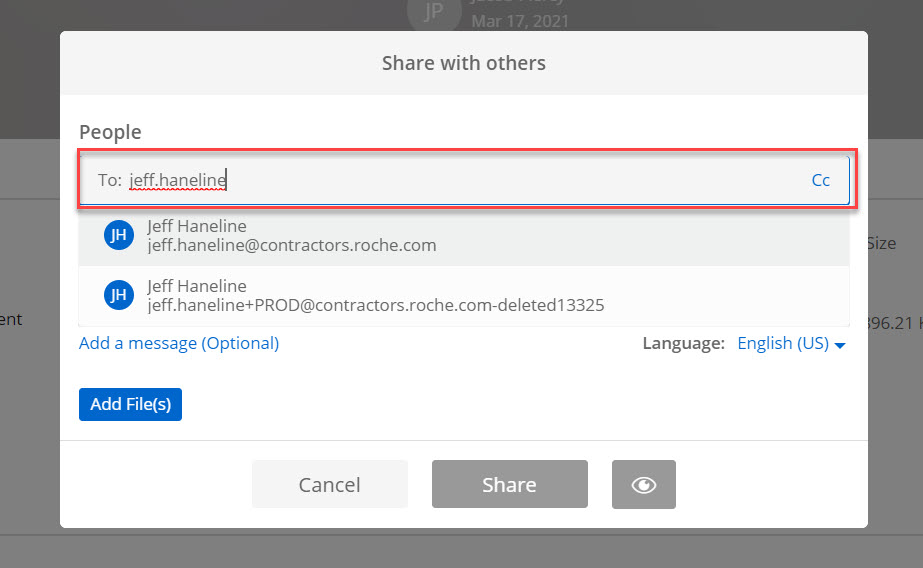
2a. Add Subject:
Under the "Subject" section you have the ability to insert a custom subject line. Bigtincan will autofill this to say: User has shared content with you. It is up to you what you would like to make the subject line.
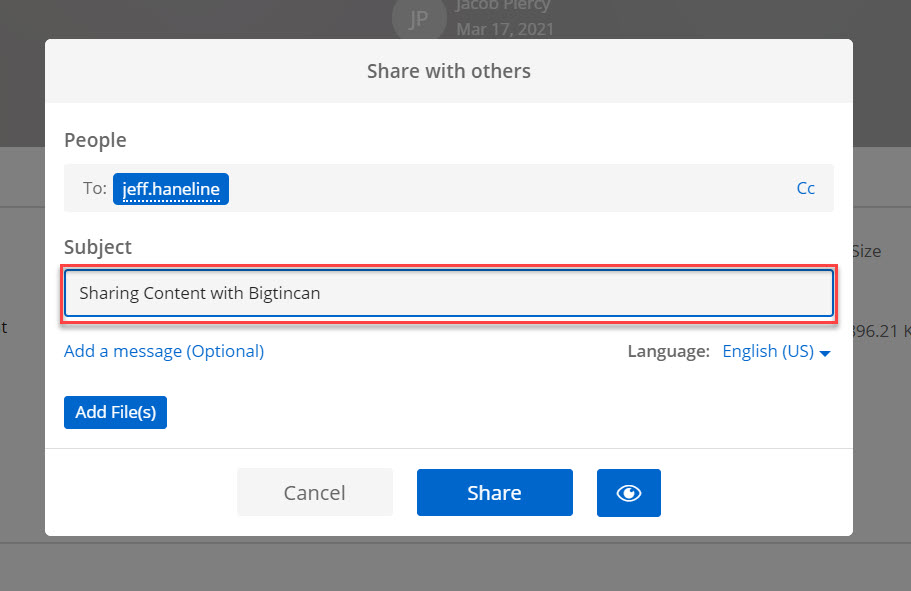
2b. Add Message:
In the "Message" section you can add the context to your follow-up here, just like you would add your follow-up message in an email.
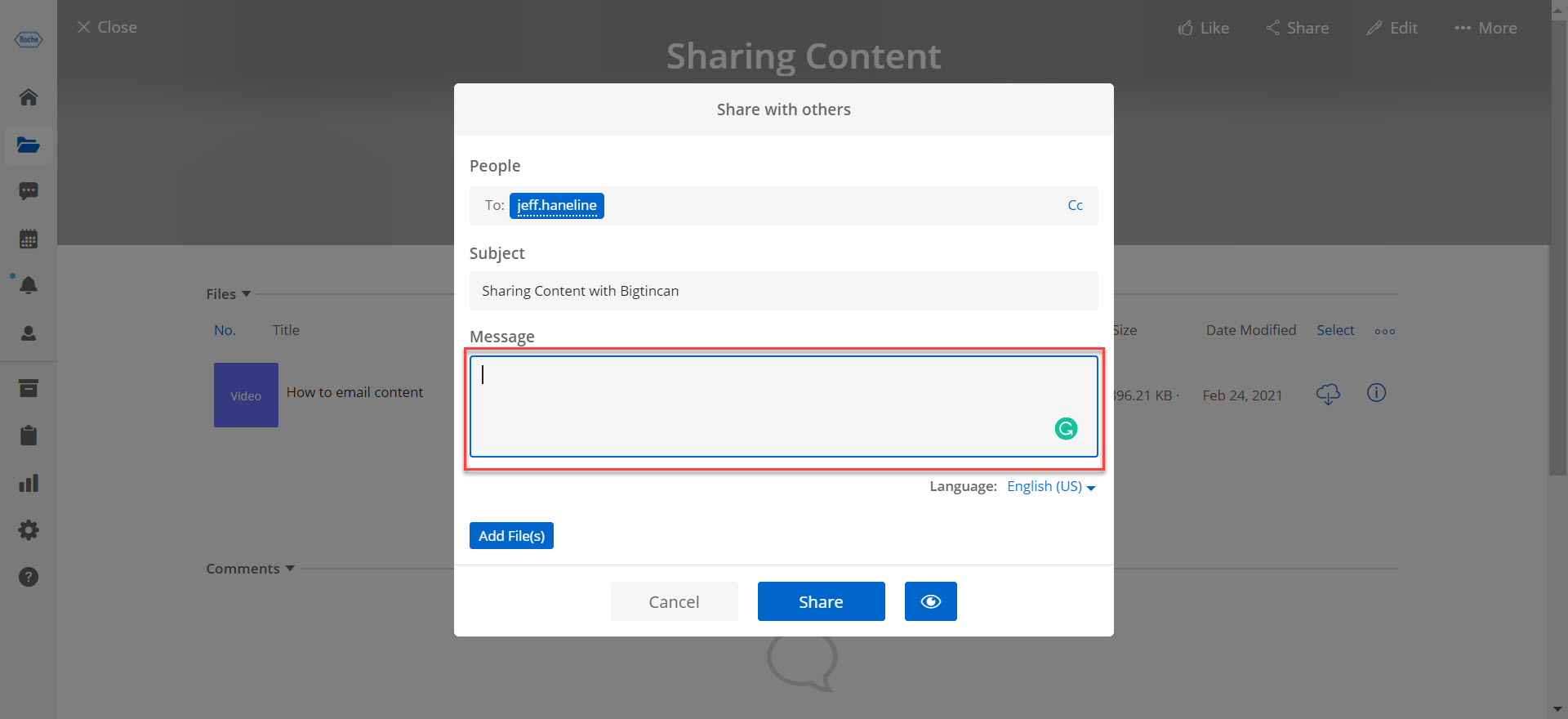
2c. Click Add Files:
Once you have added the recipients, subject, and message you will click add files to select the content you wish to share.
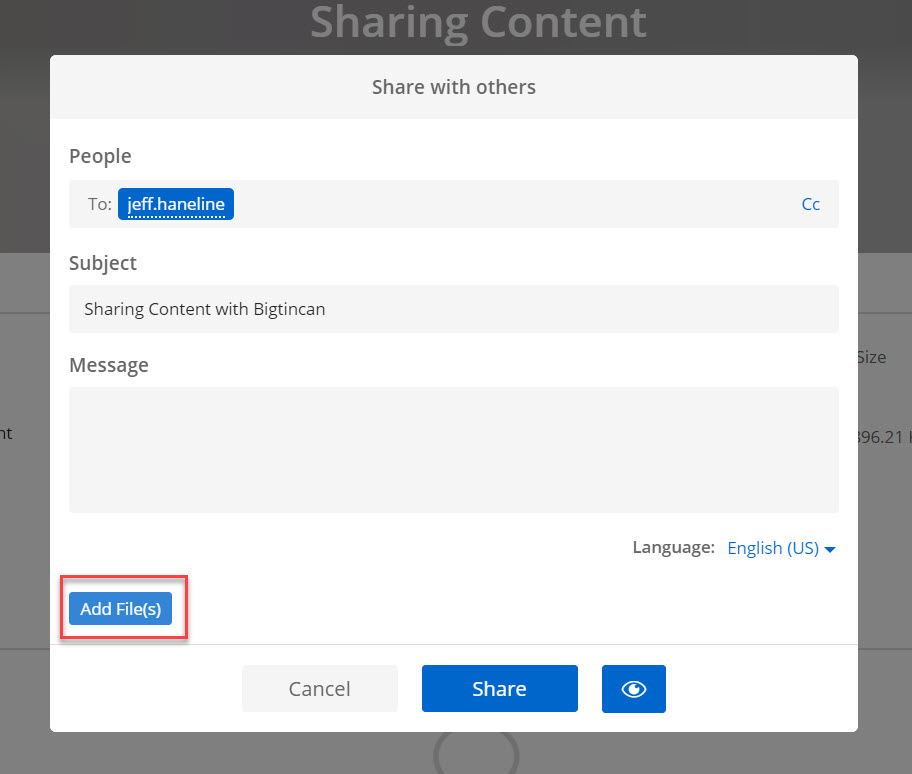
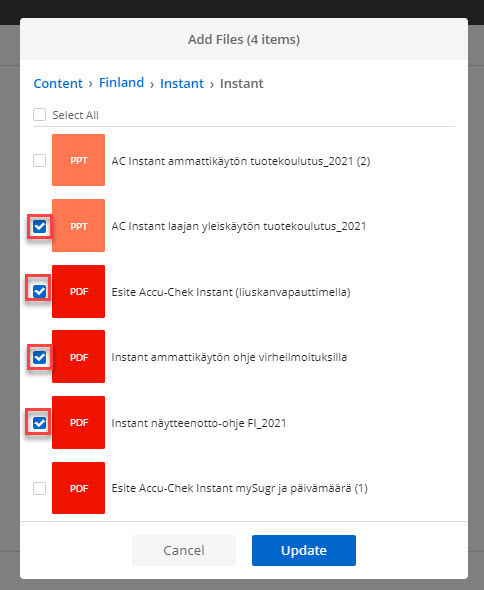
3. Select FIles:
Select the files you would like to share by clicking the check box.
If there are files outside of the story you would like to share you can click back through the bread crumbs highlighted in blue above the "Select All" checkbox to select other pieces of content.
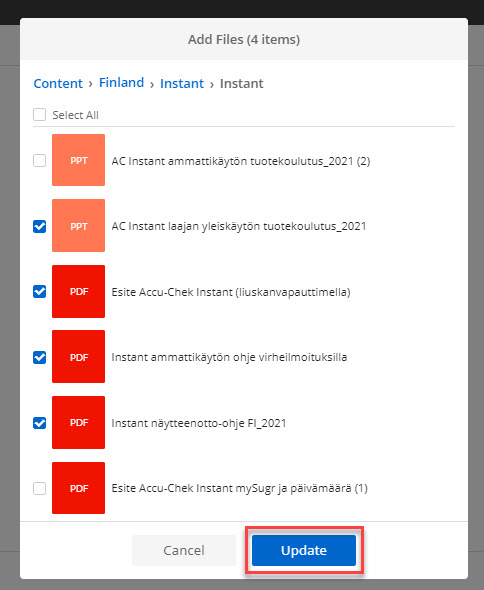
3a. Click Update:
Once you have selected all the files you would like to share click "Update".
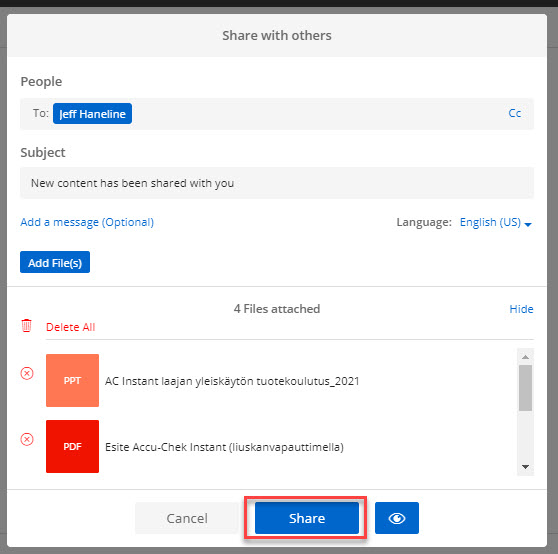
4. Click Share:
Once you've updated the content you wish to share you will be able to view your full follow-up and make any edits if needed before sharing your content. Select "Share" to finalize your message.
Once your message has been shared you will receive a pop-up notification for successfully sharing content.

Once you have successfully shared content you can track the analytics for that content you shared and the viewers you shared the content with. Refer to this article to understand how Personal Analytics works: