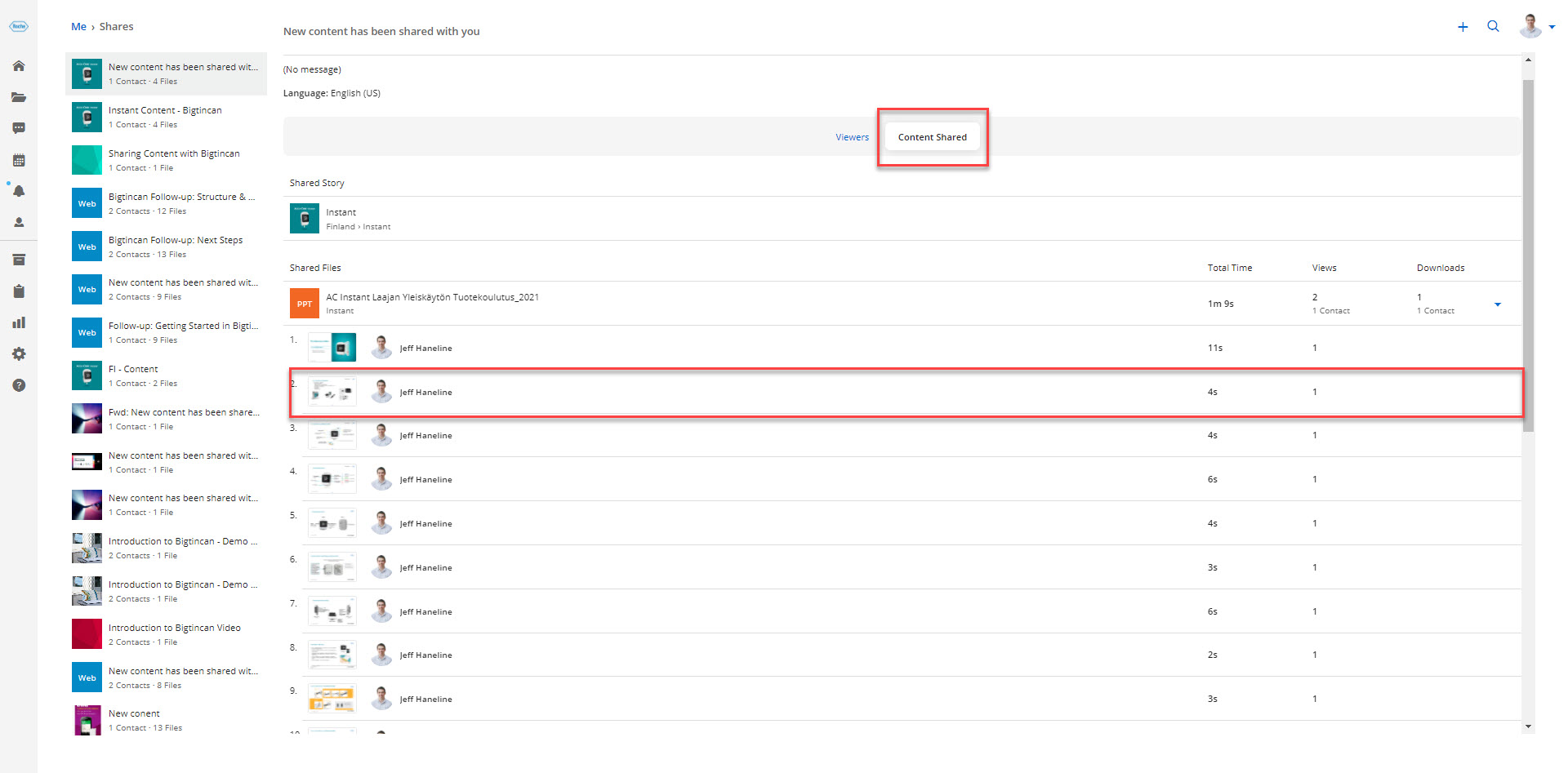
Once you've shared content with a recipient or list of recipients you can track two areas in the "Me" section under the "Recently Shared" section. You have the option of tracking the "Viewers" and the "Content Shared".
Follow these quick and easy steps to view these personal analytics:
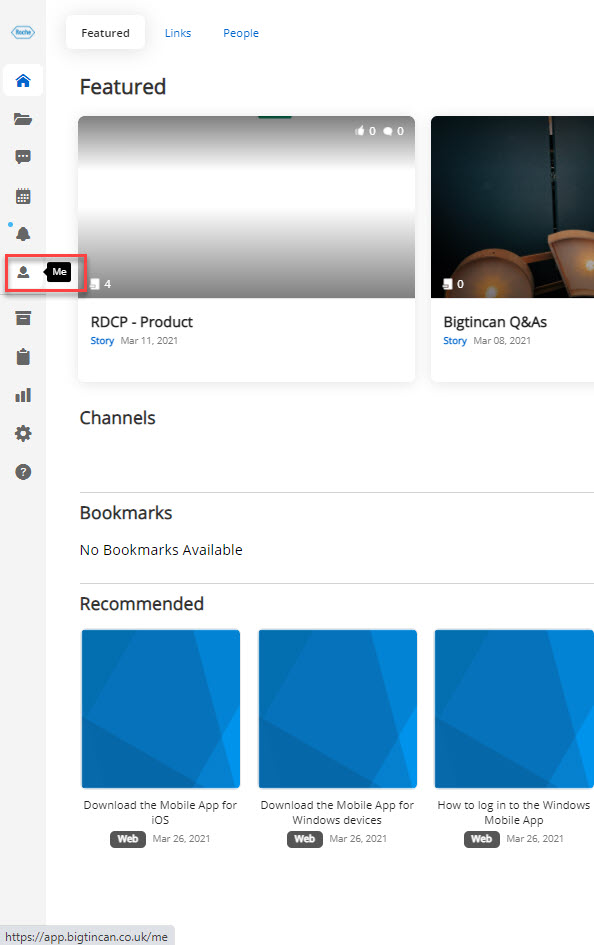
1. Select "Me" Icon From Taskbar:
To view personal analytics select the person icon, if you hover over the icon the taskbar title "Me" will appear.
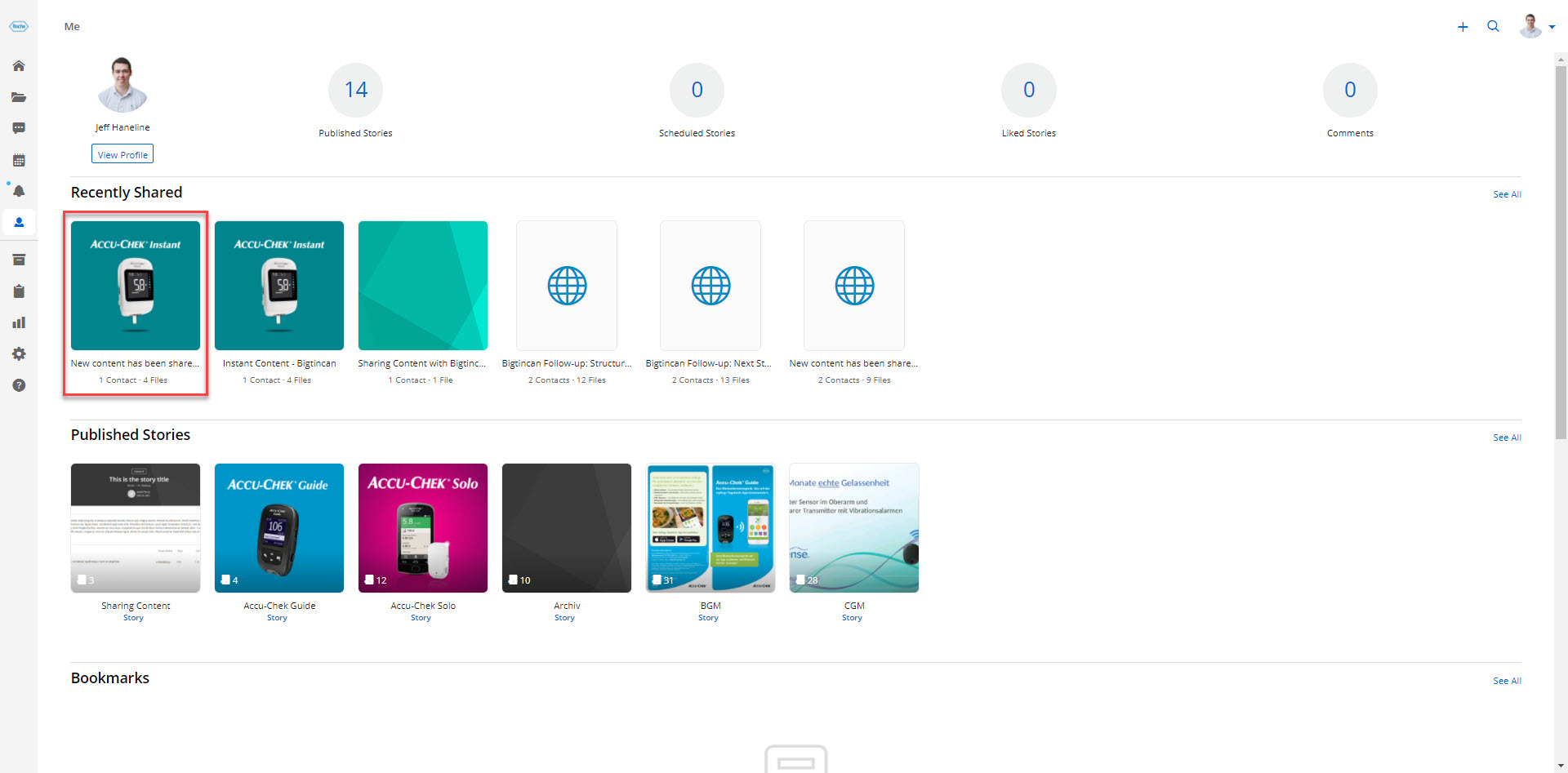
2. Select First "Recently Shared" Card:
All content that you share will appear under the "Recently Shared" section of the "Me" dashboard. Selecting the first card will show you the most recent activity that you had.
3. Viewers Tab:
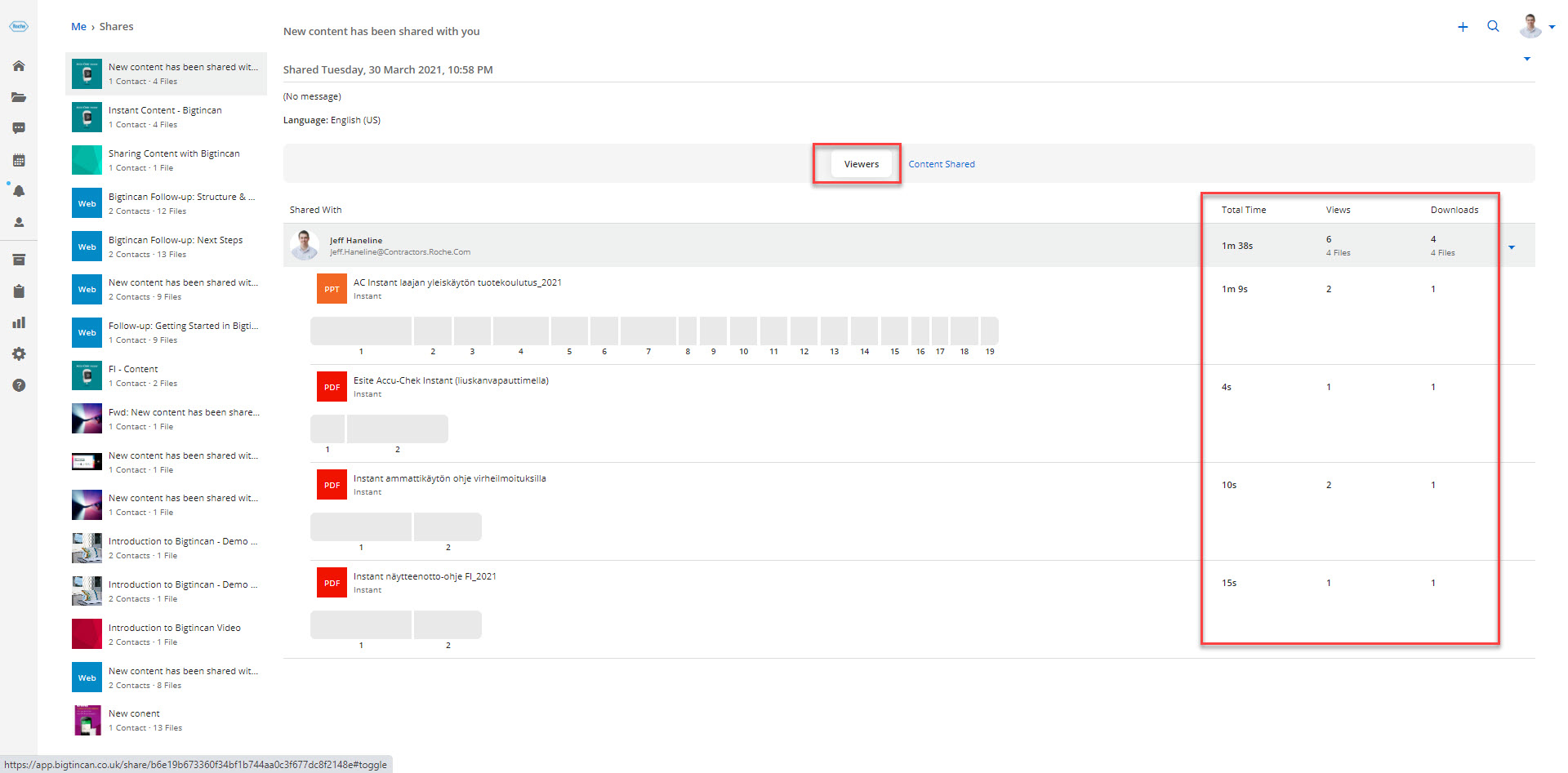
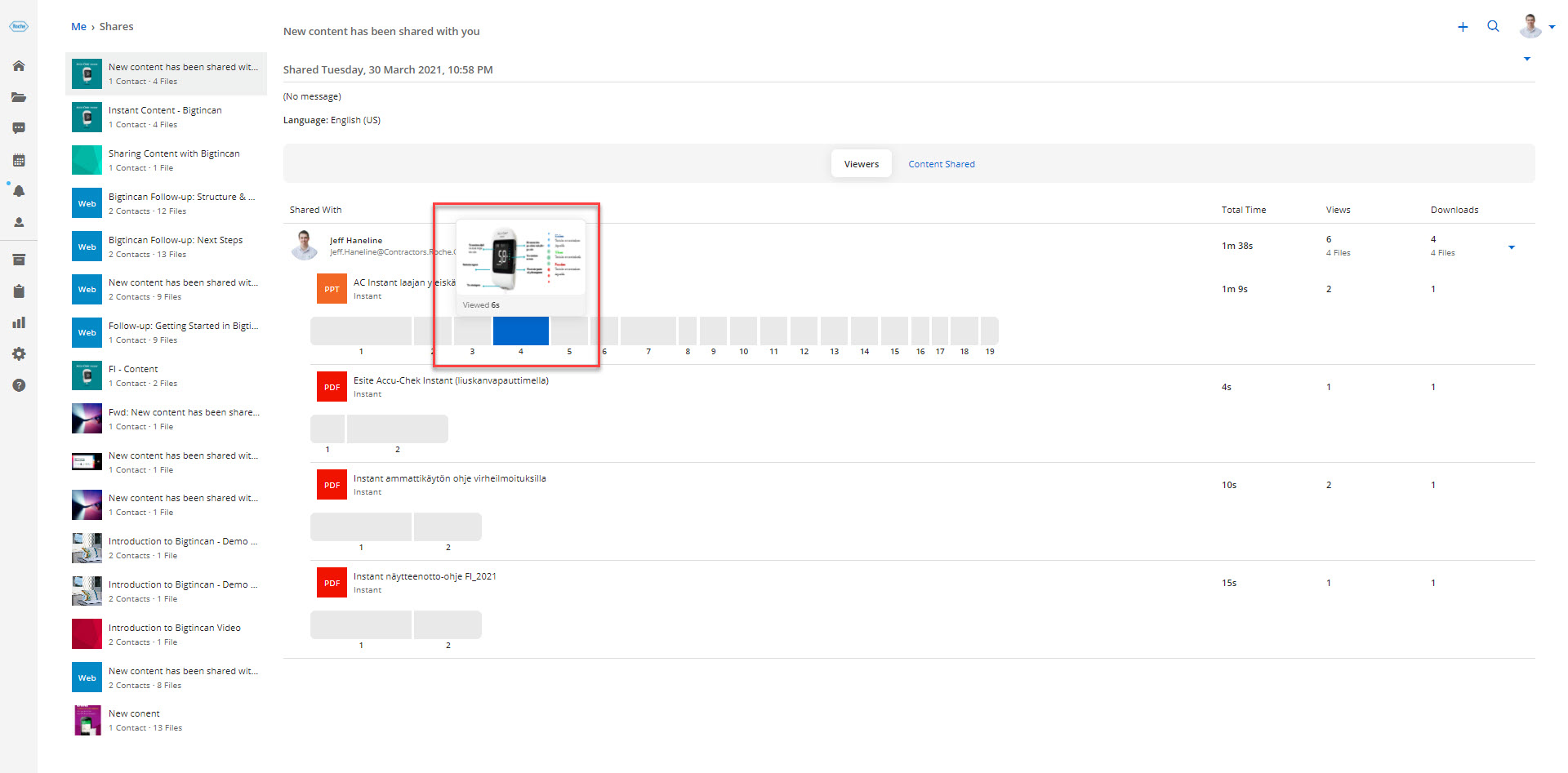
Once you've selected a piece of content that you've recently shared you will be able to view analytics for the viewers that your content was shared with. The specific measures are Total Time, VIewers, and Downloads.
3. Viewers Tab - Time Per Slide:
Once you've selected a piece of content that you've recently shared you will be able to view the total time spent viewing each slide or page of a document.
4. Content Shared:
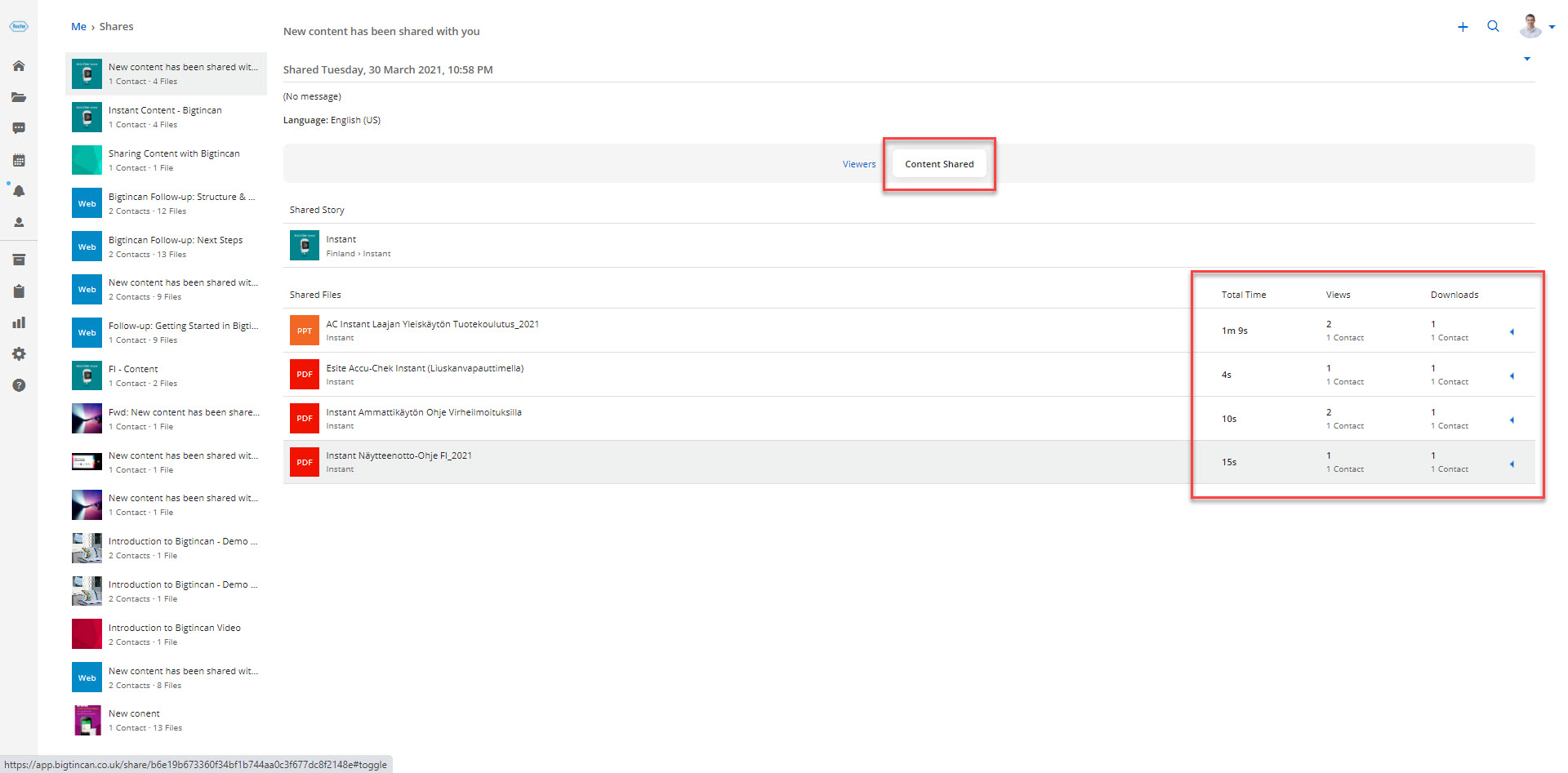
The second tab you can select is the "Content Shared" tab. This allows you to see an individual piece of content and the analytics of Total Time, VIews, and Downloads for that specific piece you shared.
4a. Content Shared:
Once you've selected a specific file type you will then be able to see the analytics based on specific pages that are being viewed the most and how long each viewer spent viewing those specific pages.