If you would like to create an infographic, please read the instructions below. (This is applicable for content types like the Article and Basic templates.)
The first step in creating an infographic is to create an article. Once the article is created, follow the steps below.
Create an infographic
1) If your infographic is more than one page, take a screenshot of the first page and add that image to the article that you created.
Adding the infographic as a download
2) Hover over the Manage Content drop down menu.
3) Click Add a Download.
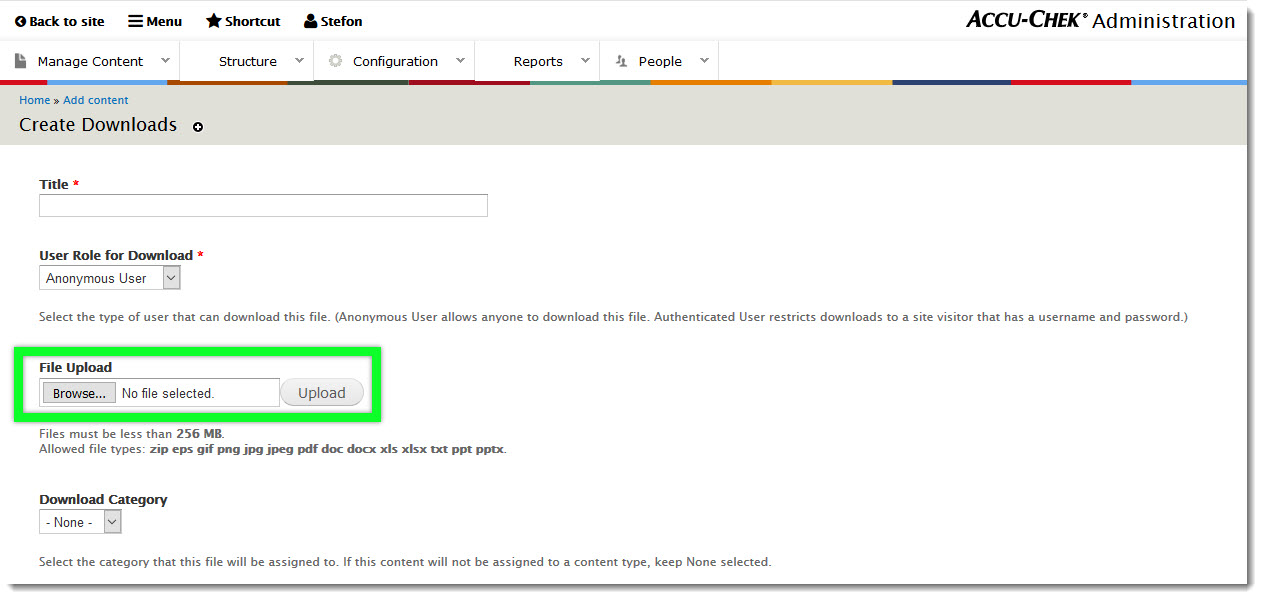
4) Create a title for the full infographic. Once you find the file on your device, click upload. (see screenshot below)
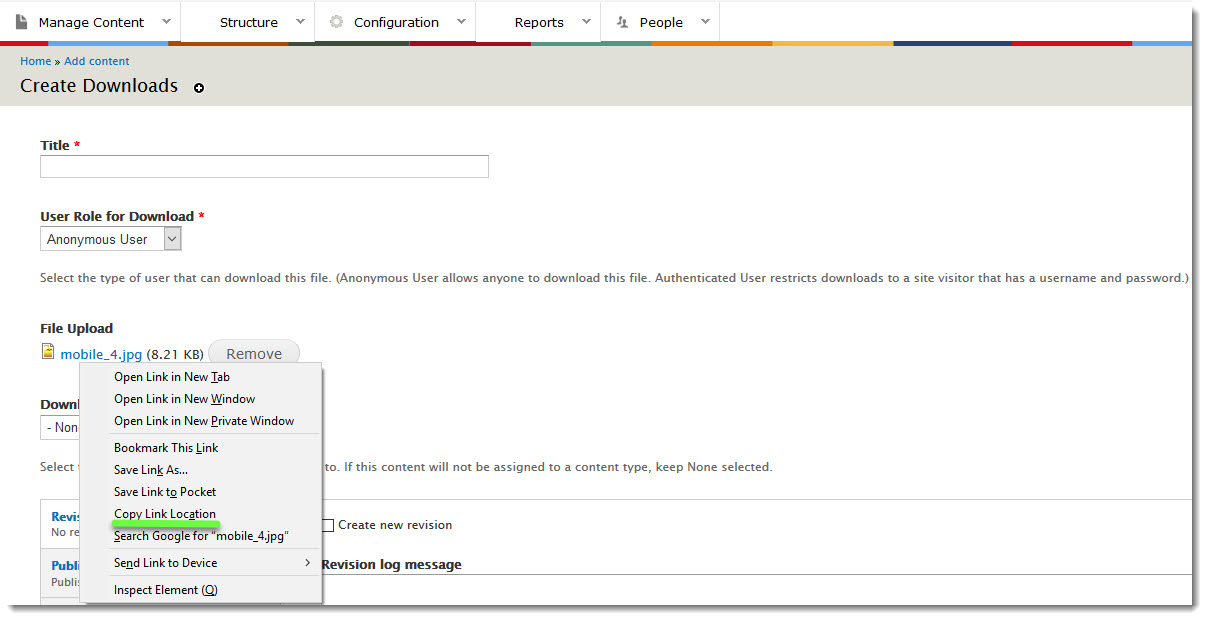
5) Once you upload the file, right click on the link and select Copy Link Location (see screenshot below).
Hyperlinking the infographic
6) Navigate to the article that you created that has the first page of the infographic.
7) Right click on the image and click the hyperlink icon in the editor menu (see screenshot below).

8) Insert the URL from the link you got from the download page. Click Ok.
The article that you created should now have the first page of the infographic and once clicked, should open a new window with the full inforgraphic.