|
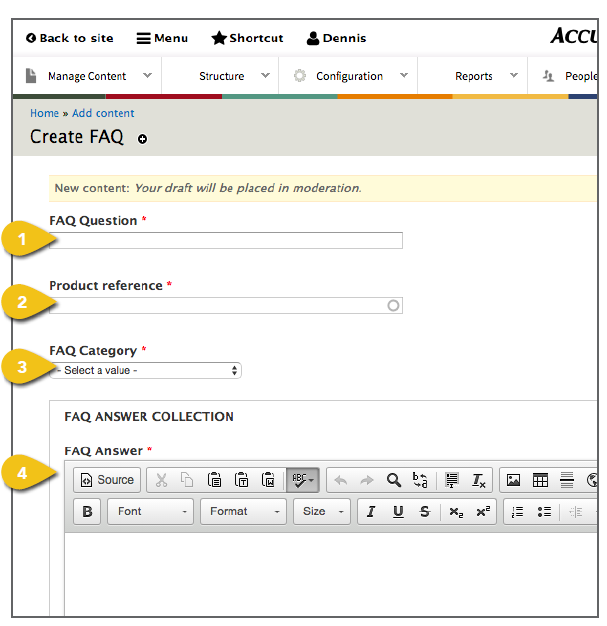
To include frequently asked questions, select Create A FAQ from the Manage Content dropdown. Each question and answer must be added individually. Follow the steps below to enter all of the necessary information. 1. FAQ Question: Enter the question here. Keep in mind that many products may include similar questions about how to test, product compatibility and so on. So, for example, if a user simply searches for “meter battery,” they may receive multiple results. To help these users identify the question associated with their specific product, it helps to include the full product name in each question. 2. Product Reference: This will ensure that the question appears on the proper product support page. • Begin typing a product name in the text field. As you type, a list of possible matches will appear. If you don’t see what you’re looking for, continue typing and the list will refresh. • Select the desired product. 3. FAQ Category: Make it easier for users to scan the full product FAQ by selecting the most relevant topic or category here. ! You can create categories under Manage Content > FAQ > Manage FAQ Categories to help group similar questions together. Categories such as Test Strips, Checking Blood Glucose, Meter Care and so on will help users find answers more easily. 4. FAQ Answer: Enter the full response here. You may include links to downloads and videos, as well as text. |
|
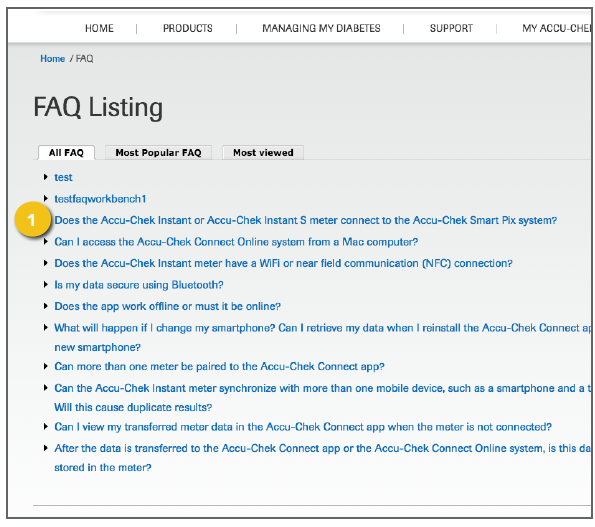
|
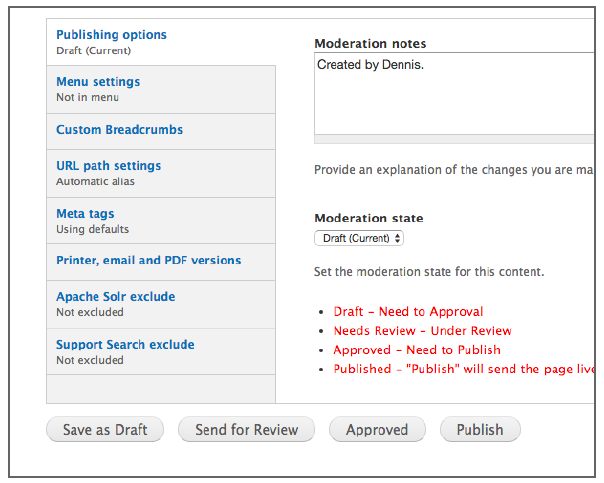
Additional Content These tabs appear beneath the primary content fields in the template. Get step-by-step instructions for the remaining options, including Publishing Options and Menu Settings in the Additional Content Details section. Meta Tags Add page and content Meta Tags that incorporate popular search terms to aid in search performance and user access. See Meta Tags for additional detail. Save Click the Save button beneath the navigation pane to save your work. If you have checked Published under publishing options, this will send the page live. |
 |