|
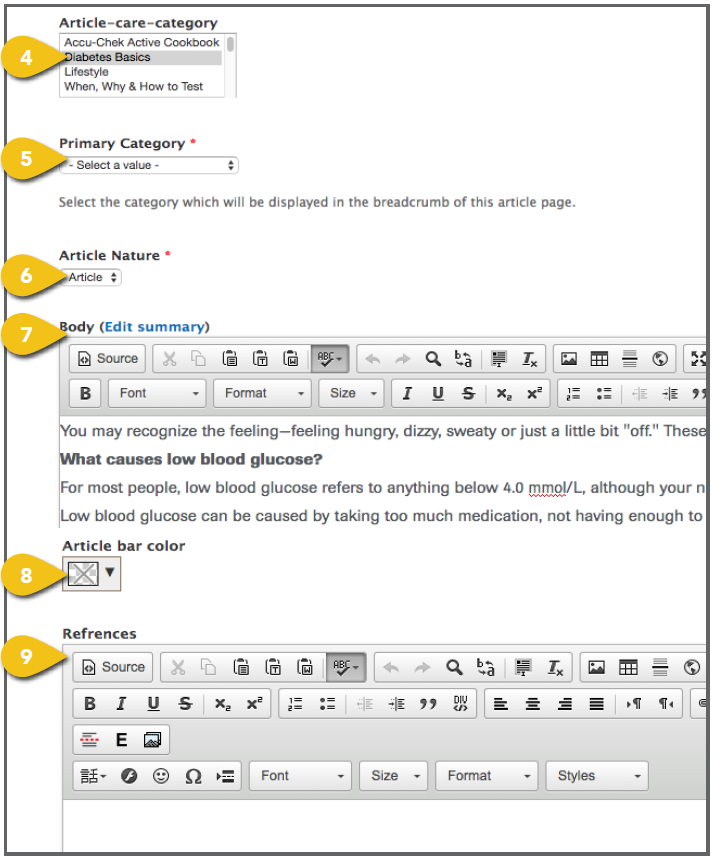
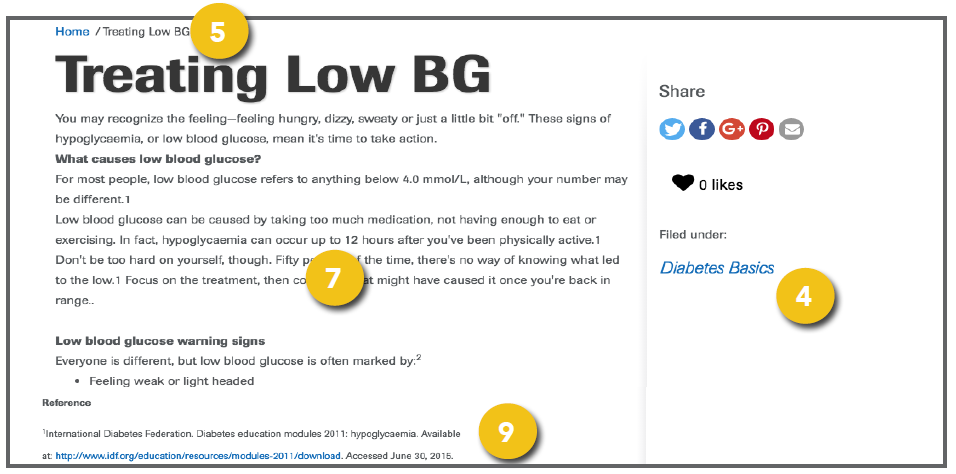
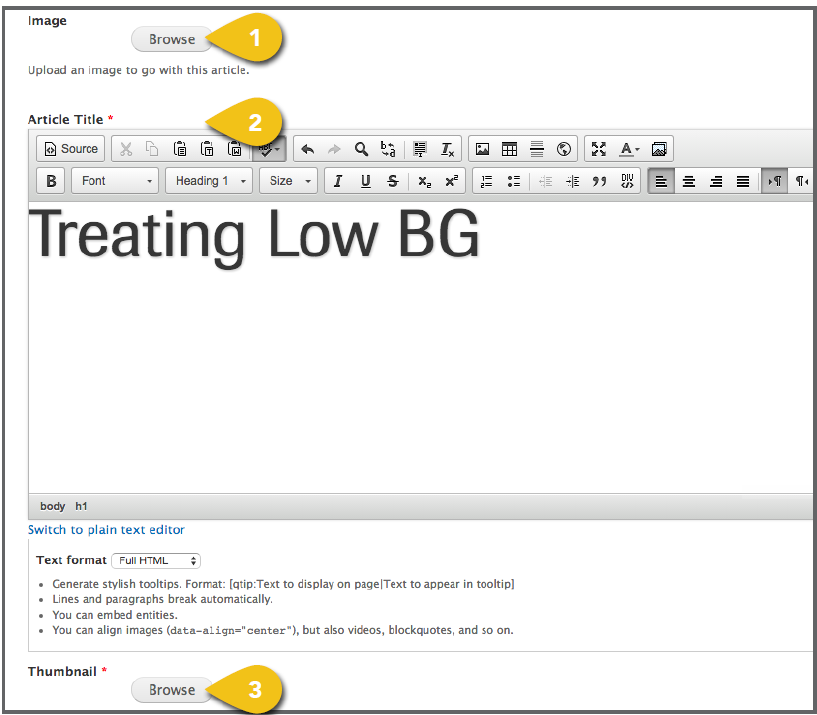
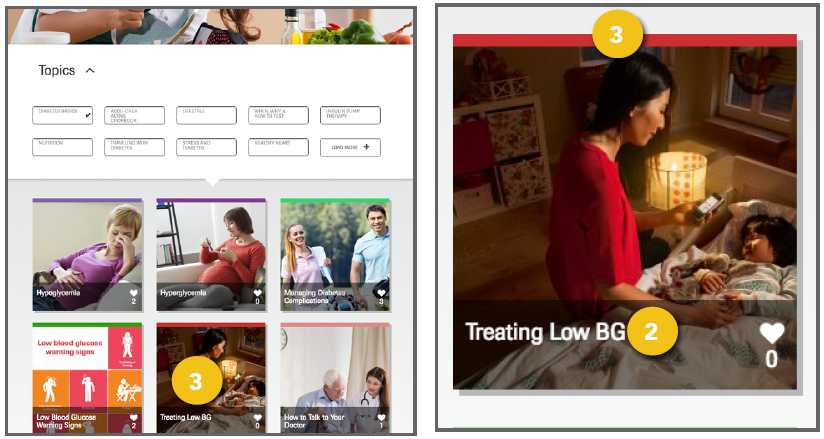
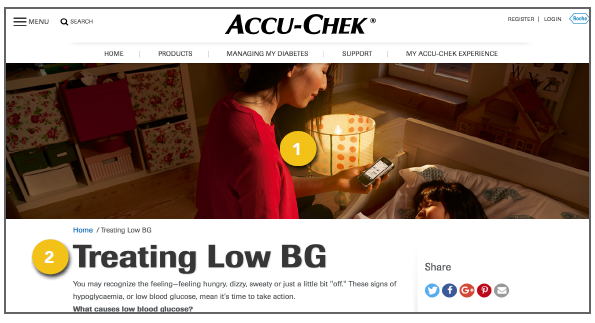
Anything you would like to have appear under Diabetes Care in the main navigation should be entered using an article template. This can include educational and lifestyle articles, infographics, and any other content that you would like to tag by topic and make available to site visitors. Select Create an Article from the Manage Content dropdown to open a new article template, then follow the steps below. 1. Image: This is the main banner image that appears on the article page. Visit Add an Image for detailed instructions on choosing an image and entering the information required. 2. Article Title: Enter a title to appear on the article tile and article page. 3. Thumbnail: Select a thumbnail for the article tile. Visit Add an Image for detailed instructions on choosing an image and entering the information required. ! Use an image with a resolution of 400x400. |
|
|
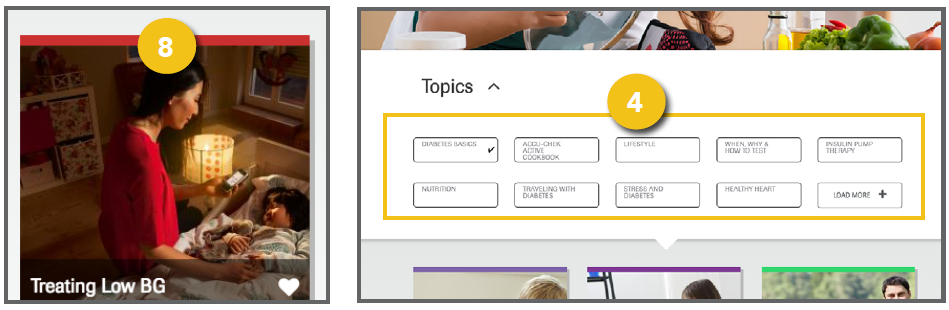
4. Article Care Category: Select all topics under which this article should appear. To select multiple categories, use Command+Click for Mac or Ctrl+Click for Windows. Be sure to include the Primary Category as well as additional options. 5. Primary Category: Identify the default article topic, which will be displayed in the URL and article breadcrumb. 6. Article Nature: Choose Article or Recipe. This will determine where a users content is sorted within the My Accu-Chek Experience dashboard. 7. Body: Enter the full article body content. 8. Article Bar Color: This appears across the top of an article tile on the category page.
9. References: Enter disclaimers and footnotes. These will appear below body content in smaller font.
|
|