In order to see what a background image on a homepage slide will look like in mobile view, read the instructions below. Please ensure that the background image is the appropriate size, 1920 x 380 pixels.
- Open the Homepage-Slider-Template PowerPoint presentation. (See the attachment below.)
- Click the View tab and go to the Show section. Check the box next to Guides. (This allows you to see the guides that section off the portion of the image that will display in mobile view.)

3. Drag your image into the PowerPoint presentation. Make sure that the image is the appropriate size by clicking the image to select it, going to the Format tab and adjusting the height and width in the Size section.

4. After the image has been adjusted, you will now be able to see that everything that is between the two purple guides are what a site visitor will see on their mobile phone.
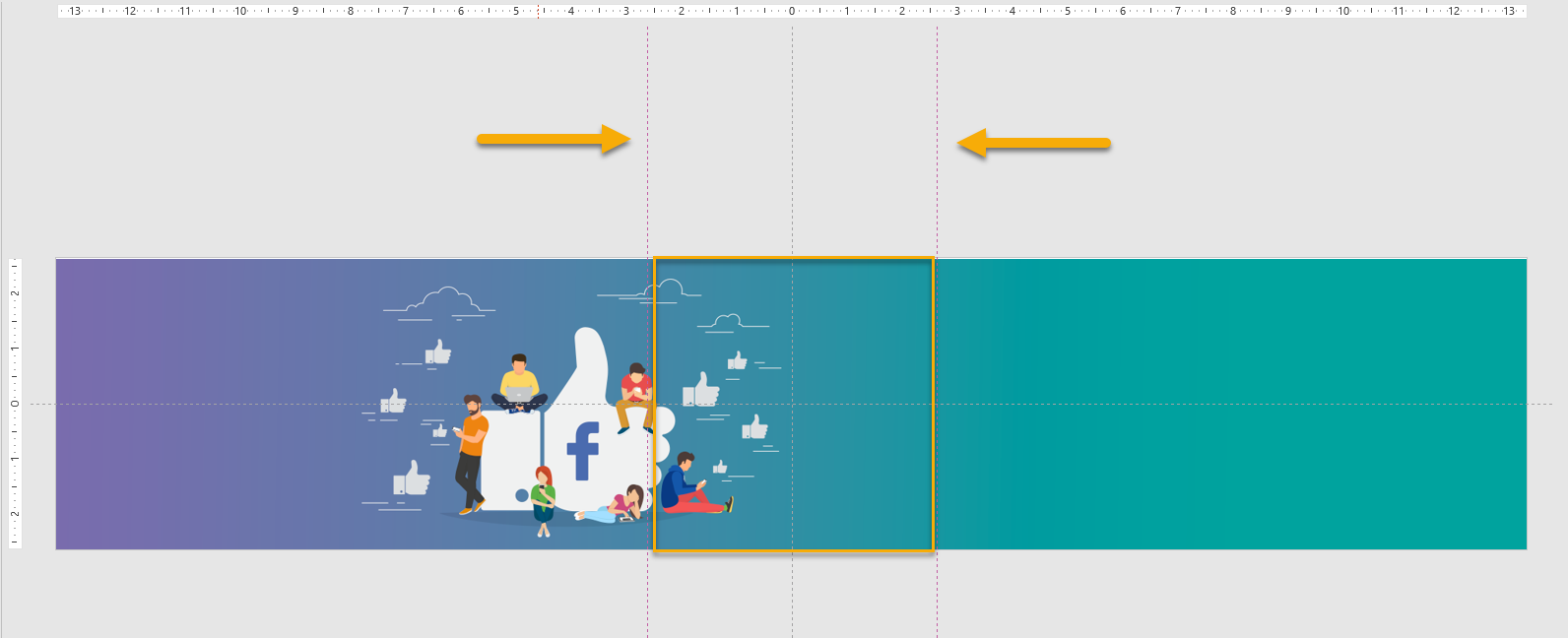
5. If the section of the image that is between the two purple guides is not what you want seen in mobile view, adjust the image. Keep in mind if you move the image to the right or left, you will have to fill in the areas where the image is missing. We recommend using a gradient overlay. See the examples on accu-chek.be.