|
To add social media links to the global footer,
or manage existing links, select Social
Media on the Configuration drop-down and
follow the steps below.
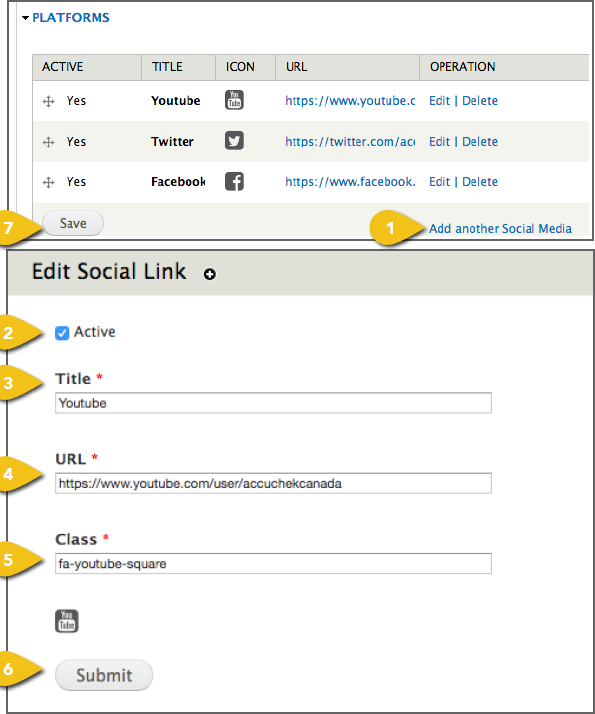
Adding Links
1. Add Another Social Media: Select this
text at the far right of the window.
2. Active: Check this box to ensure that
the link is active and appears on the live
site.
3. Title: Enter the name of the social media
property, such as “Twitter” or “Facebook.”
4. URL: Enter the full URL for the Roche
social media account, so the user will go
directly to the Roche page, rather than
the network’s home page.
5. Class: Enter the font awesome class for
the desired icon. Visit the Font Awesome
website for a list of available icons.
6. Submit: When you’ve finished entering
information, click Submit.
7. Save: You will be returned to the home
page, where you can review your information
and select Save. If the link was marked Active, it will go live.
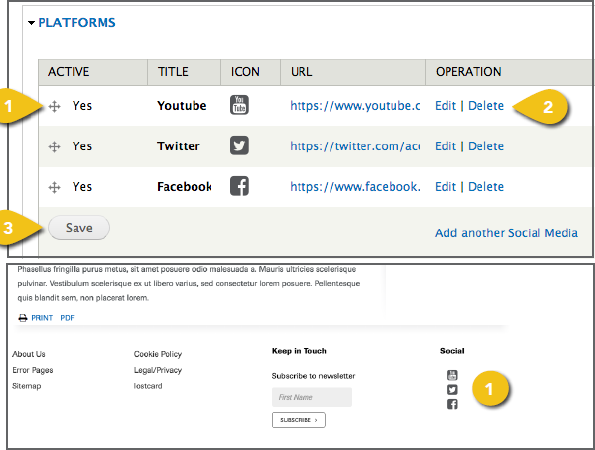
Managing Links
1. Re-order Items: Select the four arrows
symbol at the left of any entry to change
the order in which links and logos appear.
2. Edit or Delete: At the far right of each
item, you can select Edit to update information
or Delete a link.
3. Save: Before leaving the page, select
Save to retain any changes you’ve made.
|