|
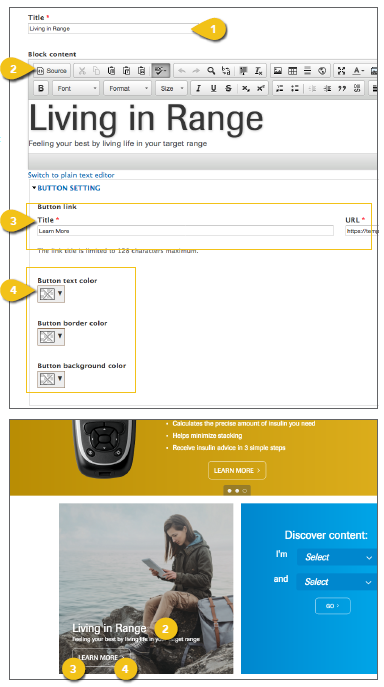
Create a custom block of content to appear beneath the hero image on the home page. These can promote new products, special offers or other valuable information. Select Create a Custom Block from the Manage Content dropdown to open a new template, then follow the steps below. 1. Title: Enter the block title. This text will not appear in the finished block. 2. Block Content: Enter the text or offer you would like included in the block. 3. Button Setting: Button Link Title and URL: If you are including a link, add button text and the destination URL here. 4. Button Text, Border and Background Colors: The global standard for these items is white with no background. However, these can be customized here. |
|
|
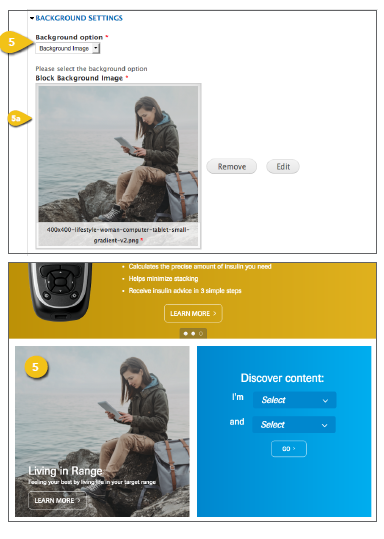
5. Background Settings: Background Option: Choose a Background Image or Background Color to appear behind the custom block. a. Block Background Image: Visit Add an Image for detailed instructions on choosing an image and entering the information required. ! Use an image with a resolution of 300x400. b. Background Color: If matching a product brand color, include the darker shade followed by the primary brand color, and a gradient will be generated automatically.
|
 |
|
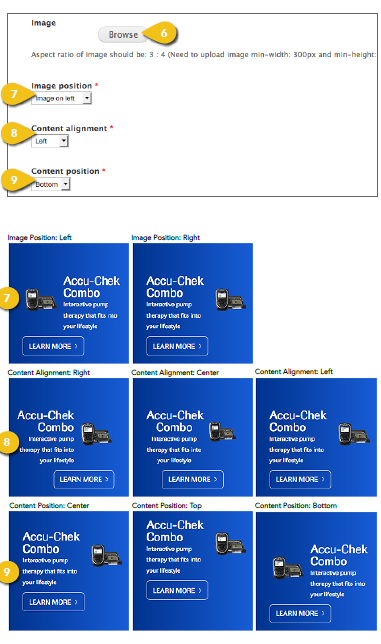
6. Image: Visit Add an Image for detailed instructions on choosing an image and entering the information required. ! Use an image with a resolution of 300x400. 7. Image Position: Select whether you want the image to appear on the left or right side of the block. 8. Content Alignment: Text will appear opposite the image position. The global standard is to have all text left justified, but if you need to have it aligned on the right or centered, you can do so here. 9. Content Position: Depending upon the length of you text and the type of imagery used, it may look better to have your content centered horizontally or placed at the bottom of the block. |
 |
|
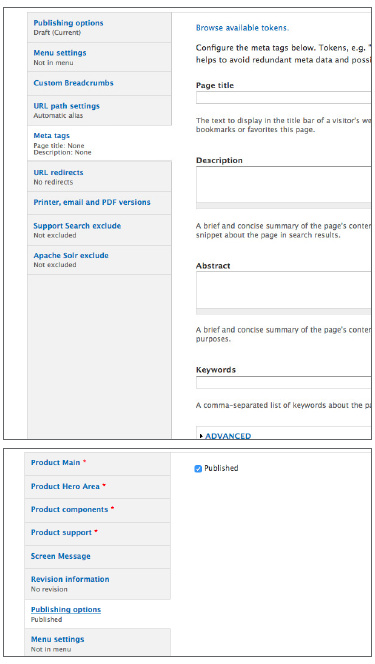
Additional Content Get step-by-step instructions for the remaining options, including Publishing Options, Menu Settings and Custom Breadcrumbs in the Additional Content Details section. Meta Tags Add page and content Meta Tags that incorporate popular search terms to aid in search performance and user access. See Meta Tags for additional detail. Save Click the Save button beneath the navigation pane to save your work. If you have checked Published under publishing options, this will send the page live. |
 |