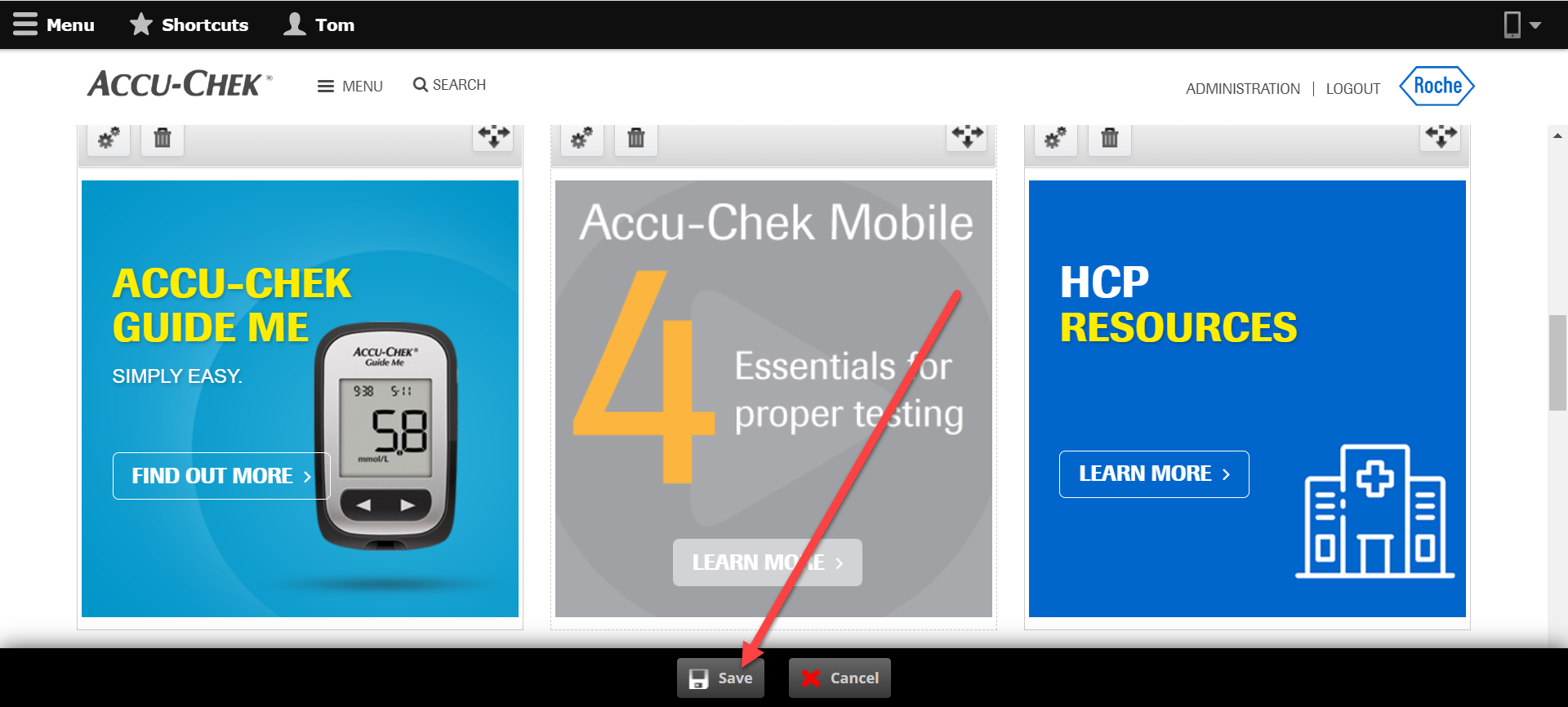
- Log in to your site and go to the homepage.
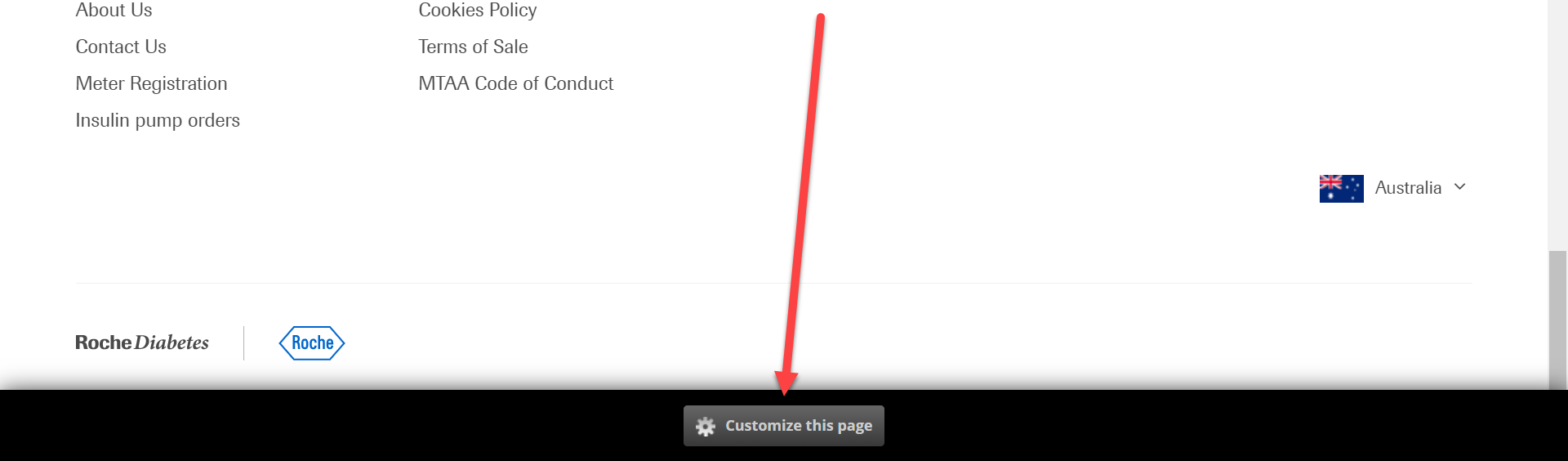
- Click Customize this page at the bottom of the page.
In the next area, you can add a block in the predefined areas (your layout). If you are wanting to change the layout, you will have to open a ticket with us.
First, remove the block you want to replace from the layout by clicking the trash can button. This only removes it from the layout, this does not delete the block from WCMS, so don't worry. After removing this block, you can then press the + button to add a new block in.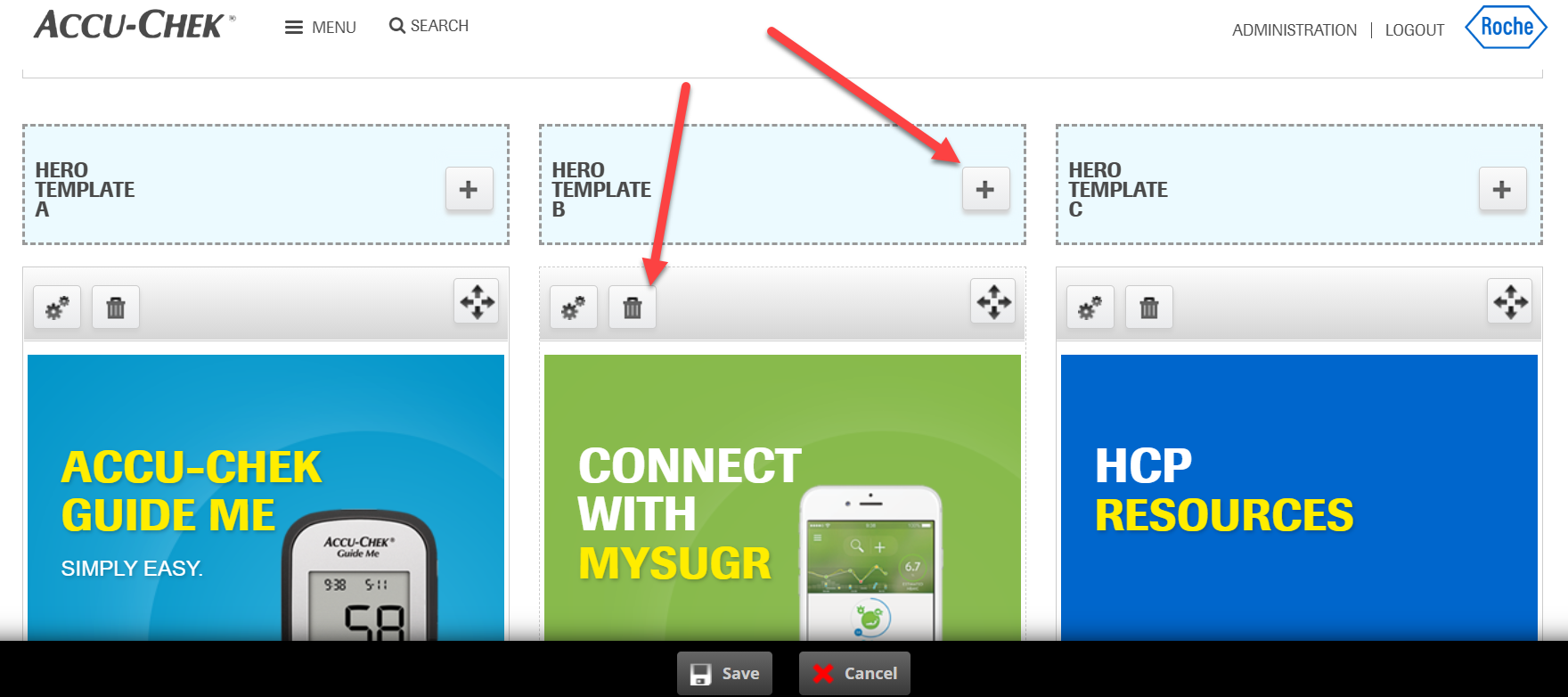
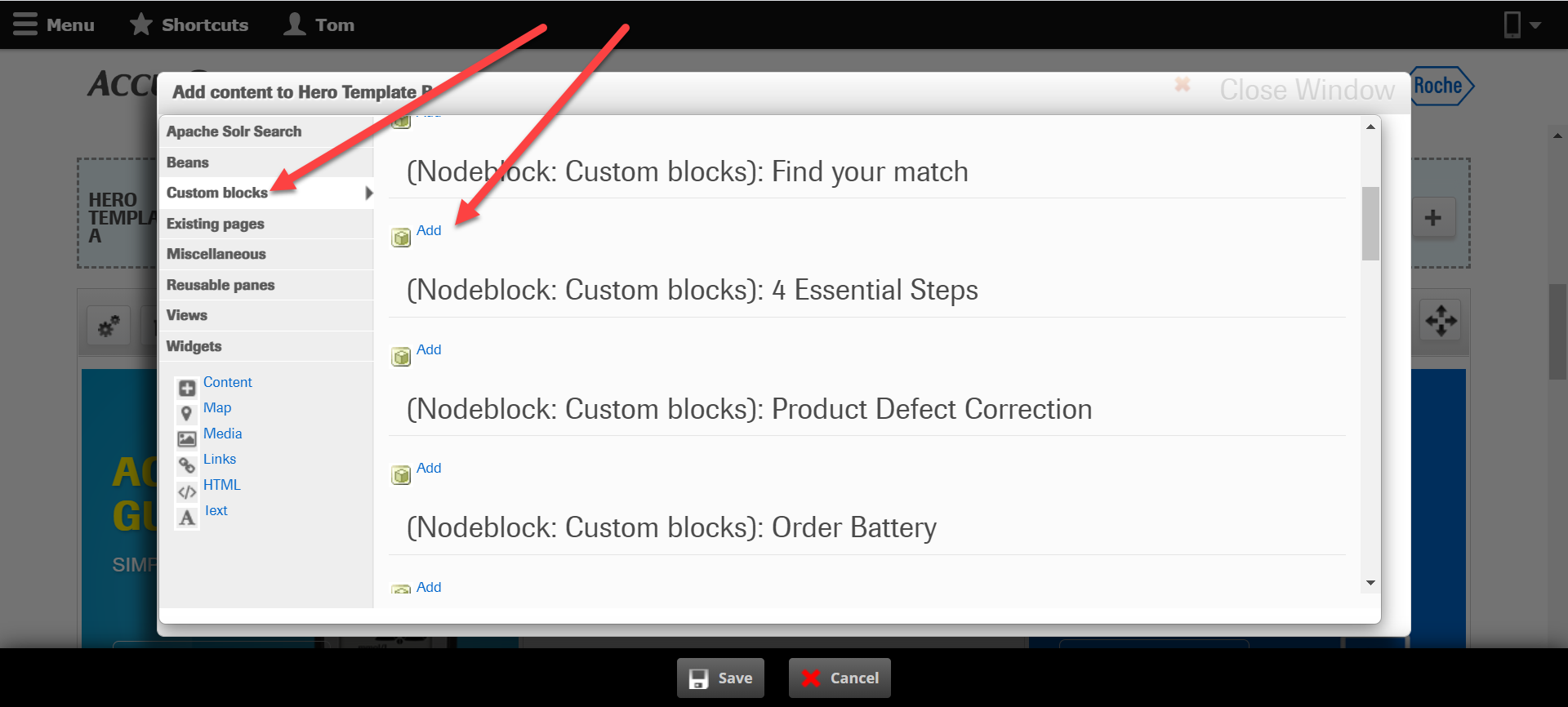
- Click on Custom Blocks on the left side and then find the block you want to add. Click Add on it.
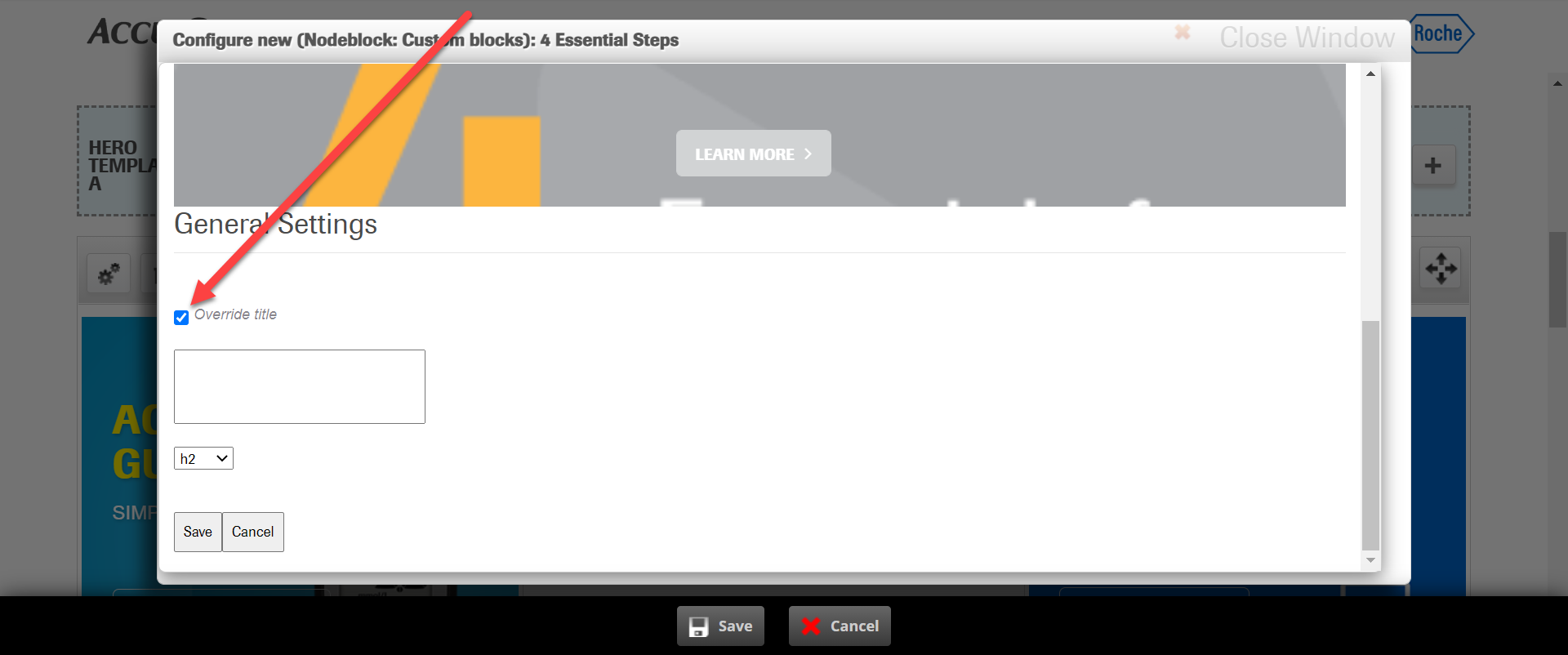
- In the next screen, make sure to click Override title otherwise, the title of the block will appear above it, which you do not want. The preview here is probably wider than what the actual block will be, so just ignore that. Finally, click Save to take you back to the homepage with a preview of how the block looks in context.
- Finally click Save to actually save the changes. NOTE: Even if you delete a block and add a new one here, the changes will only happen if you click the final save button.