Be sure you download the app for your Windows device here before proceeding with the following login steps:
1. Locate and tap the App icon on your device.
2. Go to your Windows taskbar icon in the lower left of your desktop. Under "B" you'll see the app "Bigtincan Hub". Click the orange "Sign In" button.

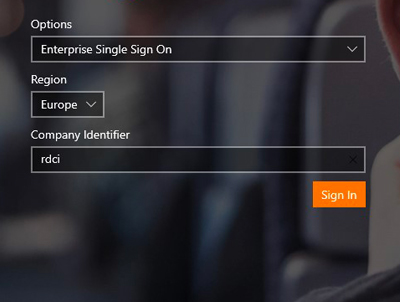
3. Under "Options" select "Enterprise Single Sign-On". Under "Region" select "Europe". For "Company Identifier" type "rdci". Click "Sign In".
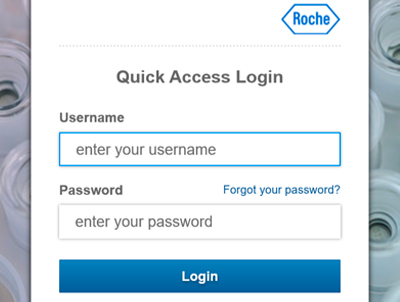
4. Type in your Roche Single Sign-On Username and Password. Press "Login"
5. If you run into problems, please submit a ZenDesk ticket here.