A quick-start -- PDFs, Powerpoints, Videos, and ISAs organized in content stories
1. Download Apps from App Store
- Download Bigtincan Hub from the AppStore
- Download Bigtincan Studio Viewer from the AppStore
Note: Both apps will be required to view ISAs
2. Open Bigtincan Hub and log in
3. Explore the Homescreen
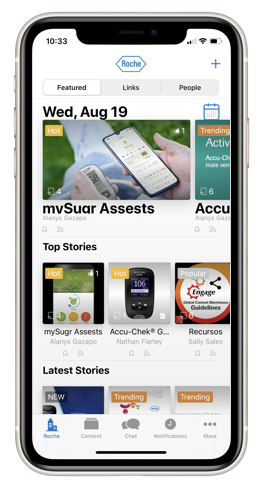
Featured Stories
Content prioritized by authors
Top Stories
Popular and trending content based on usage data
Latest Stories
Recently authored content
4. View Stories and Find Content
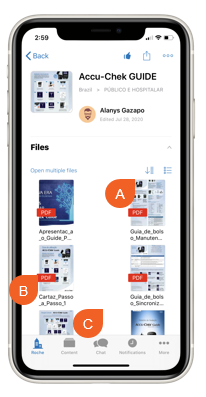
A. Change sort options or toggle grid and list view
B. Tap files to view
C. Scroll to take personal notes or comment on the story
5. Reveal the File Menu
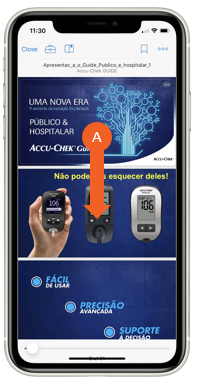
A. Swipe down when viewing a file to reveal the file menu
6. Use Tools and Close File
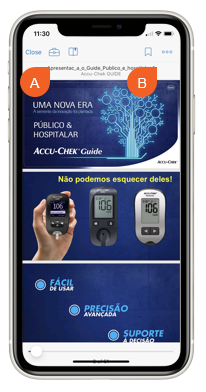
A. Top Left:
- Close File
- Tools to Annotate and Highlight
- View Bookmarks
B. Right Side
- Bookmark File
- Options Menu. Use this menu to change PDF view options between continuous page view or single page