Global Marketing Operations SEO Educational Article Series
This article is part of a series to help you understand the basics of Search Engine Optimization. Please check out the list of other articles at the end of this article or located in the Affiliate Support Desk. You can watch this webinar replay if you want to see and hear the information listed below.
SEO is Not Just For Web Pages Anymore
Not all website content is built in HTML code. There are many instances where content is best delivered to customers in a PDF (portable document format). Documents and promotional content that require a lot of formatting, contain a lot of graphical design, or are too long for a typical web page are good candidates for PDF: E-Books, Infographics, How-To Guides, Technical Specification Documents, Educational downloads, White Papers… (1)
Google has been scanning and indexing PDF files for the last twenty years. However, many publishers often ignore or overlook optimizing them. This is great news for Roche. A lot of time, effort and money goes into our content, especially for the healthcare professional audience. If we want to ensure that our PDF content is scanned, indexed, and delivered to customers as possible answers to search questions, we need to optimize it. With a little bit of work, we get more return on that development investment and increase the visibility of the content to the target audience.
PDFs in Search Results
When Google bots find a PDF that matches search keywords, the bots scans and converts and indexes the content just as if it were HTML. If possible, Google also uses Optical Character Recognition (OCR) technology to convert images with words into scannable text. Images in PDFs can be indexed as image search results. (2) Like regular web pages, Google displays PDF files in search results with a special “PDF” tag. If the PDF is not optimized for search, then it can appear strange in the results. For example, when searching for the keywords “testing in pairs” you can see two very different results.
|
Optimized PDF PDF has a clear title and sensible description that matches the keywords. |
 |
|
Non optimized PDF PDF filename is listed with random pieces of text that contain the keywords. |
 |
Accessibility
Optimizing a PDF for search engines not only makes it easier to crawl, but it also improves the document’s accessibility to visually impaired users or those who rely on voice technology to read documents. This is called accessibility. Accessibility is enabling a person with a disability to acquire the same information, engage in the same interactions, and enjoy the same services as a person without a disability. International accessibility standards ensure people with visual and other disabilities are able to navigate and read electronic content. Choosing to make your content more accessible isn’t just a way a more customer centric practice but it also helps boost SEO efforts and improves organic search rankings.
PDF File name Best Practices
In order for the filename to be best understood by search engines and displayed correctly to users, please follow these guidelines:
- Make file names lowercase. In general, separate words with hyphens or dashes (-). Use only standard ASCII alphanumeric characters in file names.
- No spaces in the file name. For files on the web, spaces are replaced with “%20” in URLs (a web address). This turns the file testing in pairs tool.jpg into testing%20in%20pairs%20tool.jpg
- Avoid underscores and use dashes. Certain processing scripts and applications may not recognize these characters. To ensure that words are broken up correctly, use a dash in between words. Name the file testing-in-pairs-tool.jpg
Tools To Optimize PDFs
There are two PDF optimization tools available. PDF-XChange Editor is the approved PDF solution program across Roche and is available at no cost. However, some of the deeper tagging and accessibility features of PDF optimization are not as easy to use or are time consuming in XChange Editor. We suggest content creators use Adobe Acrobat DC. It does come with a departmental charge of 15$ per year and has to be requested through the RoSE portal.
How to Optimize a PDF
There are some basic steps to take when optimizing a PDF for search engines and accessibility. They include:
- Defining the Properties. Choosing an SEO-friendly PDF title, Fit width and displaying doc title
- Defining the metadata.
- Making your PDFs searchable and accessible.
- Optimizing your PDF file size.
We have included steps for both PDF-XChange Editor and Acrobat DC.
How to Optimize a PDF Using Adobe Acrobat DC
Use the steps below to optimize your PDF using Acrobat DC from Adobe. You can view this help material and other information in the Acrobat User Guide - Accessibility, Tags. (3)
The first and easiest step is to fill out all the available fields in the document Properties. Click on File > Properties. Ensure that the optional fields are used to give search engines as much information about this document as possible. These words should come from the document text. Use a SEO-friendly, keyword relevant document title. You don’t have to revise the actual file name. This will ensure that search results show the Title instead of the filename. Use the Subject and Keywords fields to give users a clear understanding on the purpose of the document as well as all the relevant keywords included in the content.
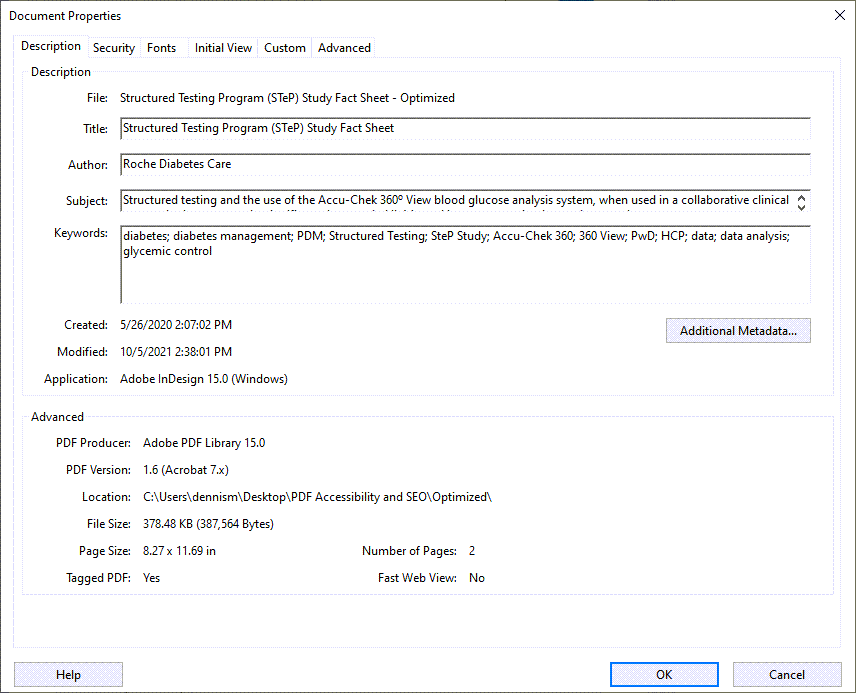
When you click on the Additional Metadata button, you will see more fields. Change the Author to the company name. The Subject field is synonymous with the Description field. Here is where you can also add the copyright notice and an informational website address. Click OK.
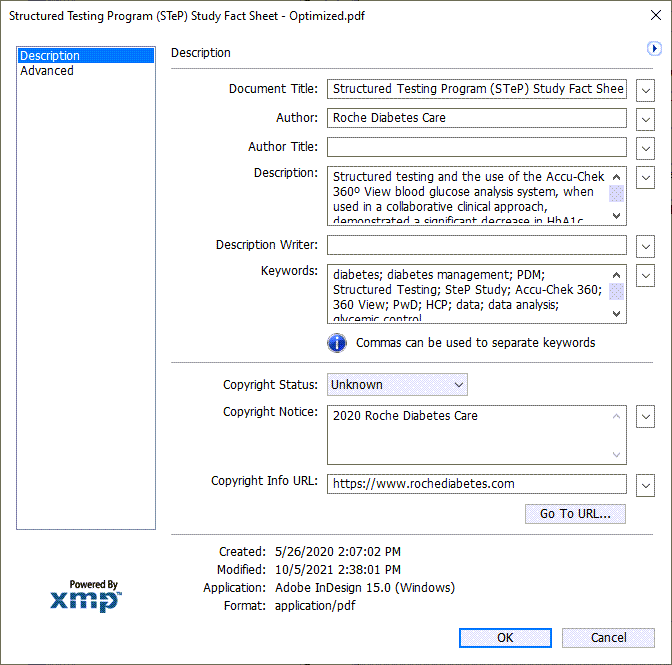
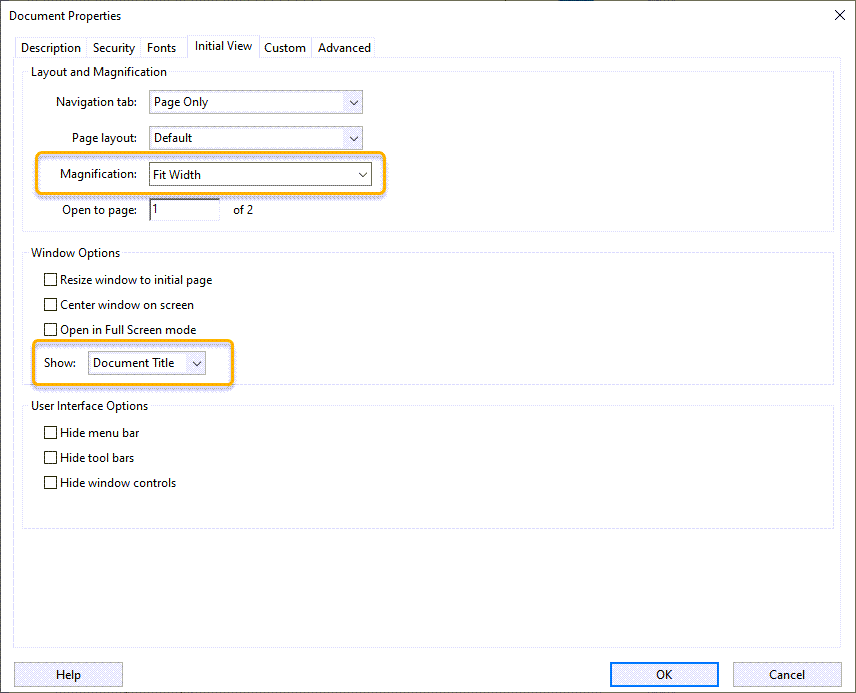
Click on the Initial View tab in the Properties panel. Change the Magnification to Fit Width. Change the Show to Document Title instead of filename. This will ensure that your new title is displayed in search results. Click OK.
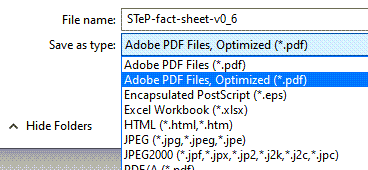
Optimize File Size (reduce the file size) for web viewing. This is going to compress images and other elements so the PDF loads quickly and is clear enough for web viewing. The easiest way to do this is by choosing: File > Save As > Save as Type > Adobe PDF Files, Optimized (*pdf) You will have to choose a new filename or save over the original PDF.
Accessibility Check
Use the steps below to run an Accessibility Check on your PDF using Adobe Acrobat.
|
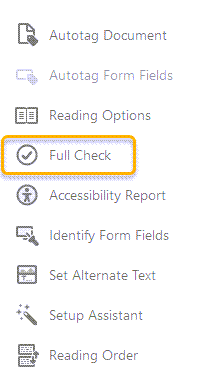
Click on Accessibility in the Tools menu.
Once the tool opens, click on Full Check. |
 |
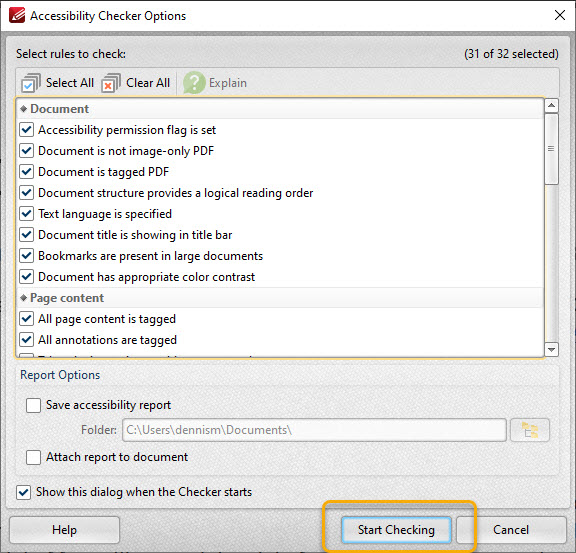
You can customize what rules to check in the document. It may be best to use the default rule settings. Click Start Checking.
|
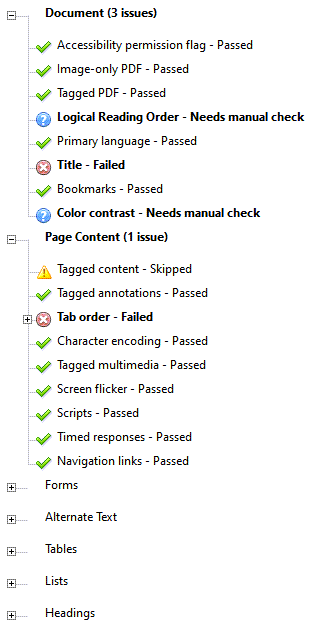
A report will appear on the left hand side bar with issues. Click the triangle symbol to reveal the specific issues.
Attempt to right click and “Fix” any issues. |
 |
How to Optimize a PDF Using PDF-XChange Editor
Use the steps below to optimize your PDF using PDF-XChange Editor. You can view these steps and other information in the PDF-XChange Editor online manual.
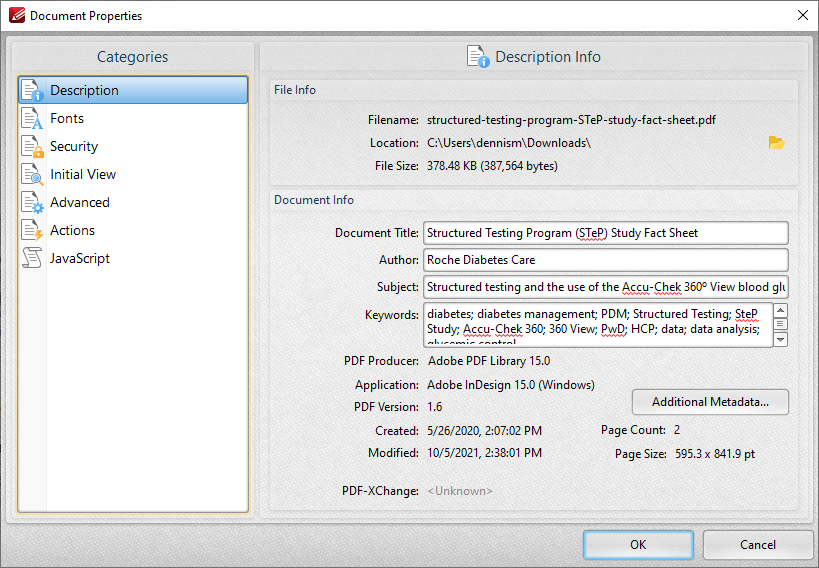
In the File tab, click Document Properties (or Ctrl+D) to view/edit document properties.
Ensure that the optional fields are used to give search engines as much information about this document as possible. These words should come from the document text. Use a SEO-friendly, keyword relevant document title. You don’t have to revise the actual file name. This will ensure that search results show the Title instead of the filename. Use the Subject and Keywords fields to give users a clear understanding on the purpose of the document as well as all the relevant keywords included in the content.
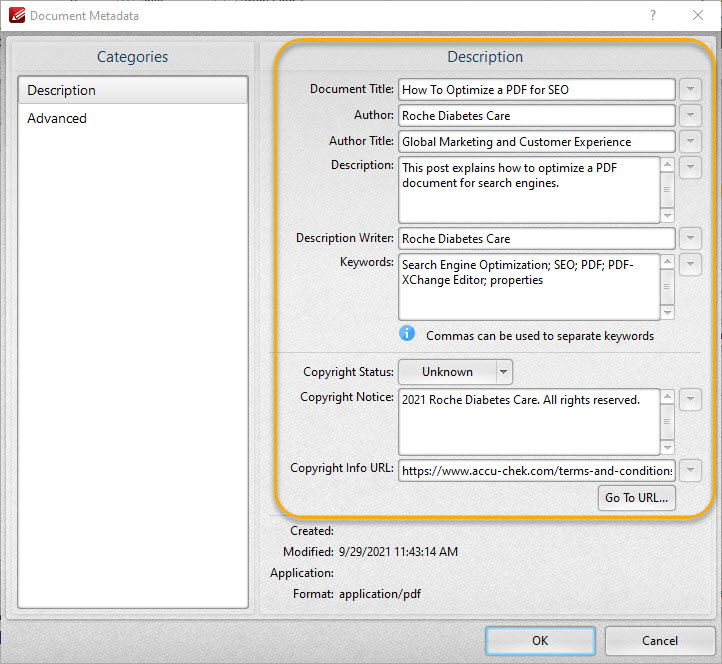
When you click on the Additional Metadata button, you will see more fields. Change the Author to the company name. The Subject field is synonymous with the Description field. Here is where you can also add the copyright notice and an informational website address. Click OK.
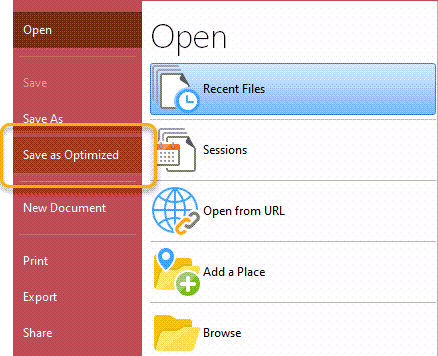
Optimize File Size (reduce the file size) for web viewing. This is going to compress images and other elements so the PDF loads quickly and is clear enough for web viewing. The easiest way to do this is File > Save as Optimized. A pop up will appear asking you to choose optimization settings. Just use the defaults settings and click OK. Ensure that the data is saved by clicking on the Yes button in the Save pop-up.
Accessibility Check
Use the steps below to run an Accessibility Check on your PDF using PDF XChange Editor.
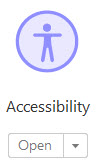
| Click on the Accessibility tab in the Main Tabs bar | 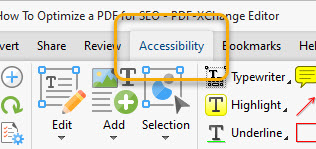 |
| Click Accessibility Check. |
|
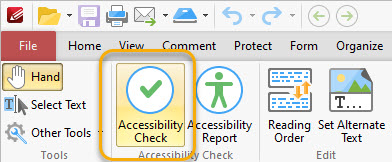
You can customize what rules to check in the document. It may be best to use the default rule settings. Click Start Checking.
A report will appear on the left hand side bar with issues. Click the triangle symbol to reveal the specific issues. Attempt to right click and “Fix” any issues.
Want to Learn More?
You can learn more about this topic and many others by exploring more articles listed below or by diving into LinkedIn Learning courses available through the Cornerstone OnDemand Learning.
| We recommend the course, Creating Accessible PDFs. |  |
Sources
- Clark, Jon. “13 Tips to Make Your PDFS Seo Friendly.” Search Engine Journal, September 16, 2020. https://www.searchenginejournal.com/pdf-seo-best-practices/59975/#close.
- Stox, Patrick. “How to Optimize PDFs for SEO (7 STEPS).” SEO Blog by Ahrefs, July 16, 2020. https://ahrefs.com/blog/seo-for-pdfs/.
- “Acrobat User Guide.” Adobe Help Center. Adobe. Accessed September 30, 2021. https://helpx.adobe.com/acrobat/user-guide.html?topic=%2Facrobat%2Fmorehelp%2Faccessibility_tags_and_reflow.ug.js.
- “PDF-XChange Editor V9 Online Manual.” Tracker Software Products. Accessed September 29, 2021. https://help.tracker-software.com/pdfxe9/.