Watch the how to video (5:08)
In Journey Builder, a goal is the measurement of customer actions that you want to promote. Measure goals based on a goal target you set by creating a filter on contact data. After you activate a journey, Journey Builder evaluates contact data against the filter set as the goal target to determine when a goal is met. When Journey Builder determines that a contact met the goal, that contact is counted in goal target statistics. Reaching the goal can also prompt the contact to exit, if applicable.
Goals are optional, but goal target statistics show you how each journey performs. Journey Builder evaluates each contact against a journey's goal target at two times: Each time a wait period expires and every day at midnight, US Central Standard time.
- Hover over Journey Builder and select Journey Builder.
- Navigate to and select the journey you would like to set a goal for. Note: Goals are “journey-wide” meaning multiple versions will contribute to the same goal.
- Select
 .
. - Select Contact Data. Note: You use Contact Data so you can see attributes as they change with journey progression. If Journey Data were used, the attributes would never update.
- Apply a filter on Contact data attributes to define who meets the Journey Goal. Navigate to the attribute you would you like to use to filter. Note: The attributes are related in attribute groups based on how you linked them in Data Designer. More information on attribute groups is available here.
- Drag the attribute of your choice into the center. Ex. Status
- To edit the filter criteria, select the newly placed filter.
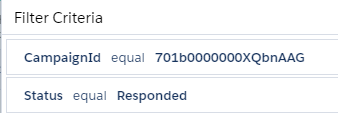
- Expression – The first component of the filter is the expression. In this case, the expression is the attribute selected. Journey Builder will search a contact’s information for this specific expression. EX. Status, CampaignId
- Operator – The operator defines the relationship between the expression and restricted value. It is the criteria used to determine if contacts have met the goal. Ex. Equal, Is not null
- Restricted Value – The restricted value is optional depending on the operator used. It determines the specific value the attribute must adhere to in order to meet the goal. Ex. Responded, True, XBV0001
- Select Done.
- Continue to add attributes by dragging them to the center panel. Note: Only one goal can be created per journey.
- Once you have two or more filter criteria, group filter statements can be used.
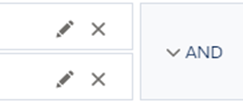
- AND – The contact will be included if both statements hold true.
- OR - The contact will be included if at least one of the statements holds true.
- When all filters have been applied, select Next.
- Set a personal Goal Definition:
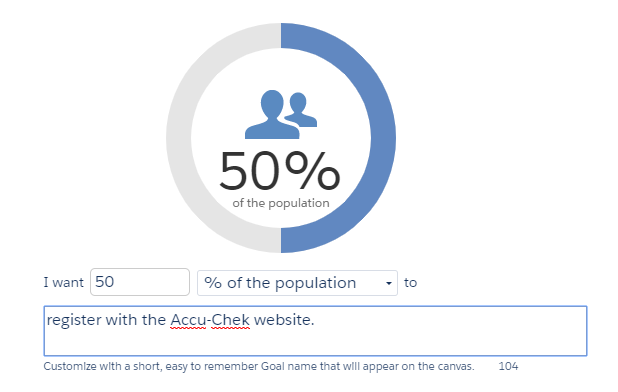
- First Blank - The first blank is the exact number needed to obtain the goal.
- Second Blank – The second blank allows you to choose whether the goal target is measured as a percentage or a total. Note: It is a good practice to use 100% in your goal, because then Journey Builder will tell you what percentage of your goal you have reached.
- Text Box – The third blank allows you to customize the goal statement with a short, easy to remember Goal name that will appear on the canvas. We recommend using a goal name that others will understand, because the goal name is often used in analytics presentations.
- Exit Option – If you select the checkbox, the customer will exit the journey, when they reach this Goal.
- Select Done.
- Select Save.
Congratulations! You have successfully added a goal to a journey in Journey Builder.