The Update Contact activity in Journey Builder is used to modify a contact attribute value when a contact reaches this activity in a journey. You choose a sendable data extension and set a static value that overwrites this value for each contact that reaches the activity. Date attributes provide the option to use the current time in Central Standard Time.
If no rows for the associated Contact Key exist, a new row is added. If there are one or more existing rows for the associated Contact Key, existing rows are updated, and no new rows are added. When a data extension has only a single field that is used as the primary key, you can’t modify it.
- Hover over Journey Builder and select Journey Builder.
- Navigate to and select the journey you would like to modify.
- Drag and drop the Update Contact activity onto the canvas.
- Select the newly placed icon.
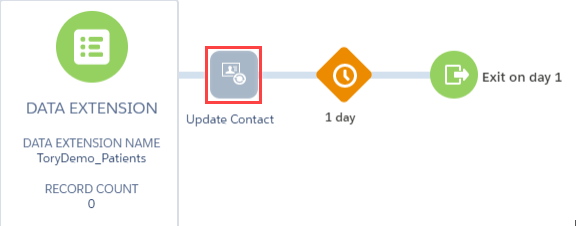
- Select Select Data Extension.
- Navigate to and select the data extension to update. Note: It is a best practice to avoid selecting the same data extension that the journey's entry source is using.
- Select Attribute Value from the tabs on the left side.

- Select the attribute from the selected data extension to modify. Note: When a data extension has only a single field that is used as the primary key, you can’t modify it.
- Input the value you would like to change the attribute to when it reaches this activity. To apply a timestamp at the time each contact reaches the activity, select Use current date time for date-based attributes.
- To update more than one attribute, select
 and repeat steps 8-9.
 - Select Summary.
- Select Done.
- Select Save.
Congratulations! You have successfully added a Contact Update activity to a journey in Journey Builder.