Journeys make local copies of emails so future changes in Content Builder will not affect the current journey unless you do one of two things: edit individual emails within Journey Builder or create a new version of the journey.
- Edit individual emails by editing and saving changes in Journey Builder before the sends are delivered.
- In a running journey, hover over the email activity to edit.
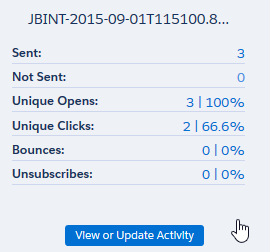
- Select View or Update Activity.
- Select View Email.
- To edit the email, select Edit Email in the Message Definition section’s dropdown menu. Or select Edit in any section.
- After updating the email, select Save and Exit.
- After updating the email, select Save and Exit.
- To replace the email in this activity with a new email, use these steps.
- Select Select Different Message in the Message Definition section’s dropdown menu.
- Select a different email and update its configuration as needed.
- Select Summary.
- Select Done.
- Select Save.
Changes are published and sending restarts.
OR
- Create a new version of journey. Note: This will update all the emails in the journey. Ex. If there are three emails in the Journey, and they were edited in Content Builder, they will all be updated to their newest versions in the second journey version.

- Confirm the emails in the journey are up to date in Content Builder.
- In a running or stopped journey, select New Version.
- Select Save.
- Confirm the emails in the journey are up to date in Content Builder.
Congratulations! You have successfully edited an email in an active journey.