Once you have determined your goal and mapped your journey, you are ready to request a synchronized data extension to use as the entry source for your journey. Affiliates must request synchronized data extensions from global support.
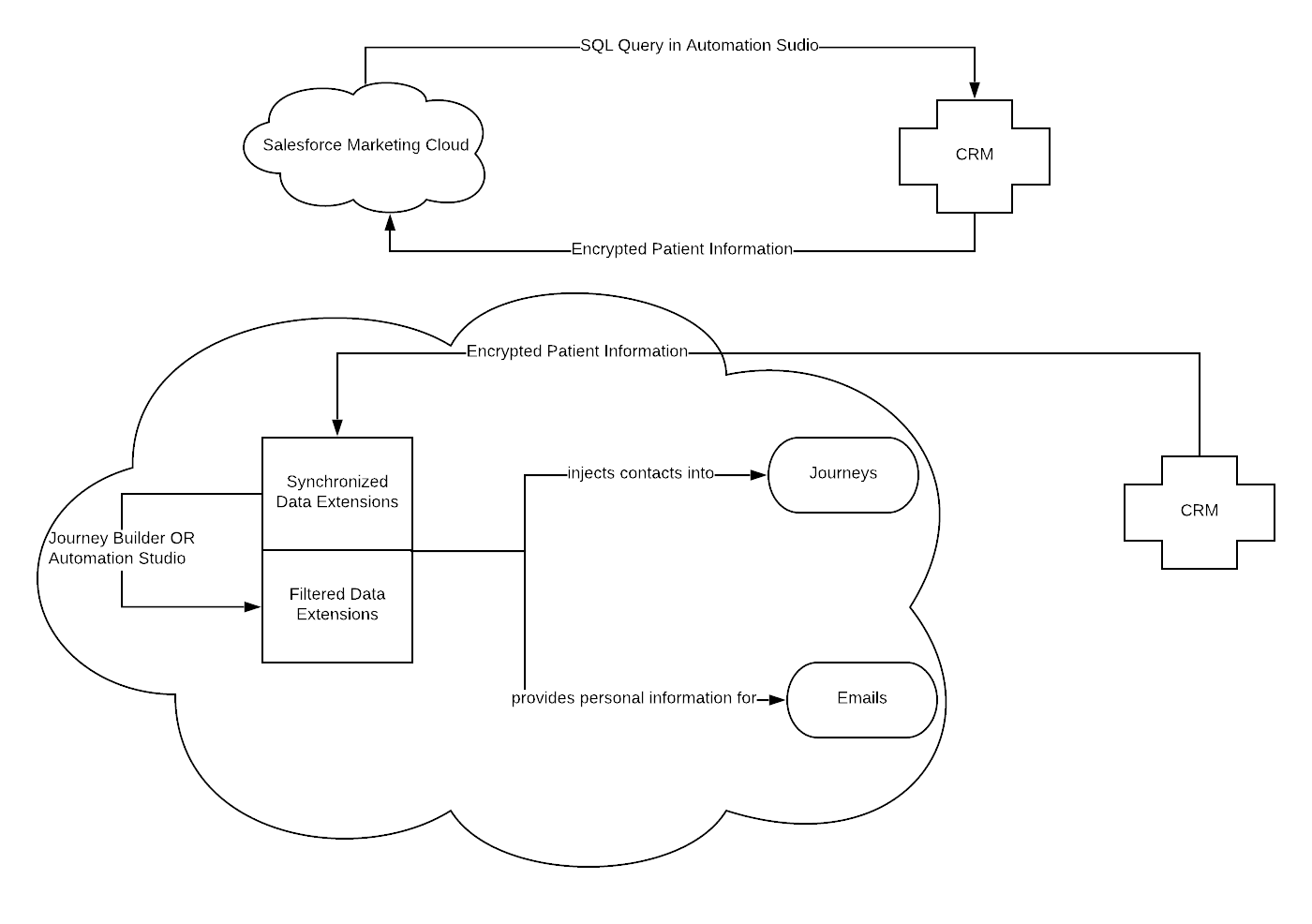
SQL queries in Automation Studio pull contacts and corresponding information from CRM and incorporates them into synchronized data extensions. The query acts as a filter that pulls contacts from the all-contact list depending on fields you, as the affiliate, will determine. These fields correspond to the fields in Service Cloud. A visual of this process is shown below.
Once the synchronized data extension has been created by support, it can be used as the entry source in a journey like any other data extension. Additional filters can be applied to the synchronized data extension if necessary. Note: When scheduling the entry source, Automation can be selected for the synchronized data extension, because Journey Builder will check to inject contacts every time the automation updates in Automation Studio.
- Determine the criteria that will decide which contacts get injected. How will you determine what contacts will be injected into your journey? If it is a birthday journey, injection will depend on the contact’s DOB. If it is a customer-wide newsletter, injection will depend on if the contact has opted-in to receive emails.
- Find the corresponding field in the CRM. What is the name of the criteria you selected in CRM? Depending on your journey, there may be multiple criterion. In a journey that will use Case information, for example, the corresponding fields in CRM are Inquiry Reason and Inquiry Reason L2.
- Determine the Operator and Restricted Value, if applicable. Once you determine the field in CRM you will use, you must choose the specific value that will determine if a contact is injected. In a journey that sends a newsletter to everyone who has opted in, for example, the operator is Equal and the restricted value is Yes. Other common operators include Not Equal, Is Null, and Is Not Null. Restricted values are only required for some operators. In the birthday example, the restricted value would be Today, if you want the contact to receive an email on their actual birthday.
- Consider additional fields to include. If you would like to bring over additional fields from CRM into your synchronized data extension, please indicate that in your global support request. If there is an email message in your journey that requires personalization, you must bring over those respective fields to SFMC. Common examples include first name and last name. Remember, the fields indicated must have the same name as the fields in CRM.
- Submit your request to global support. https://digitalmarketing.rochedc.com Note: Requests like “I want a send a satisfaction survey journey” do not provide enough information for global support to create a query. Make sure to include specific fields and inquiry reasons in your request.
Congratulations! You have successfully requested a synchronized data extension from global support.