- Go to Email Studio > Email and hover over Subscribers.
- Click Data Extensions.
- Click the Create You have three options:
- Standard Data Extension: A standard data extension allows you to create custom fields to store data.
- Filtered Data Extension: A filtered data extension is generated by filtering fields, measures, and filters for sendable data extensions from a source data extension.
- Random Data Extension: A random data extension allows you to randomly select subscribers from a source data extension.
- Click Standard Data Extension.
- Click OK.
- Complete the information in the Properties section:
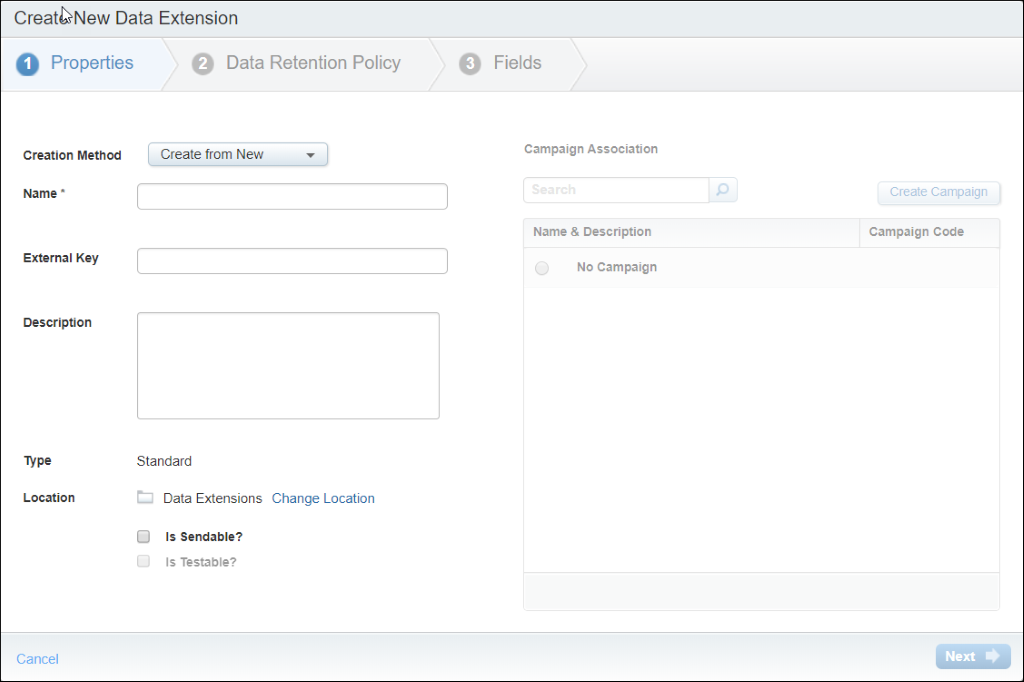
- Creation Method- The method used to create the data extension. Select Create from New.
- Name- The name of the data extension. Use this name to identify the data extension in Email Studio.
- External Key- A unique value that identifies the data extension. Use this value to identify the data extension with an API call.
- Description- A description of the data extension, optional. Use this description to further help identify the data extension within Email Studio.
- Location- Select Change Location to store the data extension in a different folder location, optional.
- Is Sendable? - Indicates whether you intend this data extension to have messages sent to it. This checkbox determines whether the data extension is available to use as part of sends.
- Is Testable? - If you select the Used for Sending checkbox, this field indicates whether you intend this data extension to have test messages sent to it.
- Campaign- To associate a data extension used for sending with a Campaign select the radio button for the appropriate Campaign, optional.
- Click Next.
- To turn on Retention Settings select On, optional. If you have this feature enabled, the data admin user for your account can enable or change the data retention policy for new data extensions. By default, the data extension retention policy deletes unused data extensions after 6 months.
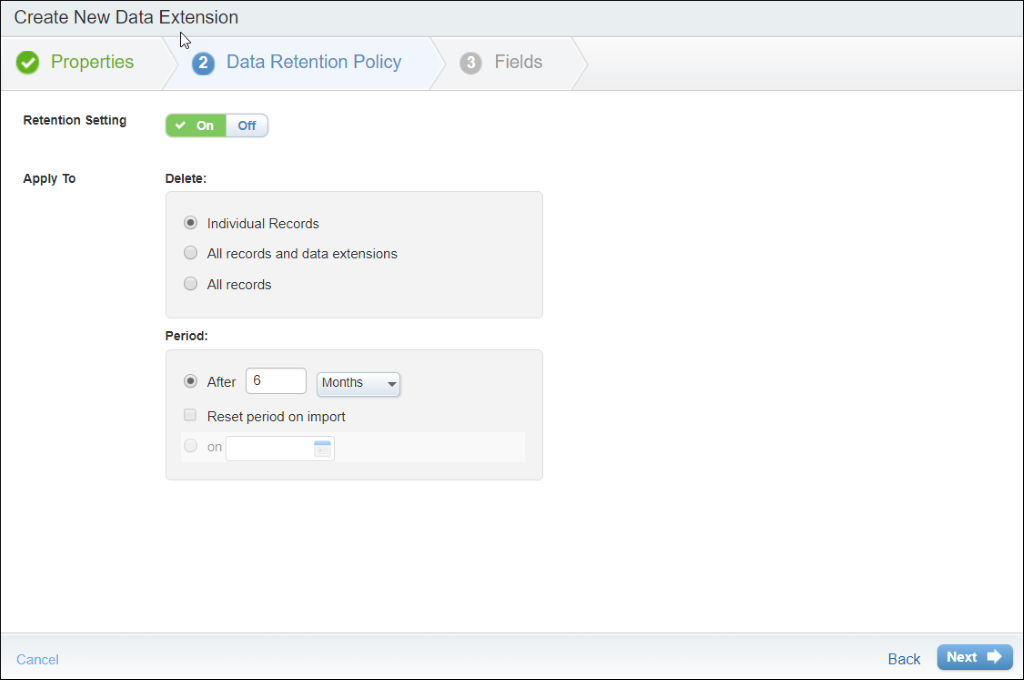
Data Retention Options:- Retention Setting - Select On to ensure the application deletes all records in the data extension at the same time.
- Delete:
- Individual Records- When this option is selected, the data extension is retained but the individual records inside the data extension are deleted.
- All Records- When this option is selected, the data extension is retained but the records inside the data extension are deleted.
- All Records and Data Extension- When this option is selected, the entire data extension and the records inside the data extension are deleted.
- Period:
- After: Enter the number of days after the data extension was creation to wait before deleting.
- Reset period on import: Check this box to extend the retention date following a new import to the data extension.
- On: Select a specific date to delete.
- Delete:
- Retention Setting - Select On to ensure the application deletes all records in the data extension at the same time.
- Click Next.
- You must include a field with the Email Address data type for email sends or a Phone data type for SMS sends in a sendable data extension with no other information that relates to an existing subscriber. If the Email Address or Phone data types are not present, the subscriber will not receive any messages sent using the data extension.
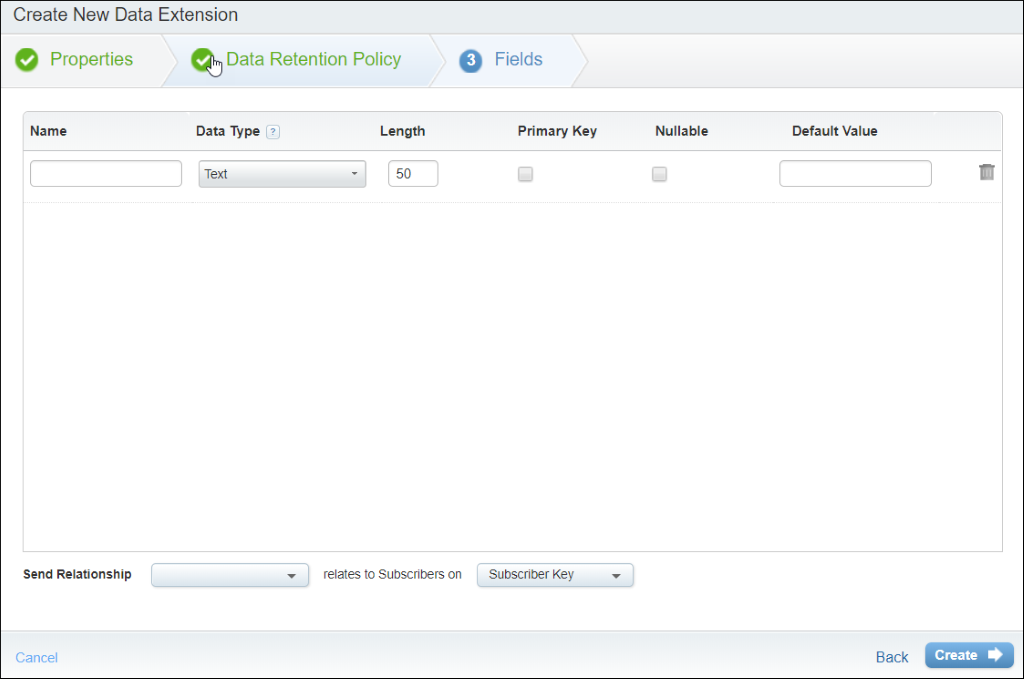
- Name - The name of the column in the data extension.
- Data Type - The data type of the contents of the field. Valid values include:
- Text - A combination of letters, numbers, and spaces.
- Number - An integer. Decimal values are not supported.
- Date - A system date. You can use an AMPscript function to format this value when you present it in a message. All time is stored in Central Standard Time and dates are stored in the format MM/DD/YYYY.
- Boolean - A 0 or 1 value.
- Email Address - An email address. A field of this type must exist in order for you to send an email to a data extension. The system does not verify that the value in this field is a valid email address when importing data.
- Phone - A phone number. This data type accepts any string with 10 or 11 digits in it and deletes non-digit characters.
- Decimal - A number with a decimal point.
- Length - Maximum number of characters, including spaces, you can import into this column. Do not use empty lengths for Text data types unless absolutely necessary. If you select the Decimal data type, you specify both the total maximum number of characters as well as the how many of the total appear after the decimal point. For example, if you define a decimal field with a length of 18,2, the two characters that appear after the decimal point are included in the 18 character total limit.
- Primary Key - Determines whether the system considers this field to be the primary key of the table.
If you select this checkbox, the system requires that the value in this field be unique so it can use this field to uniquely identify a row. If you select this checkbox for more than one column, then the combination of the values in the columns must be unique.
If you do not select this checkbox, the system does not require the value in this field to be unique. - Nullable - Determines whether this column can be empty.
If you do not select this checkbox, you can import a NULL, empty, value for this column.
If you do select this checkbox and you try to import a NULL value for this column, the system will respond as you specify in the “Skip Rows with Bad Data” field on the import definition. - Default Value - If you specify a default value for this field, this value will be used for all records who do not have a value entered for the field.
- Click Create.