|
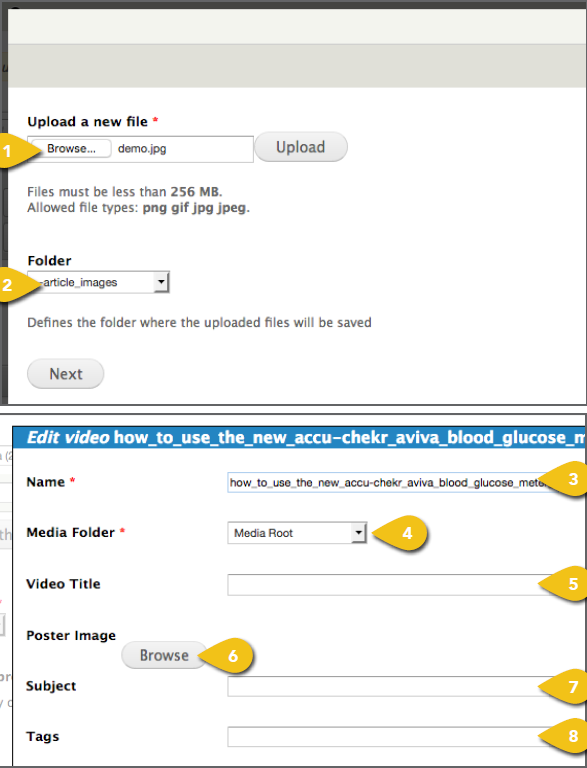
You may upload a local video from your system or select a video already loaded into the WCMS. Upload From Your Computer 1. Click the Browse or Choose File button under Upload a New File. Browse to the file, select it and click Open. Then select Upload. 2. Under Folder, select Product Videos from 3. Enter a Name that describes the video and ! This text is used by screen readers and search engines, and appears any time a video poster cannot be loaded. Adding alt text improves accessibility and search effectiveness. 4. Under Media Folder, confirm that the 5. Enter the Video Title. ! Title text appears when a mouse hovers over the video poster image. This provides context and improves usability. 6. Upload a Poster Image. This image, ! Use an image with an aspect ratio equal to 7. Enter a general Subject for the video, to aid in your future library searches. 8. Input any Tags or keywords that might |
 |
|
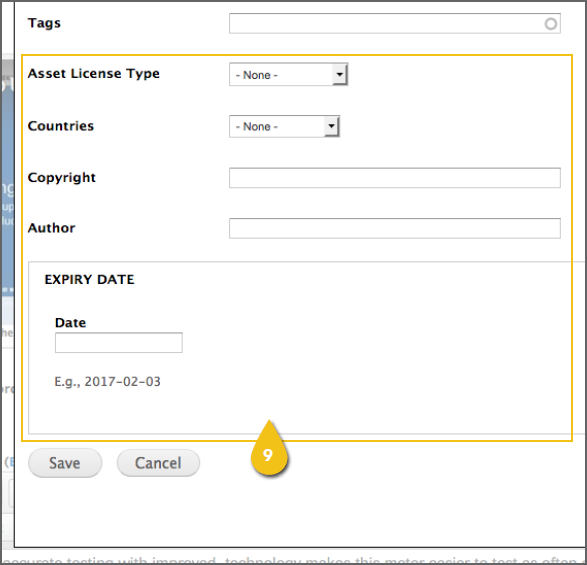
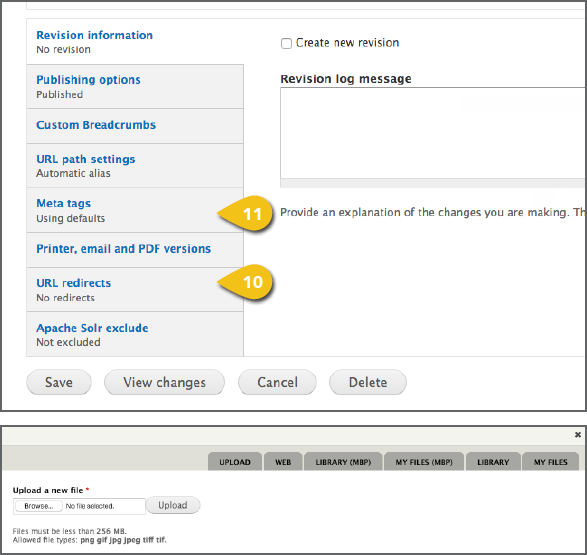
9. It’s recommended that you leave the Asset ! Do not enter an expiration date unless all 10. Add URL Redirect details, if you have any 11. Add page and content Meta Tags to aid in |
|