|
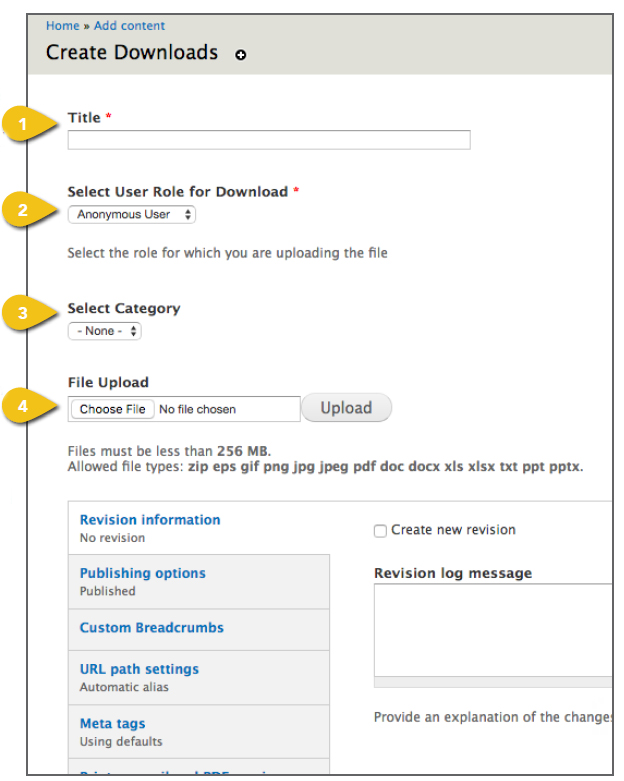
To offer an asset for download, such as a user guide or software update, select Add A Download from the Manage Content dropdown. Each downloadable file must be added individually. Follow the steps below to enter all of the necessary information and upload assets. Primary Content 1. Title: Enter the full asset name here. 2. Select User Role for Download: For any public assets, leave Anonymous User selected. Choose Authenticated User for items that require a login. 3. Select Category: Choose a download type from the drop-down. You will be able to choose the associated article or product in a field that will appear below. 4. File Upload: Click the Browse or Choose File button. Browse to the file, select it and click Open. Then select Upload. 5. Select Article or Select Product: This field will appear if you have selected Product or Article from the Category drop-down.
|
 |
|
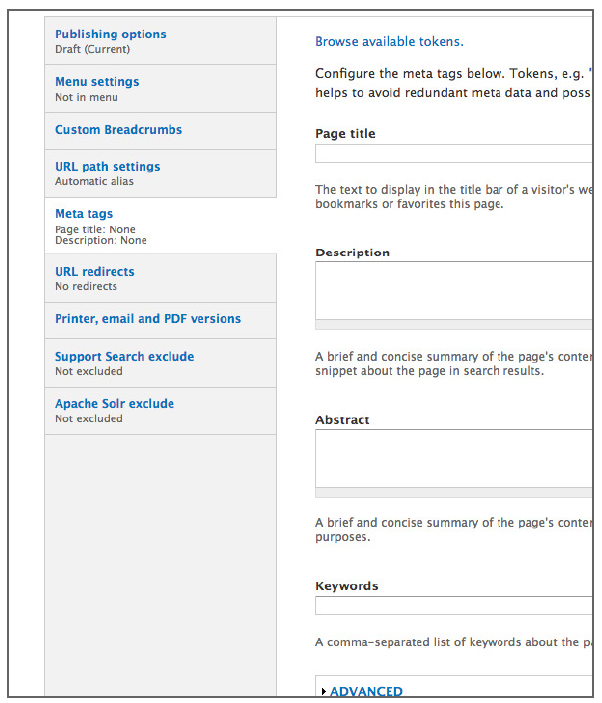
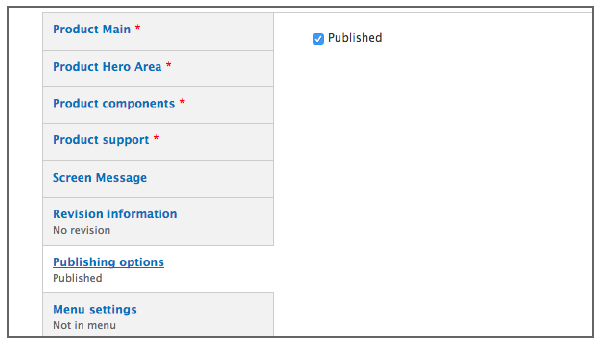
Additional Content These tabs appear beneath the primary content fields in the template. Get step-by-step instructions for the remaining options, including Publishing Options and Custom Breadcrumbs in the Additional Content Details section. Meta Tags Add page and content Meta Tags that incorporate popular search terms to aid in search performance and user access. See Meta Tags for additional detail. Save Click the Save button beneath the navigation pane to save your work. If you have checked Published under publishing options, this will send the page live. |
|