|
To upload video files, select Add A Video
from the Manage Content dropdown, then follow the steps below to enter all of the necessary information.
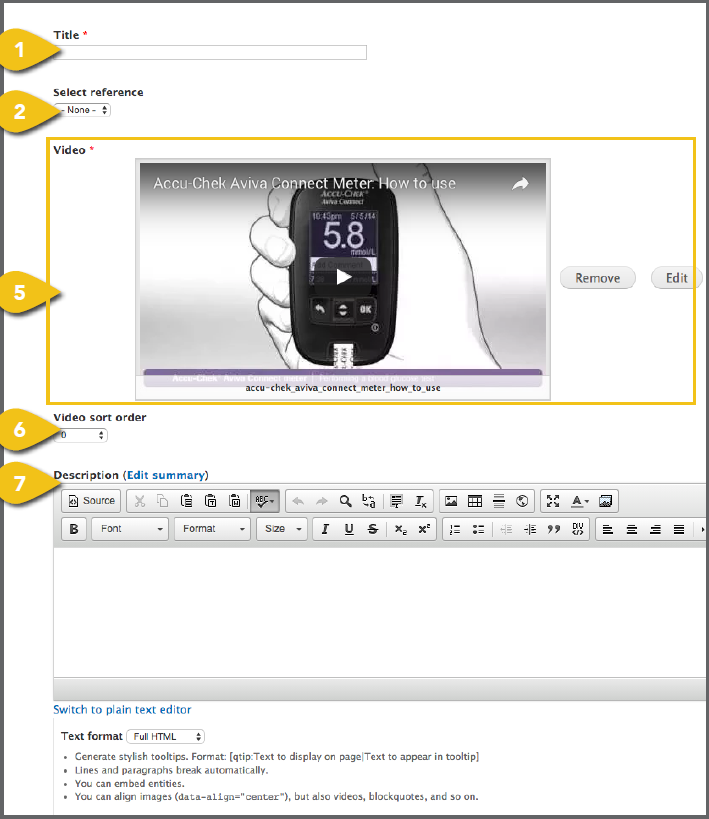
1. Title: Enter the name of the video here.
2. Select Reference: Identify whether this
video is associated with a Product, Article
or Webform. A new field will appear.
3. Select Products, Articles or Webforms:
Choose the pages on which this video
should appear.
• Begin typing a product name, article
title or webform page title in the text
field. As you type, a list of possible
matches will appear. If you don’t see
what you’re looking for, continue typing
and the list will refresh.
• Select the desired item.
• To add the video to multiple pages,
click Add Another Item and repeat the steps above.
4. Video Type: Select whether you are uploading a How-To or Setup video from the
drop-down.
5. Video: Click the Browse or Choose File
button to select a video. Visit Add a Video
for detailed instructions on choosing a video and entering the information required.
6. Video Sort Order: If there are multiple
videos available, a higher number will
result in this video appearing closer to the
top of the list.
7. Description: Enter a brief description to
help users understand how viewing this
video can help them. Be sure to include
the full names of any featured products.
|