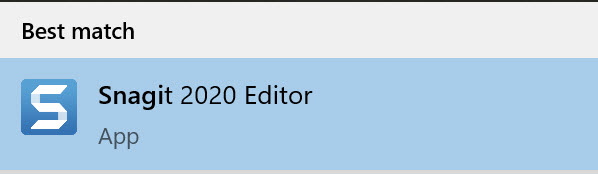
1. Open the Windows Start menu on your laptop and search for Snagit Editor. Select the Snagit 2020 Editor text to open the application.
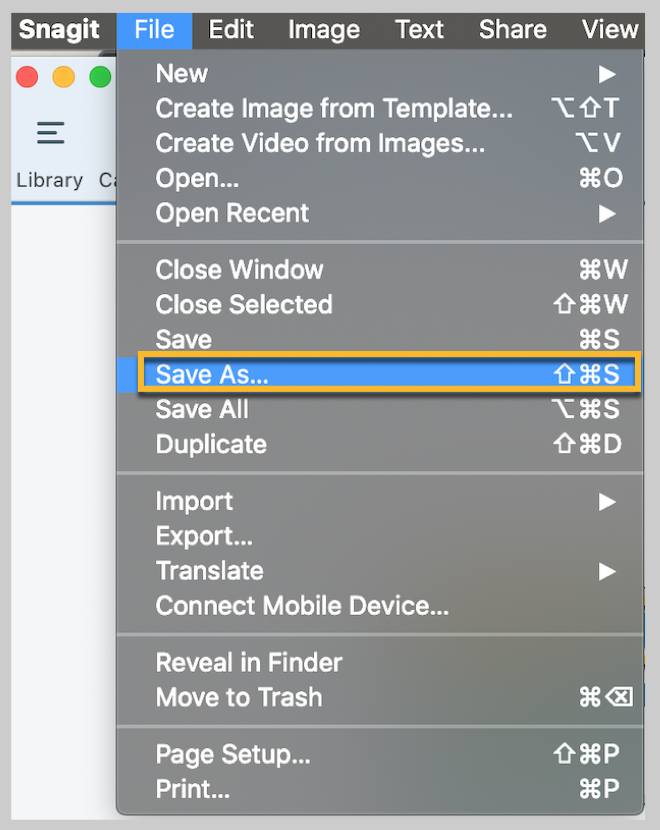
2. At the top left of the Snagit Editor application, you will see a File menu. Select the Open option, navigate to the video that you would like edit and select the video to open it in Snagit Editor.
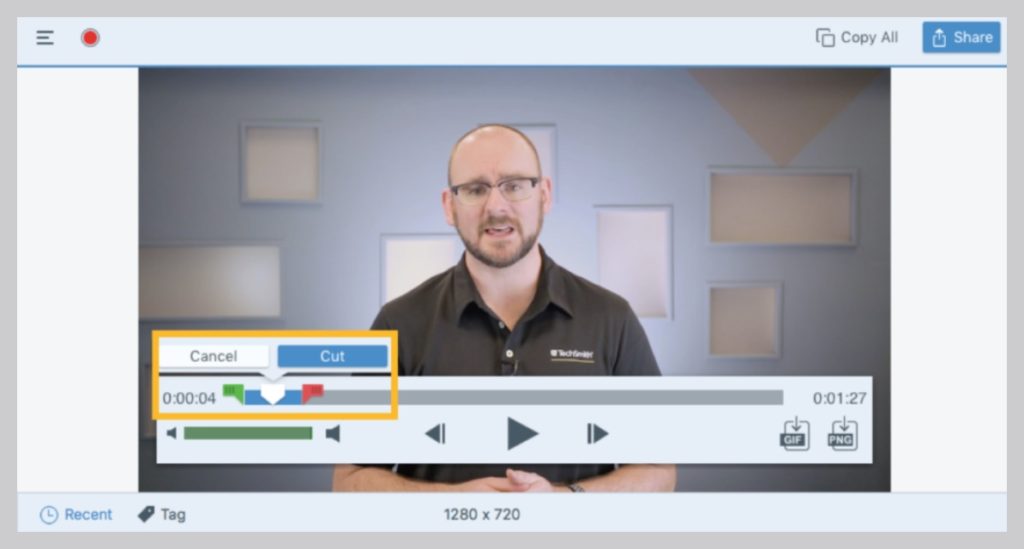
3. Use the playhead in and out points to select the portion of the clip you’d like to trim.
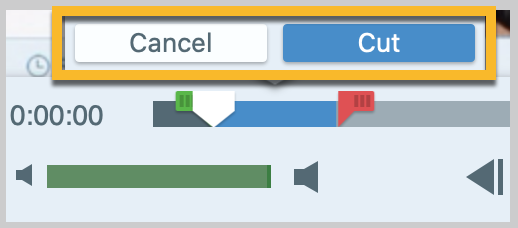
4. Click the cut, or trim, button to remove the selected portion of the video. Snagit adds a small yellow mark in the timeline to indicate where a portion of the video was cut.
Continue to select a portion of your video until you have the final video that you require.
5. Save your newly trimmed clip. If you want to preserve your original clip, use the “Save as” option and save the new clip under a new file name that is different from the original.