|
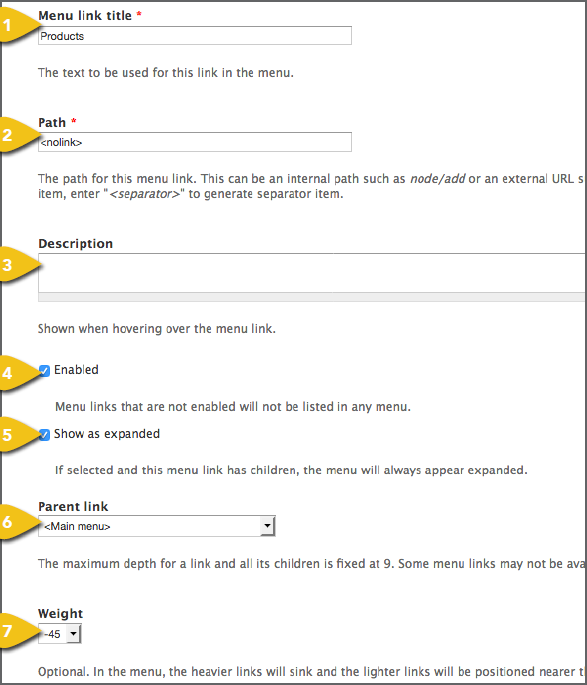
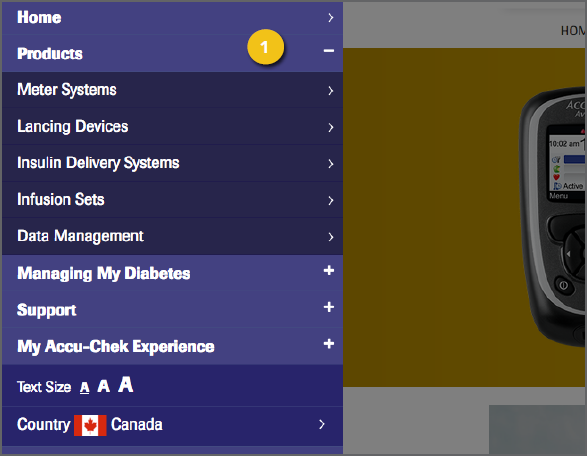
You can add links to the menu that opens from the left side of the screen when the hamburger icon (3 horizontal lines) is tapped. To add items to the hamburger/side menu, select Main Menu under Menu Management on the Configuration tab. While on the List Links tab, select Add Link to include a new link. You can also change the placement of individual items, as outlined below. Adding Hamburger Menu Links 1. Menu Link Title: Enter the text that should 2. Path: Enter an external URL or identify the internal node for the page the link will drive to. 3. Description: This brief phrase will appear when a user hovers over the link. 4. Enabled: Check this box when the link is live and should appear in the menu. Deselect Enabled to remove a link from the nav. 5. Show As Expanded: If the menu item has other items beneath it, checking this box will ensure that it is always shown as 6. Parent Link: Select the appropriate parent 7. Weight: The smaller the number, the |
|
|
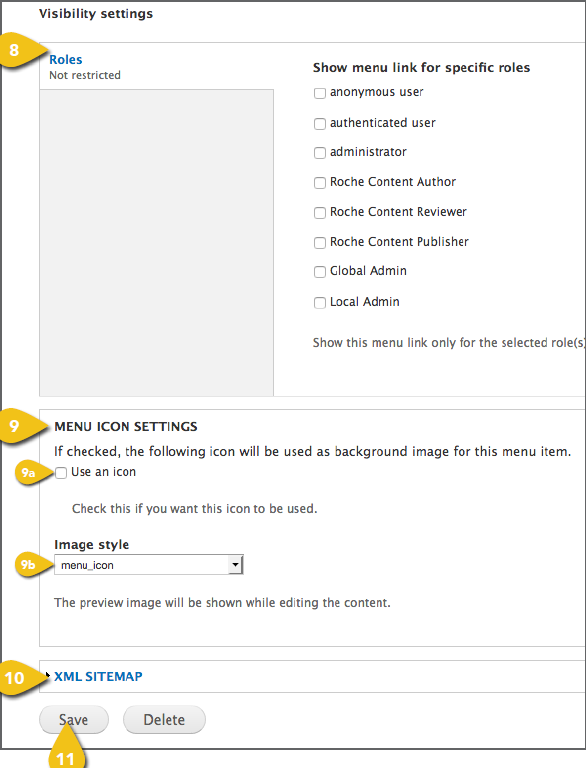
8. Visibility Settings: It is recommended not to check any of these boxes, so the link will 9. Menu Icon Settings a. Use an Icon: Check this box if you want b. Image Style: Select Menu Icons Default for icons to appear in the menu. c. Path to the Icon: If you would like to d. Upload a New Icon Image: Click the Browse or Choose File button. Browse to the file, select it and click Open. 10. XML Sitemap a. Inclusion: The Default (excluded) setting will not repeat this item in the sitemap. You can choose to have the item Included as needed. b. Priority: If you include the item in 11. Save: Save your settings here. If the link |
 |
|
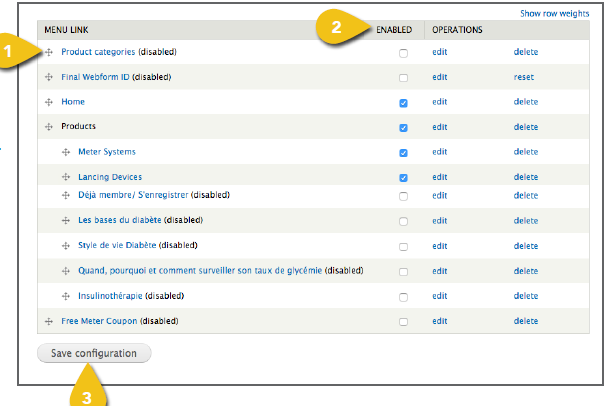
Changing The Order Of Hamburger Menu Links While on the List Links tab, you can also 1. Select the four arrows symbol at the left of any entry to move it into a new position.
2. At the far right of each item, you can 3. When finished, scroll to the bottom of the list and Save Configuration. |
 |