If you want to add white bullet points to your homepage slide or to a custom block in WCMS, you will have to make this update by altering the code in source view.
1. Type the lines of text that you want to have in a bulleted list into the Rich Text Editor.
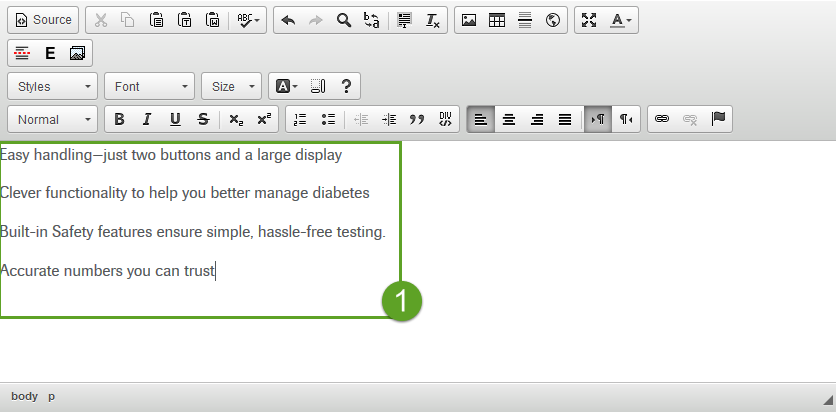
2. Highlight the text that you want in a bulleted list and click the Bullet Point icon to add bullet points to your text.
3. Your text should now be in a bulleted list with the default gray icons.
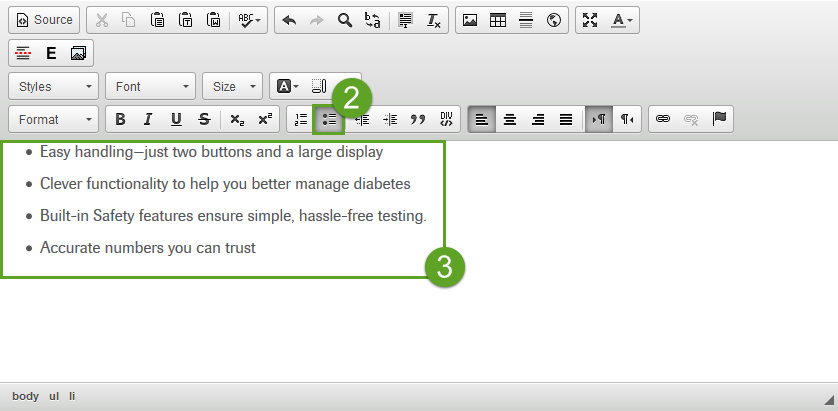
4. Click the Source icon to begin adding color to your bullet points.

5. Add this text, <li style="line-height: 22.08px;color:#FFFFFF;"> to the <li> tags in each row. The result should look the screenshot below.
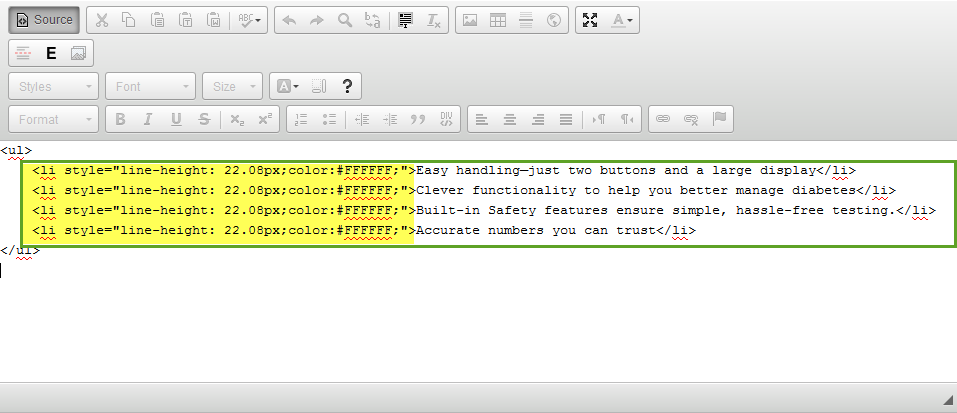
6. Test that your text and bullets are the appropriate color but clicking the Source icon again. The text should now be the color indicated in the hex code. Click the Save button to save your work.
Tip: The hex code (example, #FFFFF) that you put in the <li> tags will be the color of the text and bullet points.