Back up
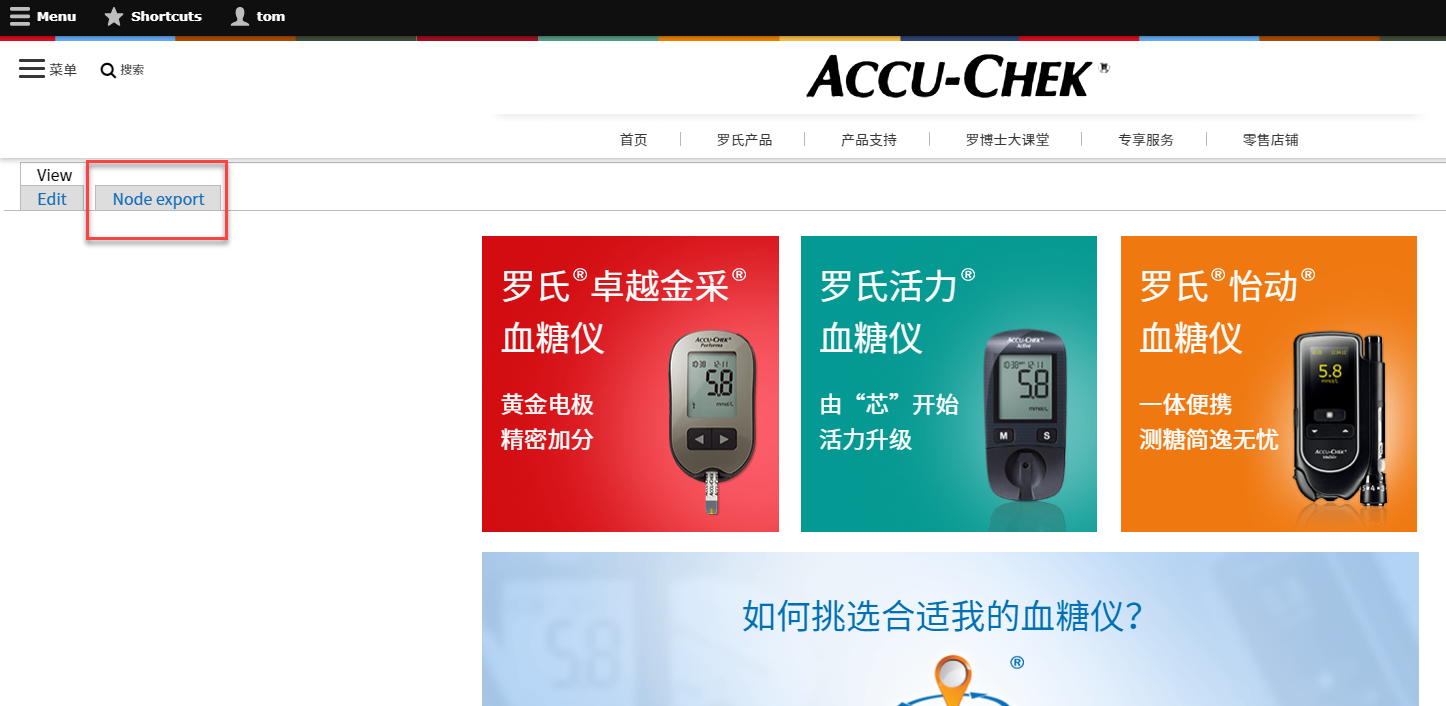
Make sure to back up any Awecontent node you want to edit before making changes. You can do this by clicking Node export. This is recommended even in a test environment.
Import from Backup
If you need to import the node again, you can do this by going to: /admin/workbench/create and clicking Node export: import.
You can then upload the file that you had previously exported. The final step is to make sure you copy over the corresponding CSS and JS files and rename them to be used with the new node. You will also need to open up these files and make sure you replace any references to the old node number to the new one.
Which block do I Edit?
1. If you are editing background color or image of a block, use the blue edit icon.
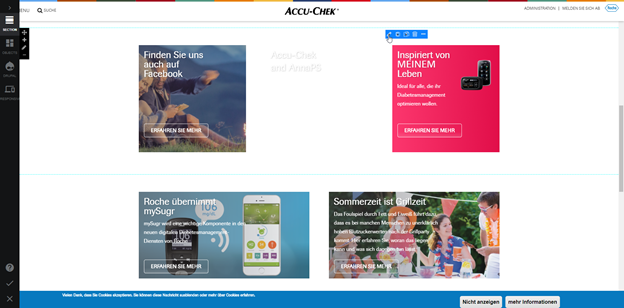
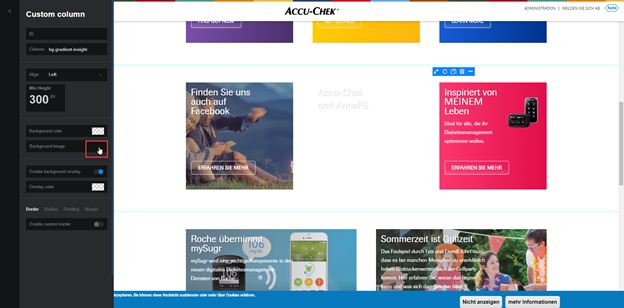
Set the Mode to FullCover. This will change the background to scale correctly. NOTE: They will crop from the center. If you don’t like how it is cropping you will need to adjust the dimensions of the image.
2. If you are editing the text and button of the block you will click the grey edit icon.
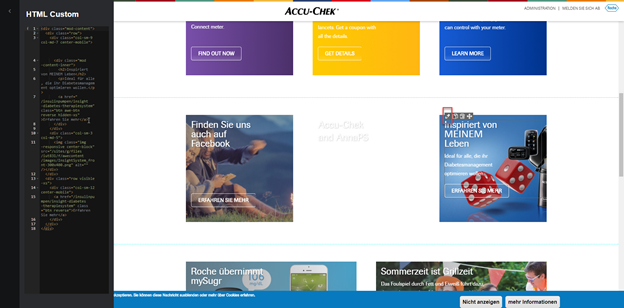
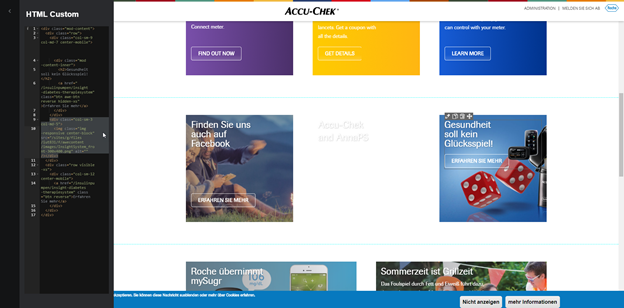
This brings up the text on the left, which is in html. Please be very careful to edit the text between < >. If you accidentally delete the tags, the custom block will look broken.
Save a New Layout

If you have built a new version of your page that you would like to use a template, you can click Save Page as Template. You can create a new page from this template by going to /admin/workbench/create and selecting New Template. You will still need to copy and convert the assets, CSS, and JS files that the new node needs before it will look correct. This is very similar to the backing up method mentioned above.
Bugs
The most common bug Awecontent users run into is clicking on the wrong icon when it looks like you should be clicking on the correct one.
Here are some examples. Pay attention to which icon is highlighted or glowing, not which one mouse cursor may be on.
1. I appear to be hover over the edit pencil, but the icon to the right is actually glowing. This will result in my node's width being halved instead of editing it.
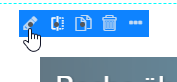
2. I moved my cursor a little more to the left and now the edit pencil is glowing. This will get me the result I want, to edit.
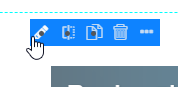
3. Here's the same thing again. I am hovering over the duplicate icon, but it is actually the delete icon that will be activated. This is definitely not what I want!
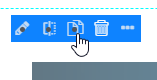
4. I moved my cursor a little bit more and now I have the duplicate button that I want to use.
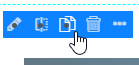
Make sure you pay attention to the icons when you are working in Awecontent. If you press the wrong icon, just refresh the page.