You need a Facebook profile to create a Business Manager account.
Use your Facebook username and password to sign into Business Manager. It's a more secure way to log in than with just an email address and password. Note: You can create only 2 Business Manager accounts.
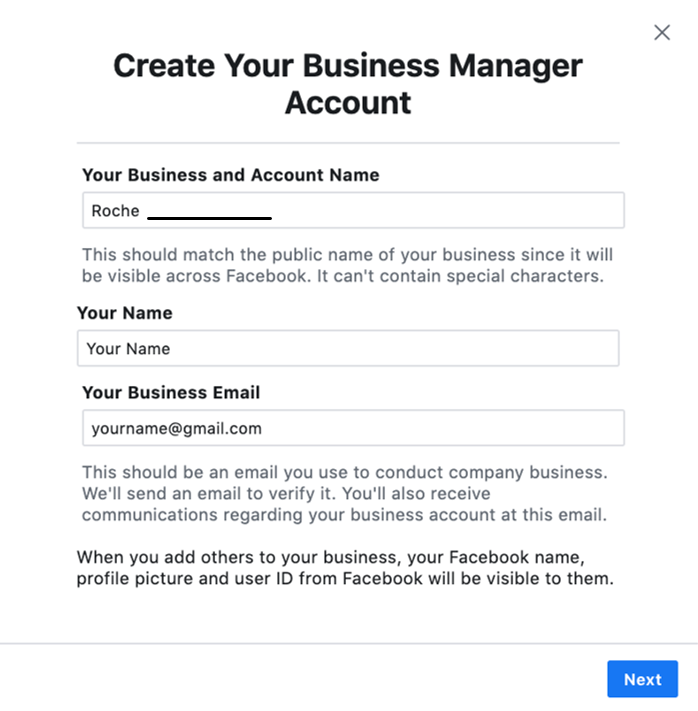
To create a Business Manager:
- Go to business.facebook.com/overview.
- Click Create Account.
- Enter a name for your business, your name and work email address and click Next.
- Enter your business details and click Submit.
How to add people to your Facebook Business Manager
To give people access to your business:
- Go to Business Settings.
- Click People.
- Click + Add.
- Enter the work email address of the person you want to add.
- Select the role you'd like to assign them. Be sure to read the description for each role. Choose either Employee accessor Admin access. You can also select Show Advanced Options to choose Finance analyst or Finance editor.
- Click Next.
- Choose a type of asset in the first column, then select the individual assets you want to add this person to in the second column. In the third column, toggle on each task you'd like to grant them. Or, toggle on admin access to allow them to manage the asset and perform all available tasks. You can add people to multiple assets on this screen by repeating this step.
- Click Invite.
How to add an advertiser to your Facebook Business Manager
If you want to manage your ads with other people, you can add them to your ad account. You can give people the following roles based on what permissions you'd like them to have:
- Ad account admin: Admins can create, edit and view ads, access reports, edit payment methods and manage admin permissions.
- Ad account advertiser: Advertisers can see and edit ads and set up ads using the payment method associated with the ad account. They can also view the payment method.
- Ad account analyst: Analysts can view ads and access reports.
To add someone to your ad account:
- Go to Ads Manager Settings.
You may be asked to re-enter your password. - Under Ad Account Roles, select Add People.
- Enter the name or email address of the person you want to give access to.
- Use the dropdown menu to choose their role and then click Confirm.
- The person you add will have immediate access to your ad account according to the role you chose for them. You can always change their permissions or remove a person from your ad account by selecting Remove User that's next to their name.